
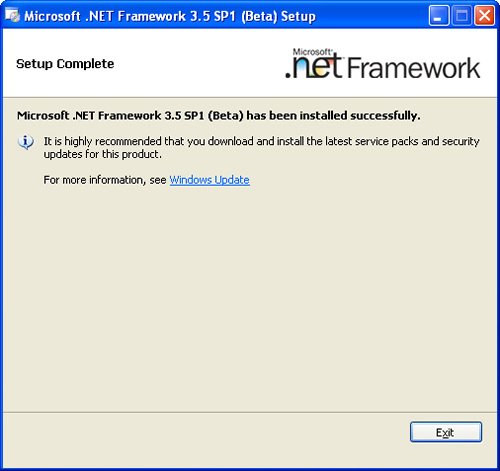
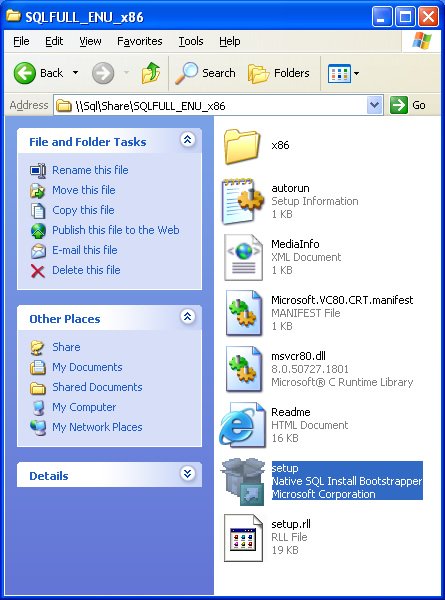
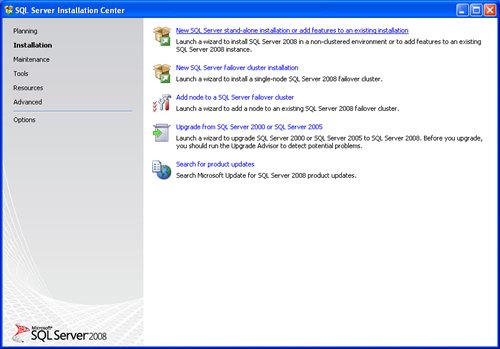
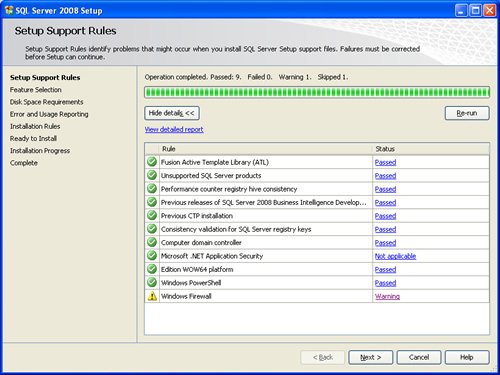
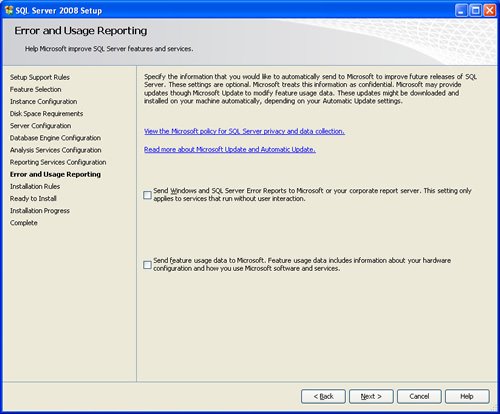
SQL SERVER 2008 has been released for some time and I have got numerous request about how to install SQL Server 2008. I have created this step by step guide Installation Guide. Images are used to explain the process easier.
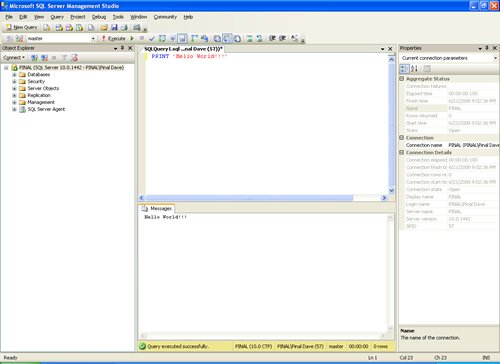
SQL Server 2008 is a major improvement from SQL Server 2005. Honestly, I still see lots of people still using SQL Server 2000. I would like to say it is time to upgrade and move to the next version of SQL Server. In SQL Server 2000, DBA had to use two different tools to maintain the database as well as the query database, specifically SQL Server Enterprise Manager and SQL Server Query Analyzer. With the release of SQL Server 2005 both of these tools are combined into one tool: SQL Server Management Studio. For a while DBA who were fans of Query Analyzer requested to bring it back, but as they keep on using SQL Server Management Studio (SSMS) they realized that it was much more convenient if every task related to SQL Server could be accomplished using SSMS. With the release of SQL Server 2008 Microsoft has upgraded SSMS with many new features as well as added tons of new functionalities requested by DBAs for long time.








Reference : Pinal Dave (https://blog.sqlauthority.com)




402 Comments. Leave new
Hi Pinal
i have installed as the steps given by the Installation Guide..
but still i am not able to connect to the Windows Athentication as well as SQL server authentication.
plz guide me on this.
regards
Karlapudi
good one …
really helpful …
thanks a lot …
Its really helpful
Thanks a Lot
You are da bomb!!!!!
It was very useful, please keep up with the good work.
Thanks
hey i follow the step but i can t log in as server authentication. my pc is windows 7
help me
Hi,
The page is no longer loading the images from your source server, has been that way for 2 weeks….hoping you get it up again soon.
Cheers
Hi,
I received below error while installing SQL server 2008.
Pls help…
TITLE: Microsoft SQL Server 2008 Setup
——————————
The following error has occurred:
” is not a valid login or you do not have permission.
For help, click:
——————————
BUTTONS:
OK
——————————
Hi.. i have getting exactly same problem on windows 7 64 bit home basic edition os…..
what is the solutions for ths error…
i hv also installed same setup on windows 7 ultimate edition…
its installed sucessfully..
so what is the meaning of this:
? it means its not compitable for win 7 64bit home basic edition
if no
then please give the solutions
Regards
Rajan
hi, during the installation sql server express R2 2008 got error os 2003 ans sp2 and 32 bit
sql server express R2 version 32 bit 235 mb please replay this isse which i got
TITLE: Microsoft SQL Server 2008 R2 Setup
——————————
The following error has occurred:
This access control list is not in canonical form and therefore cannot be modified.
Click ‘Retry’ to retry the failed action, or click ‘Cancel’ to cancel this action and continue setup.
pls help me
ASAP
ssengu
Hi Pinal,
Thanks for your nice posts on all topics..
Today i tired SQL 2008 installtion eith 64bit on win2008 server 64 bit.
I m not able to get the “Feature Section” screen after the “Setup support Rules” screen.
Any guess on this.
Please help on the above issue, it helps me a lot.
thank you
Hi Pinal,
thanks for veryfull artical.
i am trying install Sql Sever 2008 standred edition on windows 7 Ultimate.
but end i am get error
rule “operating system supported for edition “.
MS Sql server 2008 Standred edition is it not Comparablety problem.
please do needful.
Thanks,
Bhaskar
Hi Pinal,
Thanks for very useful article.
i am trying install Sql Server 2008 standard edition on windows 7 Ultimate.
but end i am get error
Rule “Operating system support for edition” failed
This sql server edition is not support on this Operating system. See Sql Server Books online for information about support operating system for SQL small Business edition
MS Sql server 2008 Standard edition is it not Compatibility problem.
Please do needful.
Thanks,
Bhaskar
iam so delightful to get this guide of sql installation////
thx was confused about service accounts but ur screen shot fixed up that confusion.
thanks again helped lots.
Hi,
SSL Server 2008 setup was sucessfully done and all the database created and restored sucessfully, but next time i want to login in sql server specified instance its showing the error that Server conection done sucessfully but specified instance not connected.
Any guss on this issue
check either sql able to get it in the list of available sql server in same environment.
To do this, open cmd and run
sqlcmd -L
if you want this result in text file then
sqlcmd -L >c:serverlist.txt
you will get the list of all sql server in your environment. Check if this instance exists here
it is little bit difficult to install.so more easy way required or installing information should be attach with the software.
ohhhh godd finallllllyyyy sth wrkdd fr me :)
ihv downld ths softw thrice n ihv deleted cos thr ws sum prob withh user n passwd :(
ihv downld it againnn n found the same probbb..
thogg to justtt luk aroundd on the forumsss n ihv foundd thsssssss….
IT WS AWESUMMMMMMMMMMM !!!!
no need of writingg sthhh or givings commentsss cos
U CAN SEEE IN THE SCREENSHOTS WHIC one to SELECT N WHICH ONE SHOULDNT BE !!!!
so … its not at all a concern of havingg comments under the screens LOL !!!!
thxxxx so muchh PINAL dave :)
lov u bro :)
i needed ths stuff fr progrmnnn thx a lot :)
THANKS A LOT FOR PROVIDING SUCH A GOOD INFORMATION FOR LEARNER.
THANK AGAIN.
REGARDS
YASEEN
Very-very healpfull….
Thanking you.