
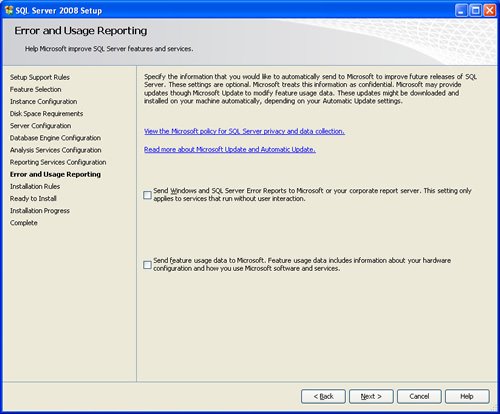
SQL SERVER 2008 has been released for some time and I have got numerous request about how to install SQL Server 2008. I have created this step by step guide Installation Guide. Images are used to explain the process easier.
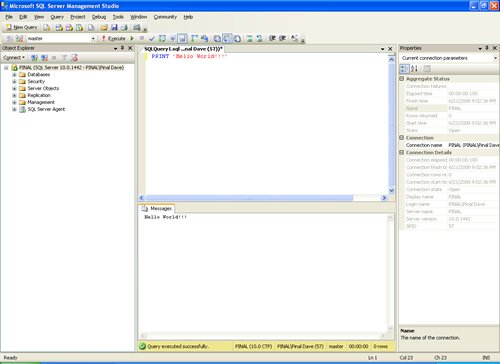
SQL Server 2008 is a major improvement from SQL Server 2005. Honestly, I still see lots of people still using SQL Server 2000. I would like to say it is time to upgrade and move to the next version of SQL Server. In SQL Server 2000, DBA had to use two different tools to maintain the database as well as the query database, specifically SQL Server Enterprise Manager and SQL Server Query Analyzer. With the release of SQL Server 2005 both of these tools are combined into one tool: SQL Server Management Studio. For a while DBA who were fans of Query Analyzer requested to bring it back, but as they keep on using SQL Server Management Studio (SSMS) they realized that it was much more convenient if every task related to SQL Server could be accomplished using SSMS. With the release of SQL Server 2008 Microsoft has upgraded SSMS with many new features as well as added tons of new functionalities requested by DBAs for long time.
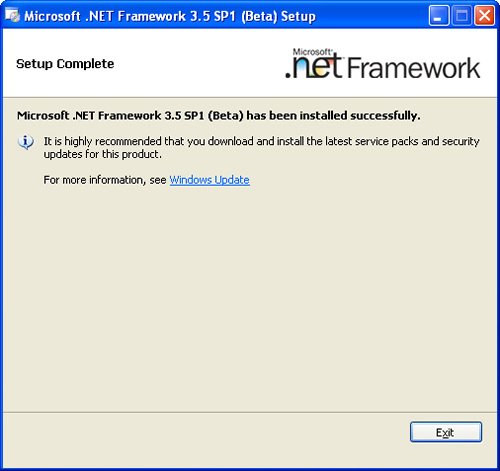


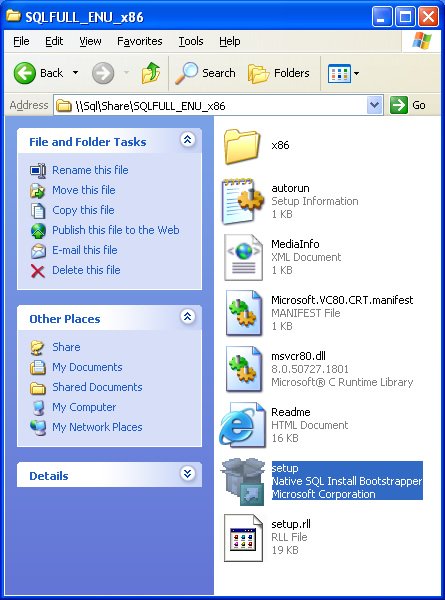
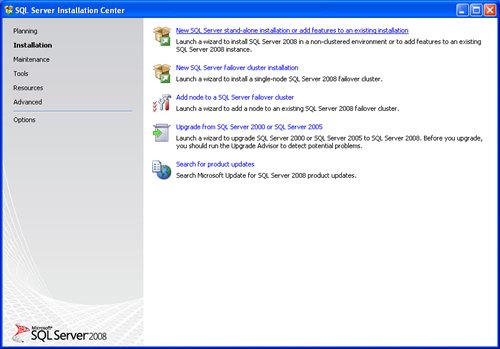


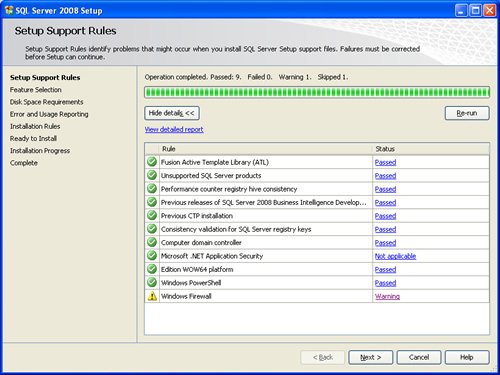




Reference : Pinal Dave (https://blog.sqlauthority.com)




402 Comments. Leave new
Thanks you for your great work
M very thankful for your help for sqlserver 2008r2 installation… thanks for making easy step-by-step instructions.. :)
Hi, on the server configuration does not accept any account name.
what should I do? I am a beginner :)
i have installed SQL server 2008 but my server name is not valid as u giver (PINAL) please help me what i do..
My server is blocked. Error message is License invalid. How to recover the sql. please help me
Very Usefully..thanks a lot…
Thank u for ur installation step for sql server…. insatalled successfully in my laptop….
This is nice for someone who just wants to do simple installation, it would have been helpful if there were some extra comments and screenshots about some options such as placing data, log and other files on seperate drives. I can’t complain though as Pinal Dave does a GREAT job documenting and sharing his knowledge. THANK YOU.
Can any one tell me i have windows 7 OS which version of server server i need to install for complete reporting service every thing please provide me link of software sql server 2008 download
thnx ….finally i installed sql on my acer. Great work …thnx again
thnx ….finally i installed sql
thnx again
Thanks a lot
How useless is this… just a bunch of jpg’s??? where is the step by step guide?
thanks dear …….without your this image i cant install .
Hi, while I am trying to install SQL Server 2008 R2, getting the following error.
Please suggest me to resolve this issue.
The following error has occured:
Error 1935.An error occured during the installation of assembly
‘Microsoft.VisualStudio.Tools.Applications.Contract.v9.0,version=”9.0.0.0″,publicKeyToken=”b03f5f7f11d50a3a”,processorArchitecture=”MSIL”,fileVersion=”9.0.30
729.4462″,culture=”neutral”‘. Please refer to Help and Support for more information. HRESULT:0x80070005
Thanks in advance.
Thanks a lot!!! This really helped me a lot! :)
Your installation guide just worked great for me
Thank you
Hoa Ngo
Thanks a lot!
Thank you very much.. Very easy to follow ;)
Thanks sir
And 1 more request is dat i want step by step process for upgrading SQL 2008 to 2008 R2
Hi, I am tired to search sql server 2008r2 right installation link and try many link unfortunately all failed.Can u pls. provide the right link where i can download the .exe of sql 2008r2. pls. help me
Thanks in advance