
Operating system error 1326 means authentication failed while SQL Server tried to open the backup destination. In this 2017 case, SQL Server ran on a workgroup computer and the backup share was on a domain server. The boundary between those identities mattered.
Start With the Error and the Destination
The backup task reported this type of error. The example uses a neutral server and file name.
Cannot open backup device '\\BackupServer\SqlBackups\ExampleDb.bak'.
Operating system error 1326
(Logon failure: unknown user name or bad password.).
BACKUP DATABASE is terminating abnormally.
Keep the exact operating system error. A logon failure differs from a missing path and from an access denied error after a successful logon. A password typo is one cause, but the account context and the trust relationship also need a check.
Compare the Error Codes
Four codes show up in backup failures to a share, and each points to a different layer. The first block triggers two of them in a test database. The second prints the Windows text for four codes.
DECLARE @db sysname = DB_NAME();
BACKUP DATABASE @db TO DISK = N'Z:\Backups\Test.bak';
BACKUP DATABASE @db TO DISK = N'\\localhost\NoSuchShare\Test.bak';
1326, 67, 5, 3 | ForEach-Object { '{0}: {1}' -f $_, ((net helpmsg $_) -join ' ').Trim() }A missing drive returned operating system error 3. A share name that does not exist returned error 67. Neither looks like a logon problem. Error 1326 reads The user name or password is incorrect, and error 5 reads Access is denied. Error 5 means the logon worked and the permission is missing. Error 1326 means the logon itself failed.
Identify the Process That Writes the Backup
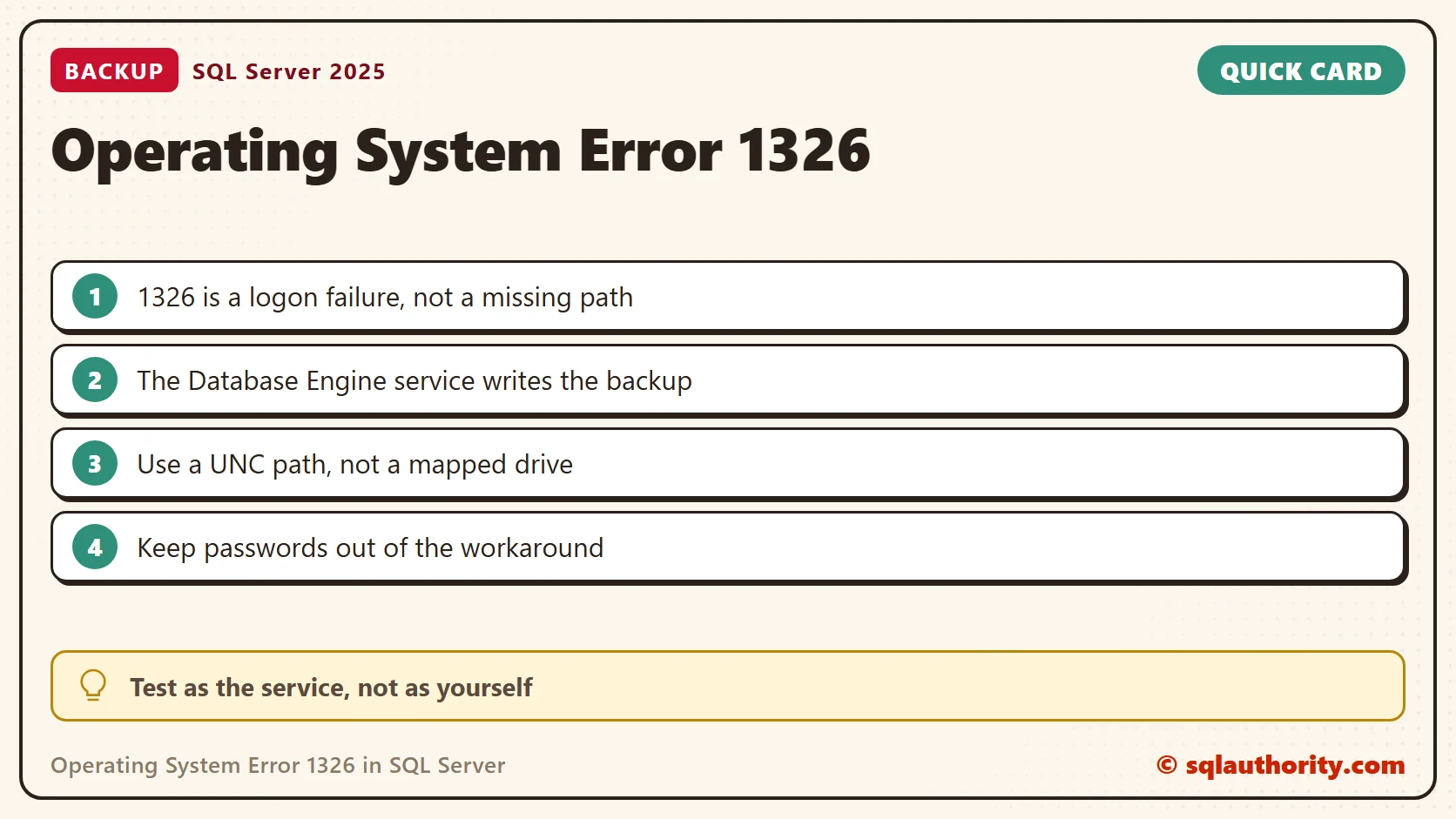
For a BACKUP command, the Database Engine service writes the file. A job history line that shows the SQL Server Agent account does not mean that account opens the destination. It is easy to blur those two identities.
This query lists the services of the instance and their accounts. It needs VIEW SERVER STATE on SQL Server 2019 and earlier. On SQL Server 2022 and later it needs VIEW SERVER SECURITY STATE.
SELECT servicename, service_account, status_desc
FROM sys.dm_server_services
ORDER BY servicename;
My Database Engine runs as NT Service\MSSQL$SQLDEV, and SQL Server Agent has its own account and is stopped. Those are the identities the destination sees. For a package or job with extra file copy steps, check those steps separately, because their identity can differ.
Check Authentication and Access Separately
- Confirm the UNC path, the share server and the account that the Database Engine uses on the network.
- Ask the Windows administrator to inspect the failed logon on the destination server. In a workgroup to domain setup, a local identity cannot authenticate as a domain identity.
- After authentication works, verify the share and file system permissions for that identity.
- Use a UNC destination such as
\\BackupServer\SqlBackups\ExampleDb.bak. A drive that you mapped in your desktop session is not visible to a Windows service.

You can also ask the engine, which uses its own identity. This function lists a folder as the service and prints the operating system error when it fails.
SELECT full_filesystem_path, is_directory
FROM sys.dm_os_enumerate_filesystem(N'\\localhost\NoSuchShare\', N'*');
On my PC it printed error 0x80070043, the network name cannot be found, and returned no rows. On a real share that rejects the service identity, expect 0x8007052E, the hex form of error 1326. This test needs no backup and no password.
Keep Credentials Out of the Workaround
The original case used an authenticated drive mapping inside the service context. I would not use its embedded password and xp_cmdshell commands as a routine fix. They expose credentials and depend on a session mapping. On my instance xp_cmdshell is off, the safer default.
Have the administrators of both systems resolve the service identity and the network access. Use SQL Server Configuration Manager for a planned change of the service account. Do not broadly change credentials or open the share to everyone to clear the error.
When the access works, confirm that the backup completes and add a restore test to your validation. Browsing the share as yourself does not prove that the backup service can write to it.
A successful desktop login is not proof of backup access, it is a different security context.
Published by Pinal Dave on SQLAuthority. More of my work at pinaldave.com.
Discover more from SQL Authority with Pinal Dave
Subscribe to get the latest posts sent to your email.


![SQL SERVER - Clustered Instance Online Error - SQL Server Network Interfaces: Error Locating Server/Instance Specified [xFFFFFFFF]](https://blog.sqlauthority.com/wp-content/uploads/2016/11/sql-clus-01-350x309.jpg)

15 Comments. Leave new
Is this safe for ransomeware attack?
It’s not working doing this in my system. pls help..
great post, what do you mean by session? does it mean that if I disconnect from sql server the mapping will be deleted? as far as I know it would only be deleted if the sql server service gets restarted
you are correct.
What to do if user’s password is changed?
i am getting below error:
The user name or password is incorrect.
You need to remove the share using net share /delete command. and add again.
This is excellent, after two days i have resolved issue with the help of this article.
Thank you very much
My pleasure Abdus.
Exactly resolved my problem.But I’m new on the sql and before search how to work xp_cmdshell on the other web site.Thanks and Regards.I think this is very helpful information.
One of our Cluster Node was able to access network share while the other wasn’t. I tried many steps but it didn’t work. finally this article was life saver. it fixed my issue.
Thanks heaps.
awesome! thanks for the tip. One question, if I make this a stored procedure how do I get it to append or write a different file if one already exists? Example, I want 7 days worth of backup files, so when the second one executes, it doesn’t overwrite the first and so on.
We have tried many steps it didn’t worked. finally we check this article was help us a lot. and we fixed issue with help of above given steps relay it’s work us..
Thank you so much for giving with details.
Pinal, I tried this solution the other way around – backup from a domain server to a workgroup shared drive. It works! Thanks for the tip.
Pinal I have doubt about the same issue on workgroup machine we have installed SQL Server 2019 and have backup the database on 2 backup drive one for NAS drive and another one for SAN Drive and the sharing permission on both drive is same with domain user but for me I am able to get the database backup on SAN drive but not able to receive on NAS drive. can you please help me out
Thank you. the solution work properly in MS SQL Server Windows, How to do this solutions in MS SQL Server Linux 2019?