
While installing Service Pack 3 for SQL Server, I was welcomed by a strange error about UNKNOWN\Components. The installer showed Error 1402.
Line 2421: MSI (s) (C8:98) [22:31:05:835]: Product: Microsoft SQL Server System CLR Types (x64) – Update ‘Service Pack 3 for SQL Server System CLR Types (64-bit) (KB2979597)’ could not be installed. Error code 1603. Additional information is available in the log file C:\Program Files\Microsoft SQL Server\100\Setup Bootstrap\Log\20160105_195913\TFSDEV01\SQLSysClrTypes_Cpu64_1.log.
When I checked SQLSysClrTypes_Cpu64_1.log file, I found below error.
Line 2063: Error 1402. Could not open key: UNKNOWN\Components\0F02D6F45ECC29410AF18C3B9B1A1EE8\EDED107488810E94AB5E58875729C42A. System error 5. Verify that you have sufficient access to that key, or contact your support personnel.
Before attempting solutions, please take a backup of the registry. Microsoft’s built-in backup program allows for the ‘system state’ to be selectively backed up. You can also backup the Windows\System32\Config’ directory while taking backup.
SOLUTION
Step 1
Try KB
This is a long KB and take a lot of time to find what exactly we need to run.
SECEDIT /CONFIGURE /CFG %WINDIR%\INF\DEFLTBASE.INF /DB DEFLTBASE.SDB /VERBOSE /AREAS REGKEYS

If above doesn’t work, then go to step 2
Step 2
I have used the psexec tool to grant permission on the components folder for logged in account, after granting the permission SP3 installation completed successfully. Here are the steps:
- Close registry editor, if opened.
- Download and install psexec utility from the following link http://technet.microsoft.com/en-us/sysinternals/bb897553.aspx
- Open a command prompt using ‘run as administrator’
- In the command prompt Navigate to the folder where PSEXEC is installed.
- Execute the following from the command prompt.
psexec -i -s cmd.exe
- The above command will open another command prompt running under ‘Local System’
- On the new command prompt, open Registry Editor by typing “regedit” and hitting the enter key.
- In registry editor, navigate to the following hive HKLM\Software\Microsoft\Windows\CurrentVersion\Installer\UserData\S-1-5-18\Components
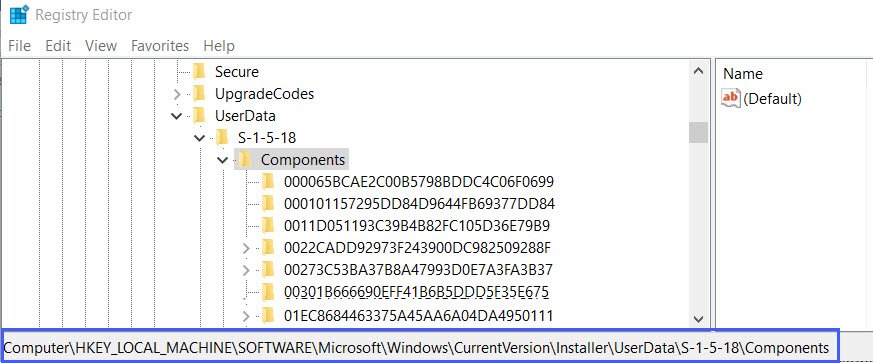
- Add the user account used to run the installation under permissions for the above hive and grant ‘Full control’ for that user.
- Click on Advanced.
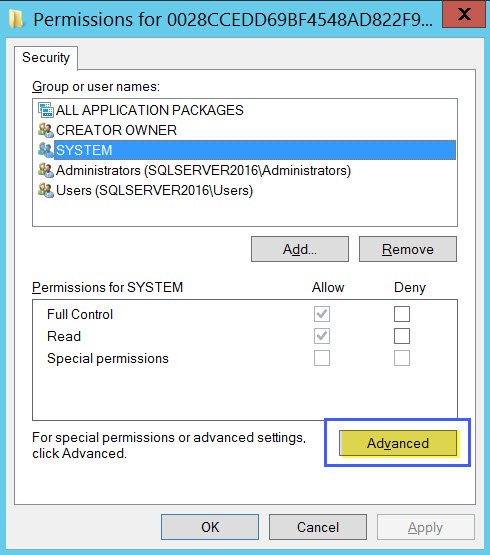
- Under the Advanced security settings for Components choose the user and check the “Replace all existing inheritable permissions…………” check box as shown below and click OK
I could move forward by following step # 2.
Published by Pinal Dave on SQLAuthority. More of my work at pinaldave.com.
Discover more from SQL Authority with Pinal Dave
Subscribe to get the latest posts sent to your email.



11 Comments. Leave new
this did nothing to help me. i’m trying to install razer synapse 2.0 with these methods and both did not work. please help
I have no idea about razer synapse 2.0
Hi Pinal,
Thanks a bunch.I was trying to install Veeam Windows agent (it is a backup application) and getting that error message. Your step 1 fixed my issue. Thanks a lot again.
Asif.
Thanks for saving my day
Been struggling to install SQL since 2 weeks without any solution but THIS worked wonders for me!!! Thanks a lot for sharing.
Thank you very much! Help a lot!
Thanks worked with MS SQL SERVER installation.
Many thanks Mr.Pinal Dave , its helped to proceed with SQL installation
your Best!!!..
But, how do i navigate on the command prompt
Muchisimas Gracias! funcionando a dia de hoy con la instalacion de sql server 2017 en windows 10 64 bits