Install AdventureWorks and WideWorldImporters once, the right way, and you own a database you’re allowed to break. I’ve written this post seventeen times since 2007, one for each new version of SQL Server. This one replaces all of them. It has the download links that work in 2026 and the restore steps in T-SQL and in SSMS. It also covers Docker and the five errors people email me about.
Why One More Post
Every one of those seventeen posts was correct on the day I wrote it. Then Microsoft moved the files from CodePlex to GitHub and renamed them. After that, each new file name got its own year. The comments under the old posts filled up with one question: why is the link dead? So the old posts now carry a note at the top that points here, and I’ll keep this one current.
A sample database is a model home. It’s furnished, the fridge has magnets, and nobody lives there. You can knock down a wall to see what happens, and tomorrow you restore it and the wall is back. Every demo on this blog runs against one of these two houses. That makes them worth ten minutes to set up properly.
Which One Should You Pick
There are two families. AdventureWorks is a bicycle company, and it has been the SQL Server sample since 2005. The 2025 version has 71 tables in five business schemas plus dbo, and 31,465 sales orders. It’s the database most tutorials, books and interview questions assume you have, including most of mine.
WideWorldImporters is a wholesale novelty goods importer. Microsoft built it for SQL Server 2016 to show off the newer features. It uses temporal tables, memory-optimized tables, columnstore, JSON and row-level security. It has 48 tables, ten custom schemas and 73,595 orders. When I demo performance tuning, this is the one I open.
Each family comes in a few sizes. The numbers below are the download sizes I measured this week.
| You want | Download this file | Size |
|---|---|---|
| Learn T-SQL, follow tutorials, run my older demos | AdventureWorks2025.bak | 48 MB |
| Newer features and my performance demos | WideWorldImporters-Full.bak | 121 MB |
| A star schema for reporting practice | AdventureWorksDW2025.bak or WideWorldImportersDW-Full.bak | 24 MB or 48 MB |
| Something tiny for a laptop | AdventureWorksLT2025.bak | 1.7 MB |
| Azure SQL Database | No file. Pick Sample when you create the database in the portal (see below) | none |
One thing about the year in the AdventureWorks file name confuses everyone. It isn’t a requirement, it’s a floor. Microsoft says the only difference between the versions is the database name and the compatibility level. AdventureWorks2019.bak restores fine on SQL Server 2025. What never works is the other direction: a 2025 backup will not restore on a 2019 server. So pick the year that matches your server, or any older year.
WideWorldImporters has only one year, 2016, and it restores on everything from SQL Server 2016 up to 2025. The Full version works on any edition except LocalDB, as long as you’re on 2016 SP1 or later. The Standard version exists for the rare case where Full won’t load.
Step 1: Download the Backup File
Both families live on GitHub now, in Microsoft’s sql-server-samples repository. The AdventureWorks files are on the AdventureWorks release page, and the WideWorldImporters files are on the WideWorldImporters release page. Scroll down to Assets and click the .bak file you picked from the table above.
Skip the .bacpac files unless you’re going to Azure SQL Database. Skip the .zip files with install scripts too. They rebuild the database from scratch with T-SQL. That’s a fun afternoon, but not what you need today.
Step 2: Put the File Where SQL Server Can See It
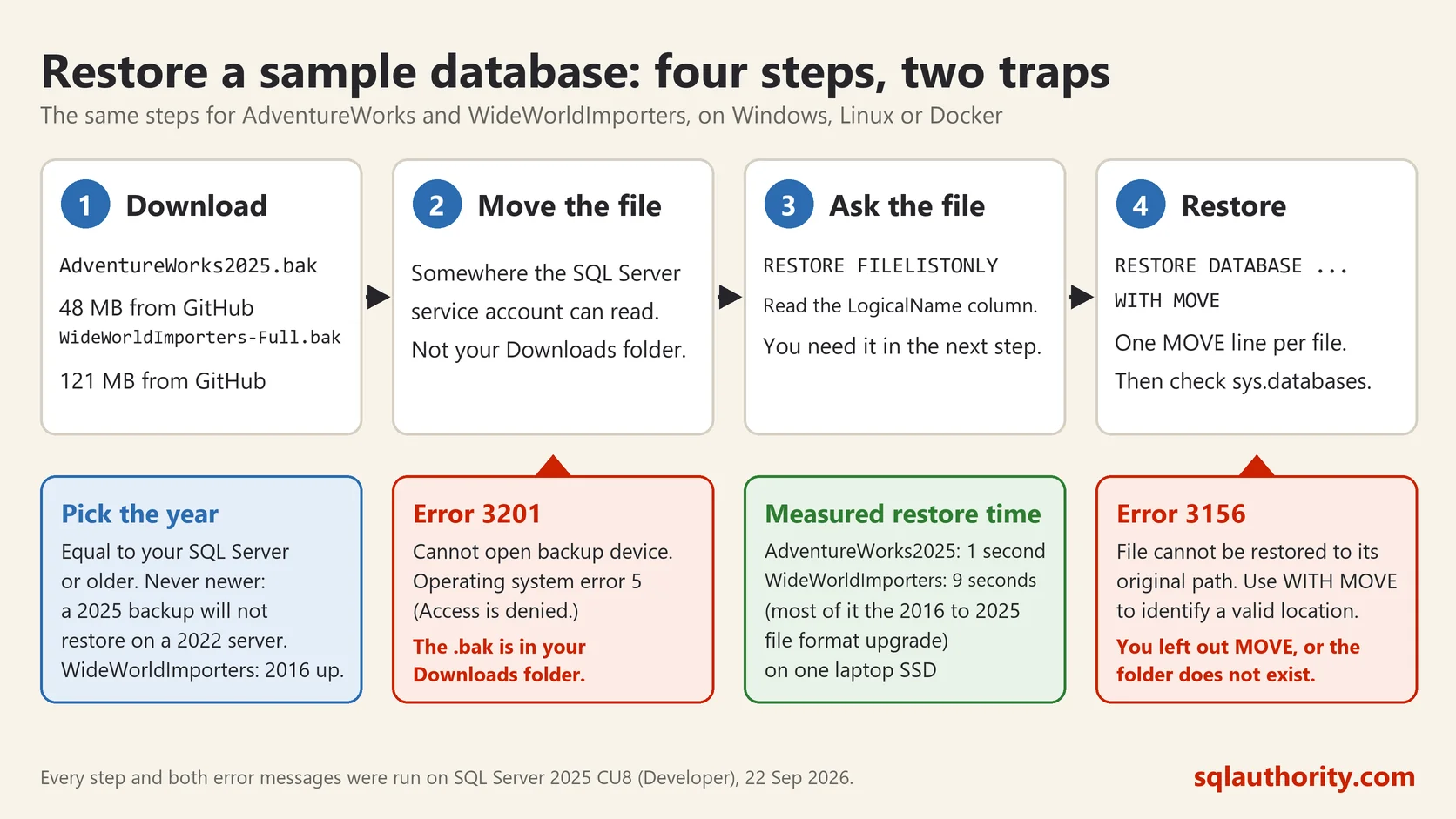
This is where most first restores fail. SQL Server doesn’t run as you. It runs as a service account, and on my machine that account is NT Service\MSSQL$SQLDEV. That account has no permission to read your Downloads folder, so a backup sitting there is invisible to SQL Server.
Move the file to the instance’s backup folder. This query tells you where that is, and where the data files go by default:
SELECT SERVERPROPERTY('InstanceDefaultBackupPath') AS BackupPath,
       SERVERPROPERTY('InstanceDefaultDataPath') AS DataPath;
Those two properties exist from SQL Server 2019 on. On 2016 and 2017 they return NULL, so open Server Properties in SSMS and look under Database Settings instead. On my server the backup path is C:\Program Files\Microsoft SQL Server\MSSQL17.SQLDEV\MSSQL\Backup. I keep my samples in D:\data instead, a folder I created and gave the service account permission on. Either works. The rule is short. The service account must be able to read the .bak file. It must also be able to write to the folder where the data files will go.
Step 3: Ask the Backup What’s Inside
Before restoring, I always ask the file two questions. The first one is which version of SQL Server made it, so I know it will load. The second is what the logical file names are, because the restore needs them.
RESTORE HEADERONLY FROM DISK = N'D:\data\AdventureWorks2025.bak';

RESTORE FILELISTONLY FROM DISK = N'D:\data\AdventureWorks2025.bak';
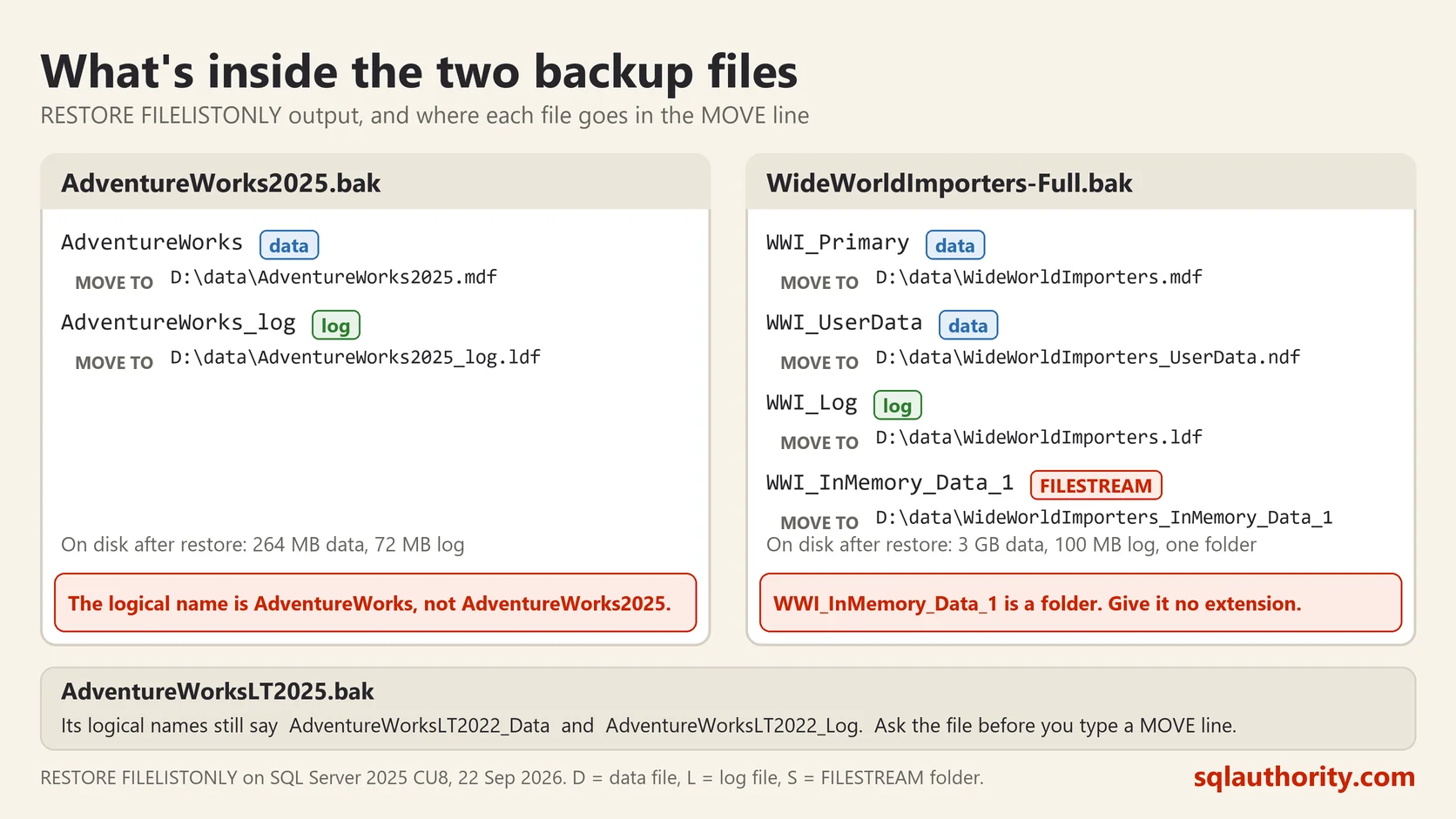
HEADERONLY returns one row per backup in the file. Look at SoftwareVersionMajor and CompatibilityLevel. FILELISTONLY returns one row per database file. The LogicalName column is the part you need. Here is what the two files contain, from the restore history on my server:
AdventureWorks2025.bak
  AdventureWorks           D   (data, .mdf)
  AdventureWorks_log       L   (log, .ldf)

WideWorldImporters-Full.bak
  WWI_Primary              D   (data, .mdf)
  WWI_UserData             D   (data, .ndf)
  WWI_Log                  L   (log, .ldf)
  WWI_InMemory_Data_1      S   (FILESTREAM folder)
Three traps hide in that list. The AdventureWorks logical name is AdventureWorks, not AdventureWorks2025, and a typo there fails the restore. The last WideWorldImporters entry is a folder, not a file. It holds the memory-optimized tables, so don’t give it an extension. And the small AdventureWorksLT2025.bak is the strangest of all: its logical names are AdventureWorksLT2022_Data and AdventureWorksLT2022_Log. Nobody renamed them for 2025, so ask the file before you type a MOVE line.
Step 4: Restore With T-SQL
This is my preferred way, because I can save the script and run it again next month. Change D:\data to your folder in both places.
USE master;
GO
RESTORE DATABASE AdventureWorks2025
FROM DISK = N'D:\data\AdventureWorks2025.bak'
WITH MOVE N'AdventureWorks' TO N'D:\data\AdventureWorks2025.mdf',
     MOVE N'AdventureWorks_log' TO N'D:\data\AdventureWorks2025_log.ldf',
     STATS = 10;
GO
WideWorldImporters has four files, so it needs four MOVE lines. The FILESTREAM one points at a folder that SQL Server creates for you.
USE master;
GO
RESTORE DATABASE WideWorldImporters
FROM DISK = N'D:\data\WideWorldImporters-Full.bak'
WITH MOVE N'WWI_Primary' TO N'D:\data\WideWorldImporters.mdf',
     MOVE N'WWI_UserData' TO N'D:\data\WideWorldImporters_UserData.ndf',
     MOVE N'WWI_Log' TO N'D:\data\WideWorldImporters.ldf',
     MOVE N'WWI_InMemory_Data_1' TO N'D:\data\WideWorldImporters_InMemory_Data_1',
     STATS = 10;
GO
Always use MOVE. Without it, SQL Server tries to put the files where they lived on the machine that made the backup. For AdventureWorks2025 that is the data folder of a default instance of SQL Server 2025 on the C drive. I tried it on my named instance this week, and it failed with error 3156 because the service account can’t write there. STATS = 10 prints progress every ten percent, a small comfort on a slow laptop.
On my laptop the AdventureWorks restore took about one second. WideWorldImporters took nine seconds, and most of that was SQL Server upgrading the 2016 file format one version step at a time. It prints every step, so a wall of “running the upgrade step” lines is normal and not a problem.
Step 5: Or Restore With SSMS
If you’d rather click, SQL Server Management Studio does the same thing and fills in the MOVE lines for you.
- In Object Explorer, right-click Databases and choose Restore Database.
- Select Device, click the three dots, click Add, and pick your .bak file. If your file isn’t in the list, SQL Server’s service account can’t read that folder. Go back to Step 2.
- Click OK. The Destination database box fills in by itself.
- Open the Files page on the left. Tick Relocate all files to folder and check that the data and log folders are where you want them.
- Click OK. A green bar at the top says Done when it finishes.
The Files page is the only step people skip. If the original paths don’t exist on your machine, SSMS swaps in your default data folder. That’s fine. If you want the files somewhere else, this is your only chance to say so.
Step 6: Docker and Linux
On Linux or in a container, the restore is the same statement with forward slashes. The extra step is getting the .bak file inside the container first. I ran the Windows steps above on my own server this week. The Linux paths below come from Microsoft’s documentation and from my older Docker posts.
docker exec -it sql2025 mkdir -p /var/opt/mssql/backup
docker cp AdventureWorks2025.bak sql2025:/var/opt/mssql/backup/
Replace sql2025 with your container name. Then connect to the container with SSMS, Visual Studio Code with the MSSQL extension, or sqlcmd, and run the restore:
RESTORE DATABASE AdventureWorks2025
FROM DISK = '/var/opt/mssql/backup/AdventureWorks2025.bak'
WITH MOVE 'AdventureWorks' TO '/var/opt/mssql/data/AdventureWorks2025.mdf',
     MOVE 'AdventureWorks_log' TO '/var/opt/mssql/data/AdventureWorks2025_log.ldf',
     STATS = 10;
WideWorldImporters works the same way with its four MOVE lines. Point the FILESTREAM folder at /var/opt/mssql/data/WideWorldImporters_InMemory_Data_1.
Step 7: Check That It Worked
A restore that finishes without an error is a good sign, not proof. Run these three queries. The results are from my SQL Server 2025 Developer instance, so yours should match.
SELECT name, compatibility_level, state_desc
FROM sys.databases
WHERE name IN ('AdventureWorks2025', 'WideWorldImporters');
name compatibility_level state_desc
AdventureWorks2025 170 ONLINE
WideWorldImporters 130 ONLINENotice that WideWorldImporters comes back at compatibility level 130. That is what it was backed up with in 2016, and a restore keeps it on every version. The 170 next to AdventureWorks2025 is the SQL Server 2025 level. An AdventureWorks2022 file shows 160, and a 2019 file shows 150. Most of my demos raise WideWorldImporters to the server’s own level, so the new optimizer features switch on. On SQL Server 2025 that is 170. Use 160 on 2022, 150 on 2019, 140 on 2017 and 130 on 2016, because a server rejects any level above its own.
ALTER DATABASE WideWorldImporters SET COMPATIBILITY_LEVEL = 170; -- SQL Server 2025Now ask each database a real question, so you know the data is there and not only the shell.
USE AdventureWorks2025;
GO
SELECT TOP (5) p.Name, SUM(d.LineTotal) AS Revenue
FROM Sales.SalesOrderDetail AS d
JOIN Production.Product AS p ON p.ProductID = d.ProductID
GROUP BY p.Name
ORDER BY Revenue DESC;
Name Revenue
Mountain-200 Black, 38 4400592.80
Mountain-200 Black, 42 4009494.76
Mountain-200 Silver, 38 3693678.03
Mountain-200 Silver, 42 3438478.86
Mountain-200 Silver, 46 3434256.94USE WideWorldImporters;
GO
SELECT TOP (5) c.CustomerName, COUNT(*) AS Orders
FROM Sales.Orders AS o
JOIN Sales.Customers AS c ON c.CustomerID = o.CustomerID
GROUP BY c.CustomerName
ORDER BY Orders DESC;CustomerName Orders
Tailspin Toys (Tolna, ND) 150
Bhaavan Rai 147
Anca Gogean 146
Aleksandrs Riekstins 145
Wingtip Toys (Bourbonnais, IL) 145If both queries return rows, you’re done. The Mountain-200 bikes have been the top sellers in AdventureWorks for twenty years, and Tailspin Toys is still ordering. Some things don’t change.
One Extra Step for WideWorldImporters
The Microsoft instructions say to run Application.Configuration_ApplyFullTextIndexing after the restore. That procedure needs the Full-Text Search feature. It’s a checkbox during SQL Server setup, and it’s off by default. On my server it isn’t installed, and the database works fine without it. Only run that procedure if you plan to demo full-text search, and check first:
SELECT SERVERPROPERTY('IsFullTextInstalled') AS FullTextInstalled;A 1 means go ahead. A 0 means skip it, or rerun setup and add the feature.
The Five Errors People Email Me About
I’ve seen the same five messages for fifteen years. Each one has a one-line fix.
Error 3201, cannot open backup device, operating system error 5, access is denied. The .bak file is in your Downloads or Desktop folder, and the service account can’t read it. I put a file in my Downloads folder on purpose this week, and that’s the exact message I got. Move the file to the backup folder from Step 2.
Error 3156 or 5133, file cannot be restored to its original path, or directory lookup failed. You left out MOVE, or the folder in your MOVE line doesn’t exist. The message even says it: use WITH MOVE to identify a valid location for the file. Add the MOVE lines and create the folder first.
Error 3169, the database was backed up on a server running a newer version. You downloaded a 2025 backup for a 2022 server. There is no workaround. Go back to GitHub and download the file with your server’s year or older.
Error 3154, the backup set holds a backup of a database other than the existing one. A database with that name already exists and came from a different backup. Either restore under a new name, or add WITH REPLACE if you’re sure you want to overwrite it.
Error 3101, exclusive access could not be obtained. Someone is connected to the database you’re overwriting, and that someone is usually you, in another query window. Close the other windows, or run this first:
ALTER DATABASE AdventureWorks2025 SET SINGLE_USER WITH ROLLBACK IMMEDIATE;The restore puts the database back in multi-user mode when it finishes.
If You’re on Azure SQL Database
You can’t restore a .bak file into Azure SQL Database. The easy path is in the portal, when you create the database. On the Additional settings tab, pick Sample under Data source. That gives you AdventureWorksLT. For WideWorldImporters, download the .bacpac instead of the .bak, then right-click Databases in SSMS and choose Import Data-tier Application. Azure SQL Managed Instance is different: it restores .bak files from Azure Blob Storage with the normal RESTORE statement.
What Happens to the Old Posts
They stay up. Every one of the seventeen now has a short note at the top that points here. The comments and the links to those posts are still useful. The steps in them are not. If you landed here from one of those notes, welcome, and I’m sorry about the CodePlex link.
Now go knock down a wall. Drop an index, delete half of Sales.Orders, and see what the plan does. Tomorrow you run the restore script again and the house is exactly the way you found it.
Where These Two Databases Earn Their Keep
I restore these two databases more than anyone I know, because they’re my demo kit. Every Comprehensive Database Performance Health Check starts on the client’s real server. But when I need to show why a plan went wrong, I can’t use one client’s data in front of another client. So the fix goes on the screen with WideWorldImporters first, and then we apply it to their server the same afternoon. If your team wants that kind of session, or a hands-on workshop built on these same databases, the details are on my consulting page.
There’s one more reason I keep telling people to restore the sample and break it, instead of asking an AI for the answer. I wrote about it in What We Lose When We Never Struggle. The essay argues that being stuck was never in the way of learning. Being stuck was the learning. A sample database is the cheapest place I know to stay stuck for an hour without anyone paying for it. It’s one of thirty essays in my book AI: Nobody’s in There. But we’re still in here. All of them are free to read online, and the paperback is on Amazon.
A sample database is not a toy, it is the one database where breaking things is the whole point.
Published by Pinal Dave on SQLAuthority. More of my work at pinaldave.com.