
Do you still use SQL Server Management Studio or do you use Azure Data Studio? I was recently asked during my recent Comprehensive Database Performance Health Check, Well, the answer is I am still using SQL Server Management Studio (SSMS) as I find it very comfortable and it still has many features which are not available in Azure Data Studio (ADS). I do not think that ADS is a replacement of SSMS. They are built for a totally different purpose for a different audience. If you use Mac or Linux, you may find ADS helpful.

Let us quickly see today how we can get started with the ADS. First, go to the following URL to Download Azure Data Studio. Next download ADS for the platform you are using. As I am using Windows so I will be downloading the Windows version and will try to install the software. I have taken the screenshot journey here which will guide you on how to follow the various steps for installing ADS.
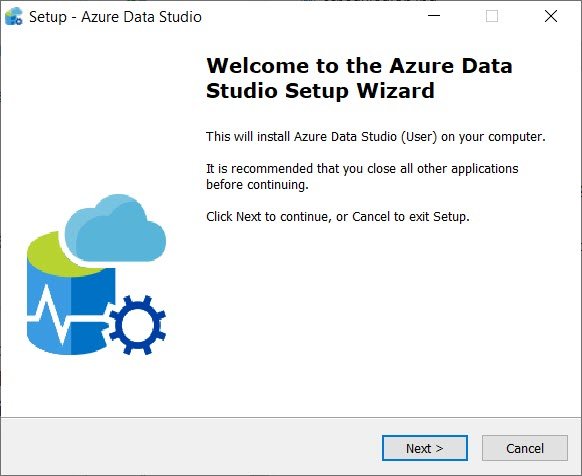
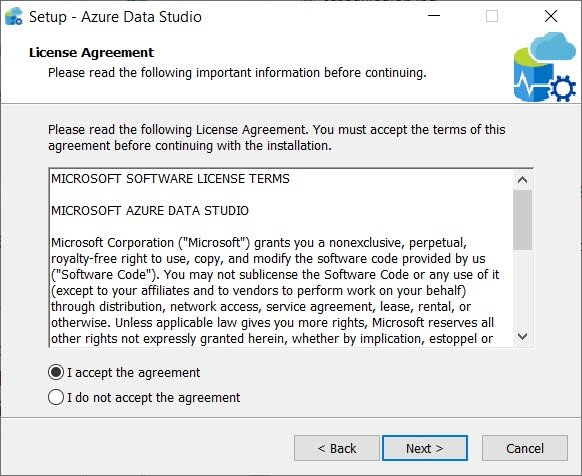
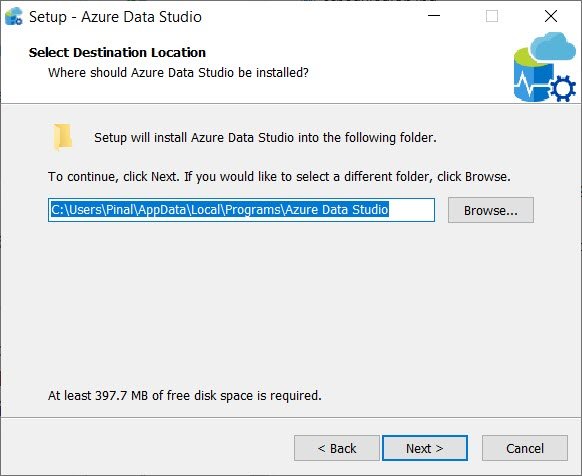
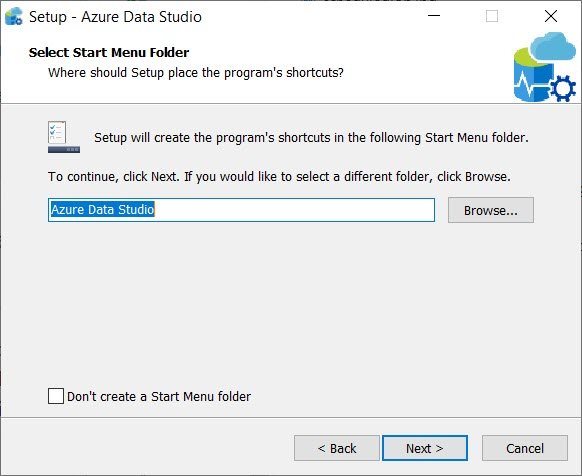
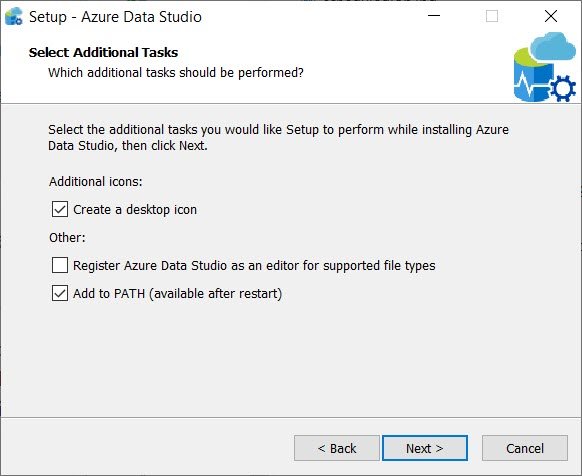
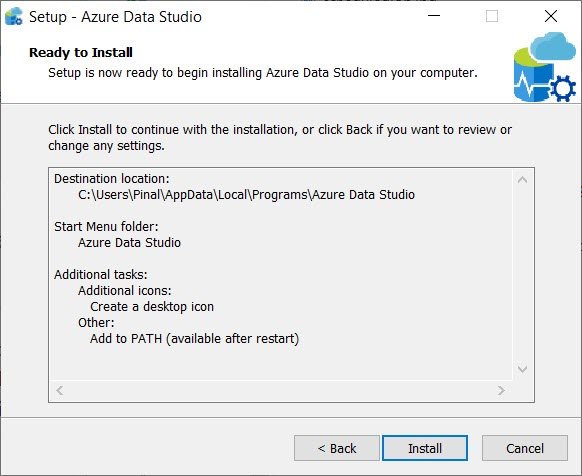

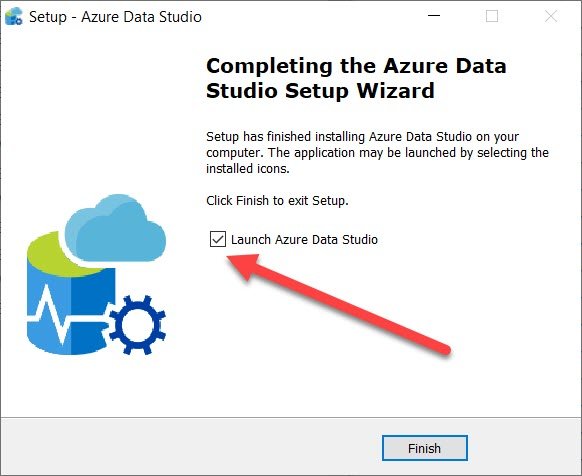
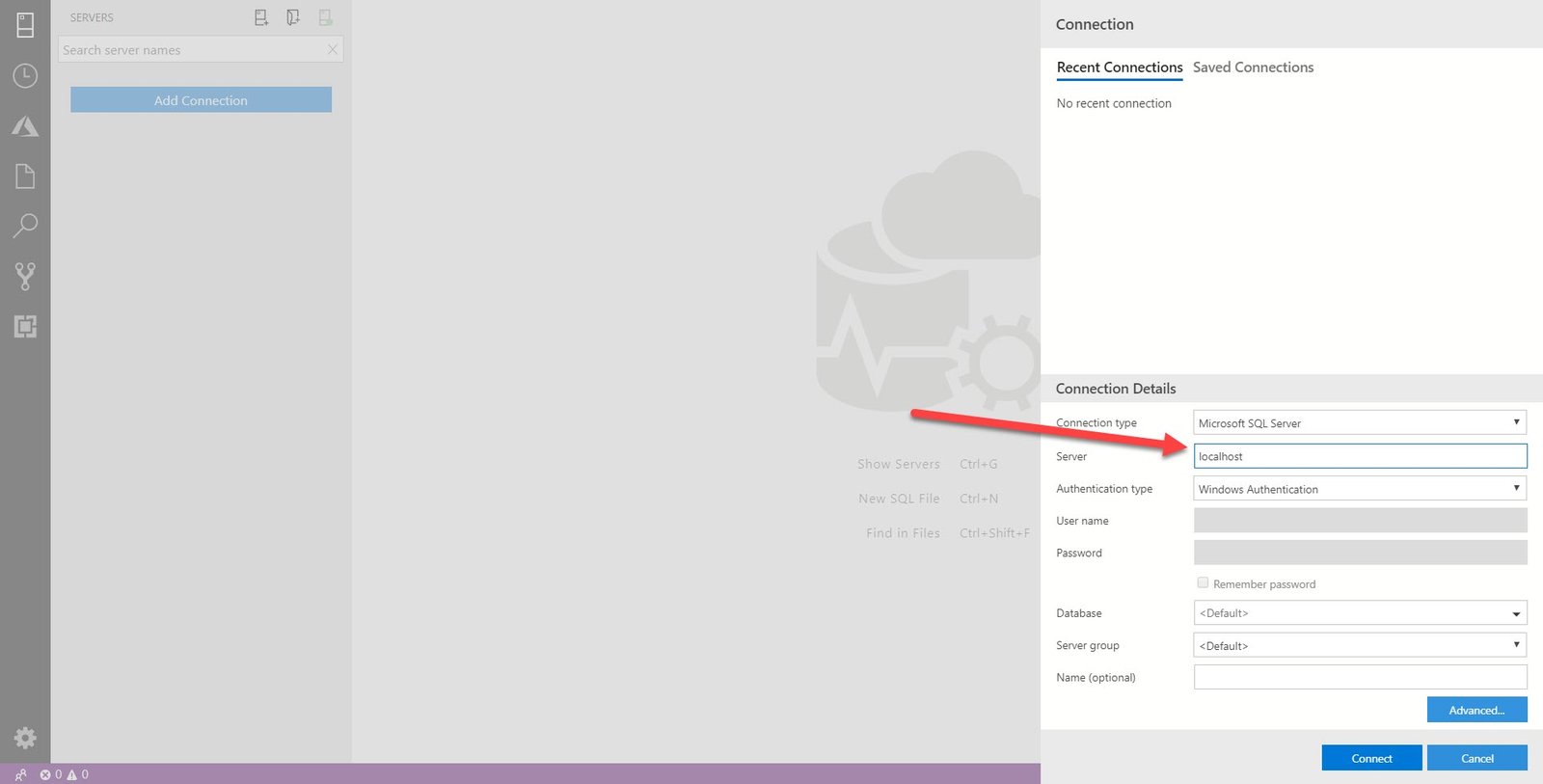
Well, once the Data Studio is installed, it will bring us to the screen where we have to provide the connection detail for the server which we want to connect. Once we specify the details it will connect to the database and will bring up the new home/dashboard screen.
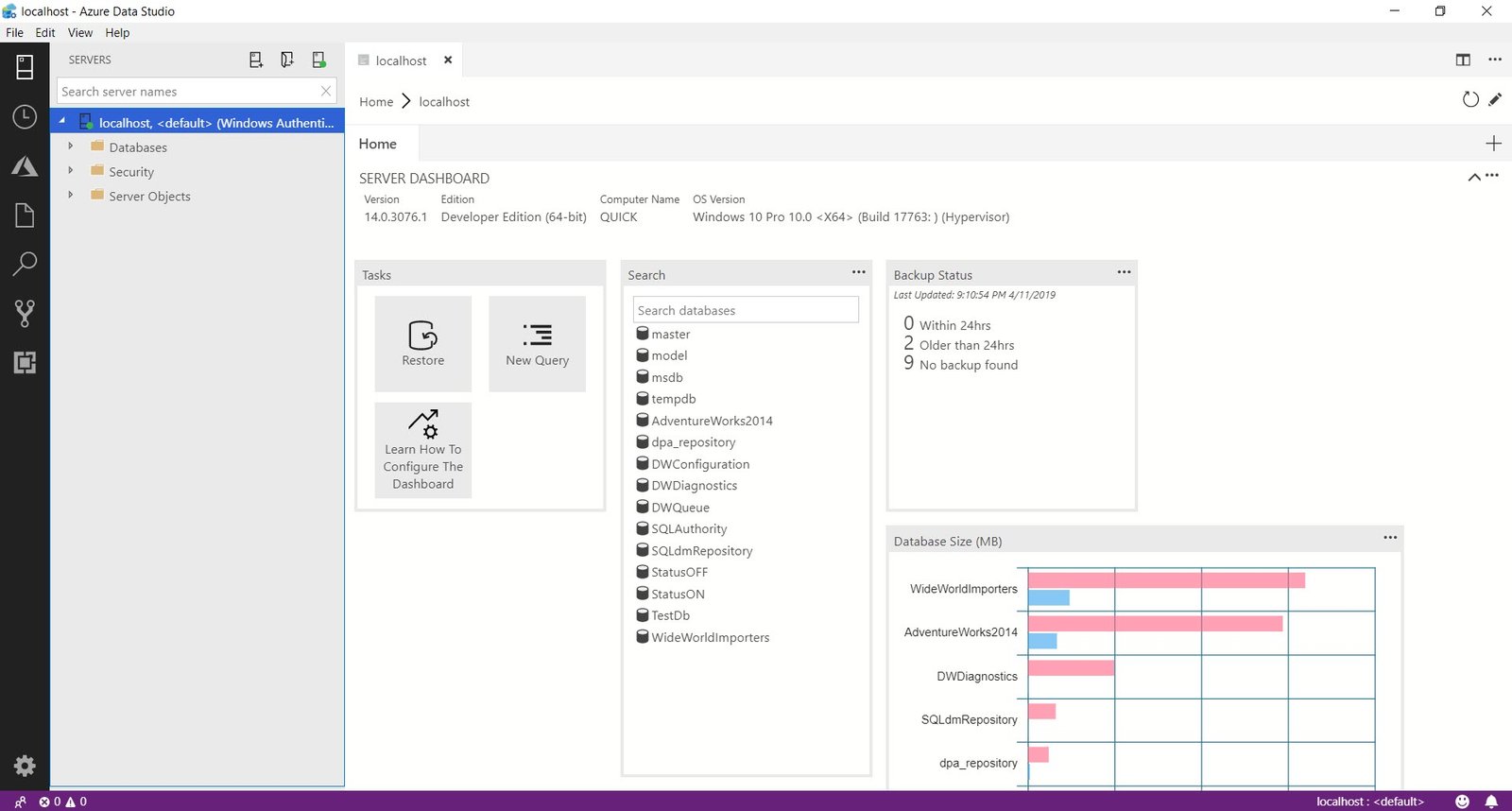

Over here there are quite a few options to play with the settings and new screens. Click on the New Query and it will bring you to query editor. Over here as soon as you start typing you will realize it has intellisense and supports all the features which we are comfortable from SSMS and more.
Well, that’s it for today. We will talk more about Azure Data Studio in the future blog posts.
Published by Pinal Dave on SQLAuthority. More of my work at pinaldave.com.




2 Comments. Leave new
With SSMS 17 I find myself struggling with the need for the SQL view button that used to be in the tool bar. When I right click a table and select edit that option is no longer there. Now I must right click the table and goto Panes 》 SQL view then repeat the right click to execute a query. Is there a way?
Es posible integrar SSMS con GitHub?