To maximize execution plan space in Management Studio, turn on two options and learn a few shortcuts. The first option sends the results to their own tab. The second option jumps to that tab. The plan then gets the whole window. The steps below follow the SSMS 22 menus.

The Problem on a Small Screen
Management Studio splits the window between the query and its results. The query sits on top, and the results pane sits below it. The grid, the Messages tab and the Execution Plan tab all live in that lower pane. A plan gets about half of the window.
That is enough at a desk with two monitors. It is not enough on a laptop, in a meeting room or on a projector. A plan with many operators does not fit, and you scroll sideways to follow it. Two options and a few shortcuts fix that.
Setting One: Display Results in a Separate Tab
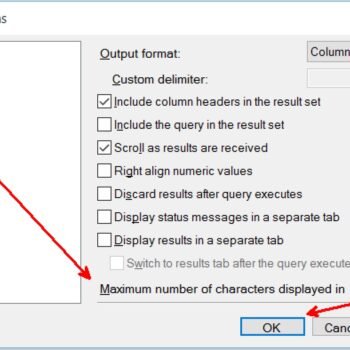
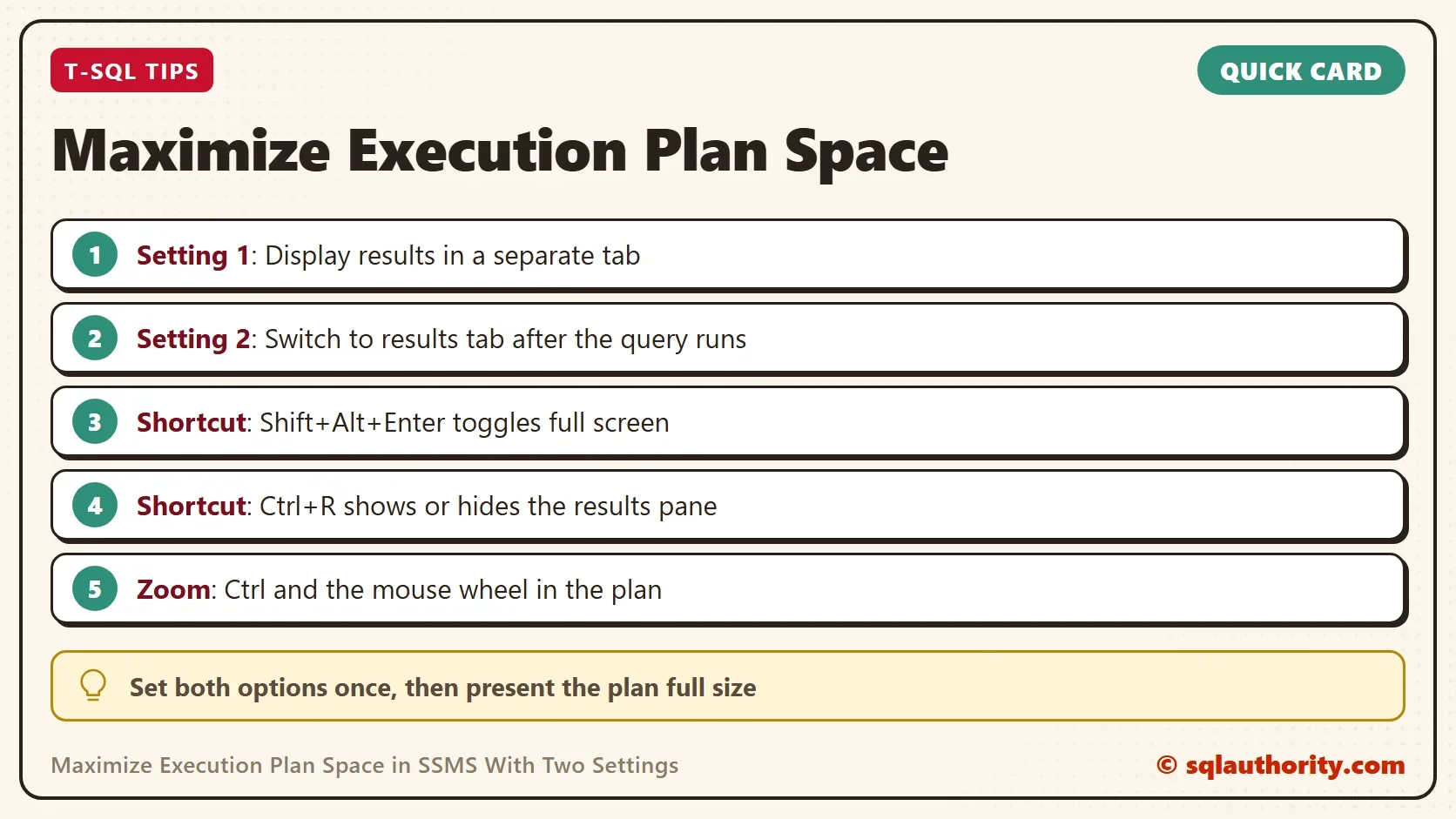
Open Tools, then Options. Go to Query Results, then SQL Server, then Results to Grid. Check Display results in a separate tab. The same option exists under Results to Text, so set it for the format you use.
From now on, each query puts its results on a tab of their own. The grid, the messages and the plan get the full window. The tab of the query is still there. Click it to edit the query again.
Setting Two: Switch to the Results Tab
Right below the first option sits Switch to results tab after the query executes. Check it, and Management Studio jumps to the results tab when the query finishes. Leave it unchecked if you want to stay in the query tab. The results still open on their own tab, and you switch to it when you are ready.
Try it with a plan that has some size. The query below joins two system views, groups the result and sorts it. It only reads, so it runs in any database. Turn on Include Actual Execution Plan with Ctrl+M before you run it.
SELECT t.name AS TableName, COUNT(*) AS ColumnCount
FROM sys.tables AS t
JOIN sys.columns AS c ON c.object_id = t.object_id
GROUP BY t.name
ORDER BY ColumnCount DESC, t.name;
When the query finishes, the window switches to the results tab. Click the Execution Plan tab inside it. The plan fills the window instead of the lower half.
A Shortcut: Full Screen
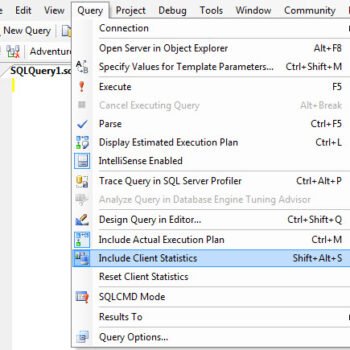
The toolbars still take space. Press Shift+Alt+Enter to switch to full screen mode. Management Studio hides the toolbars and gives the room to the document. Press the same keys again to come back.
Full screen mode matters most when you present. The audience sees the plan and nothing else. Press the keys once before the demo starts, and again when the demo ends.
Smaller Tricks That Help
Ctrl+R shows or hides the results pane. Hide it when you write a long query and want the whole editor. Show it again when you need the output.
A large plan needs zoom. Hold Ctrl and turn the mouse wheel over the plan. Right-click the plan to find Zoom In, Zoom Out, Custom Zoom and Zoom to Fit. Zoom to Fit shows the whole plan at once. The text gets small, so zoom in on the operator you want to read.
Select an operator and press F4 to open its Properties window. It lists more details than the tooltip, and it stays open while you move between operators.
Press Ctrl+L for the estimated plan. It shows the plan without running the query. That helps when a query takes minutes and you only want to see its shape first.
A saved plan keeps what a screenshot loses. Right-click the plan and choose Save Execution Plan As. The file holds every operator and every property, and a colleague can open it and zoom in. When you maximize execution plan space for a talk, show the plan on screen and send the file afterward.
You could argue that a second monitor solves all of this. It does, at a desk. The settings help where no second monitor exists. That means a laptop, a meeting room and a projector.
What to Remember
To maximize execution plan space, check both options under Query Results once. Use Shift+Alt+Enter when you present. Use Ctrl+R to hide the results pane and Ctrl and the mouse wheel to zoom the plan.
The settings cost nothing and change nothing in the query. They only change what you can see.
A plan is not too big for the screen, it is waiting for a better layout.
Published by Pinal Dave on SQLAuthority. More of my work at pinaldave.com.
Discover more from SQL Authority with Pinal Dave
Subscribe to get the latest posts sent to your email.