
Grid vs text output is a setting of Management Studio. It decides whether the line breaks in your data stay visible. The grid shows a value on one line. Text mode and file mode keep the breaks. The data is the same in all three.

Three Ways to Show Results
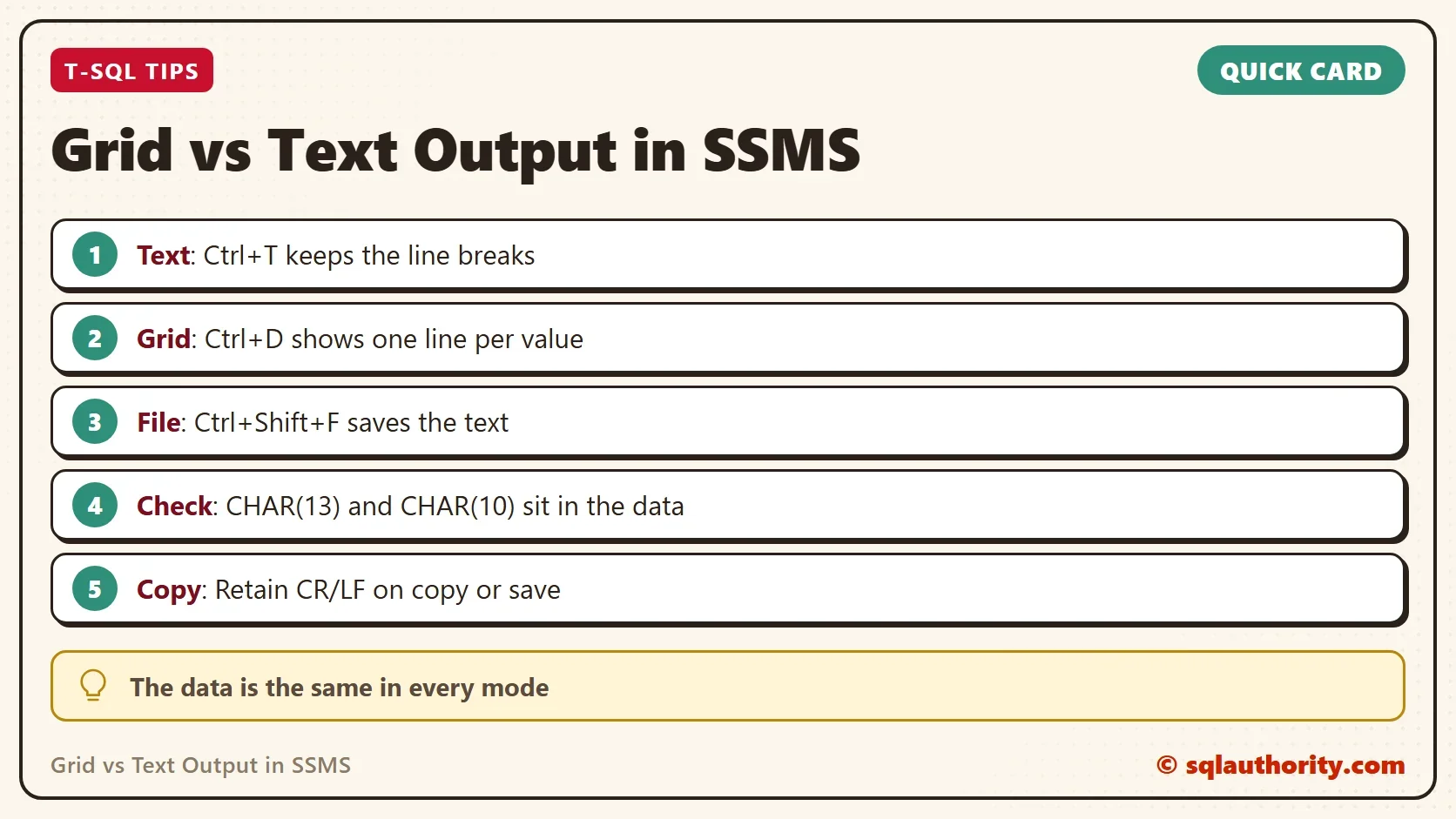
SSMS shows query results in one of three ways. The menu paths and options below are from SSMS 22. Results to Text prints plain text, with a header and one column after another. Results to Grid draws a table with cells. Results to File writes the text to a file you choose. You pick the mode in the Query menu under Results To. The shortcuts are Ctrl+T for text, Ctrl+D for grid and Ctrl+Shift+F for file.
The default for new query windows is in Tools, Options, Query Results, SQL Server, General, Default destination for results.
The grid vs text output choice applies to the query window, and the server never sees it. SQL Server returns the same rows in every case. Only the drawing differs, and that is where the surprises start.
A Value With a Line Break
A line break in Windows is two characters. CHAR(13) is the carriage return, and CHAR(10) is the line feed. The next script builds a value that contains both, between the words SQL and Authority. It then reports the length and the position of the line feed.
DECLARE @sVar varchar(100) = 'SQL' + CHAR(13) + CHAR(10) + 'Authority';
SELECT @sVar AS sVar, LEN(@sVar) AS Chars, CHARINDEX(CHAR(10), @sVar) AS LineFeedAt;
| sVar | Chars | LineFeedAt |
|---|---|---|
| SQL / Authority (two lines in Text mode) | 14 | 5 |
The value has 14 characters. SQL takes 3, the line break takes 2 and Authority takes 9. The line feed sits at position 5. Run the script once with Ctrl+T and once with Ctrl+D. In text mode, the value spans two lines. In grid mode, it appears on one line, and the break looks like a space or like nothing at all.


Prove the Break Is in the Data
When the grid hides a break, you need a way to see it. Replace the two characters with visible tags. The result shows exactly what the value holds, in any mode.
DECLARE @sVar varchar(100) = 'SQL' + CHAR(13) + CHAR(10) + 'Authority';
SELECT REPLACE(REPLACE(@sVar, CHAR(13), '<CR>'), CHAR(10), '<LF>') AS Visible;
| Visible |
|---|
| SQL<CR><LF>Authority |
In grid vs text output, the data never changes. The tags prove that the break survived the trip from the server. The grid did not lose it. It chose not to draw it. That matters when you debug an import that seems to have mangled a value. Check the characters first, and then blame the tool.
What Each Mode Does With It
| Mode | Shortcut | Line break | Good for |
|---|---|---|---|
| Text | Ctrl+T | Kept, the value spans lines | Reading text values with breaks |
| Grid | Ctrl+D | Shown on one line | Reading many columns, copying cells to a spreadsheet, wide results |
| File | Ctrl+Shift+F | Kept in the saved text | Saving a result without the screen |
Text mode keeps the break because it prints the characters as they are. Grid mode draws every value in a single cell row. File mode saves the same text as text mode, so the break survives in the file. Choose text or file when the layout of a value matters.
Copy From the Grid Without Losing the Break
Grid mode has a setting for this. In SSMS, open Tools, Options, Query Results, SQL Server, Results to Grid. The option Retain CR/LF on copy or save keeps the break when you copy a cell or save the results. Without it, SSMS flattens the cell to one line when you copy or save. Change the option once, and open a new query window to be sure it applies.
The Messages tab is a fourth place to read a value. PRINT writes the characters as they are. A value with a line break appears on two lines there, in every mode.
DECLARE @sVar varchar(100) = 'SQL' + CHAR(13) + CHAR(10) + 'Authority';
PRINT @sVar;
The Messages tab shows SQL on the first line and Authority on the second.
Text Mode Cuts Long Values
Text mode has its own limit. It shows at most 256 characters per column by default, and it cuts the rest. The next query returns a value of 300 characters. The query reports the true length, so you can compare it with what the text window shows.
SELECT REPLICATE('x', 300) AS LongValue, LEN(REPLICATE('x', 300)) AS Chars;| LongValue | Chars |
|---|---|
| 300 times the letter x | 300 |
In text mode, the value is cut at 256 characters while the length column says 300. The limit is in Tools, Options, Query Results, SQL Server, Results to Text. Look for the maximum number of characters displayed in each column. Raise it when you need the full value on screen, or switch to the grid.
The server runs the query the same way in every mode, so the mode cannot change the server time. Drawing a large result takes more memory and time on the client, and that can look like a timeout. To separate the two, run the query again with Discard results after execution turned on. The option is under Tools, Options, Query Results, SQL Server, General.
You could argue that nobody should store line breaks in a database column. For many tables, that is good design. Addresses, notes and comments hold them anyway, and the data you inherit does not follow your rules. Knowing which mode shows what saves a lot of guessing.
What to Remember
Grid vs text output is a display choice. The data holds the line break in both modes. Use Ctrl+T or Ctrl+Shift+F to see the break. Use REPLACE with tags to prove it. Use the Retain CR/LF option to keep it when you copy from the grid. Check the column limit when text mode cuts a long value.
A result window is not the data, it is one way of looking at it.
Published by Pinal Dave on SQLAuthority. More of my work at pinaldave.com.
Discover more from SQL Authority with Pinal Dave
Subscribe to get the latest posts sent to your email.




1 Comment. Leave new
Is there any reason behind the long running queries are getting timedout in Grid mode output and in text mode its getting completed without issues.