Word wrap in SSMS folds a long line of T-SQL at the edge of the window. You read the whole line without scrolling sideways. It is a display setting, so your script stays exactly as it was.

Why Long Lines Hurt
A query can arrive as one long line, pasted from a log or a report tool. In a normal editor you read the first part, scroll right, lose your place and scroll back. The end of a WHERE clause is the part you need most, and it is the part you miss first. When I look at a query on a client’s screen, I ask them to turn word wrap on first.
Word wrap in SSMS removes the sideways scroll. The editor shows the line in several rows, each as wide as the window. You read down instead of across. For a long query or a stored procedure with long comment lines, that is a real saving of effort.
Turn On Word Wrap for Every Window
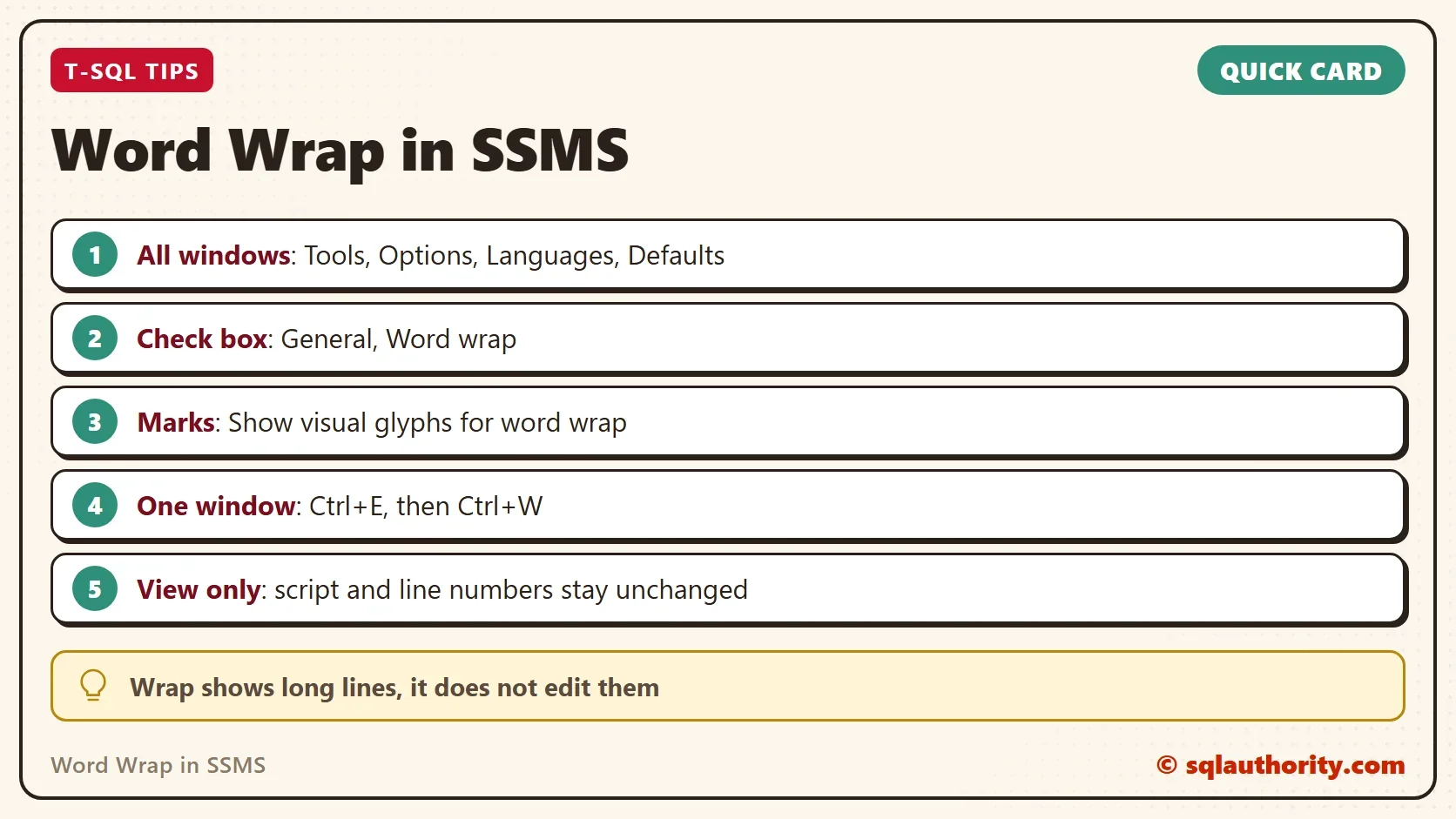
Open Tools, then Options. SSMS 22 shows the settings in a tab. Under All Settings, expand Languages, then Defaults, and choose General. Check the box named Word wrap. There is no OK button, because the change applies at once. Query windows now wrap their long lines.
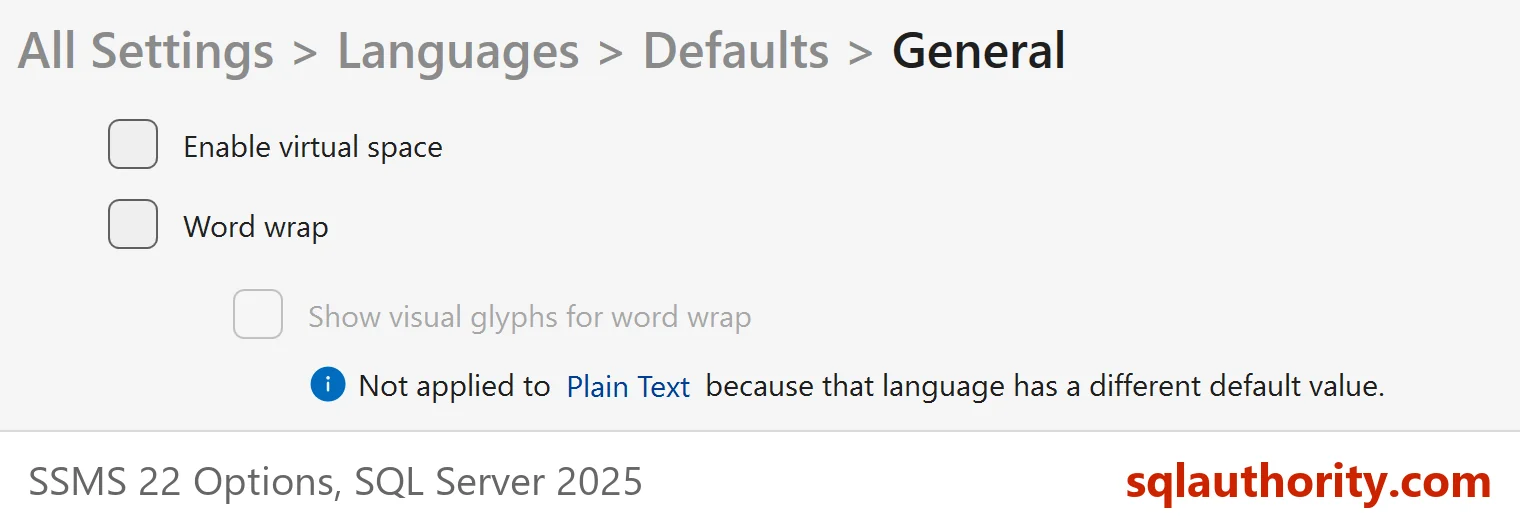
The setting is off by default. It is off in a fresh SSMS 22 installation. That is why a new installation shows long lines running off the screen.
Show the Wrap Marks
A wrapped row looks like a new line, and it is not one. A second check box on the same page draws a small arrow where a line continues. It is named Show visual glyphs for word wrap. In SSMS 22 that box stays unavailable until Word wrap is on. Switch the glyphs on while you get used to wrapping. Switch them off again if the arrows distract you.
SSMS 22 also has an option for the indent of wrapped rows. It is on by default. It keeps a wrapped row indented like the start of its line, so nested code keeps its shape.
One Window or One Language
You do not have to change the setting for everything. The Edit menu has Advanced, and under it Word Wrap. The shortcut is Ctrl+E followed by Ctrl+W, the one that Visual Studio uses. It switches wrapping for the window you are in, which suits a single ugly query. Try it on the longest query you own. Toggle the shortcut twice and watch the rows fold and unfold. The text is the same each time, which shows that nothing was edited.
The same page also exists for each language. Under Languages you find Transact-SQL, then General. Set it there if you want wrapping for T-SQL files and not for XML or other file types.
Wrap Changes the View, Not the Script
Word wrap does not add a single character to your file. A wrapped query saved to disk is still one long line. So is a query that you copy into an email. Line numbers in the margin count real lines, so a wrapped line keeps one number across its rows.
Error messages follow the same rule. Take a statement of about 300 characters on one line that names a missing table. It fails with Msg 208 and reports Line 1. It does not matter how many rows the window uses to show it. When you read an error line number, count script lines, not rows on the screen.
When Not to Rely on It
You could argue that wrapping hides a problem. A query on one line is hard to review, whether you scroll or not. That is fair. Wrapping suits code you did not write and cannot reformat. For your own code, put each clause on its own line. A query formatted that way needs no wrap, and a diff of it shows what changed.
Wrapping does not make a list of a thousand IDs in an IN clause easy to read. Move that kind of list into a table.
What to Remember
Turn on word wrap under Tools, Options, Languages, Defaults, General. Show the visual glyphs at first, and use the shortcut for a single window. Remember that word wrap in SSMS changes the view only. Your script, its line numbers and its error messages stay the same.
A wrapped line is not a shorter line, it is the same line that you can finally see.
Published by Pinal Dave on SQLAuthority. More of my work at pinaldave.com.
Discover more from SQL Authority with Pinal Dave
Subscribe to get the latest posts sent to your email.