
An ISSERVER assembly error during upgrade needs the surrounding SSISDB error messages before you choose a repair. This 2019 article followed a reader’s question about my earlier assembly workaround. The reader had no second instance running the same SQL Server version.

Read the Complete Upgrade Failure
The recorded error log showed an assembly upgrade followed by these messages. The last one is the most useful.
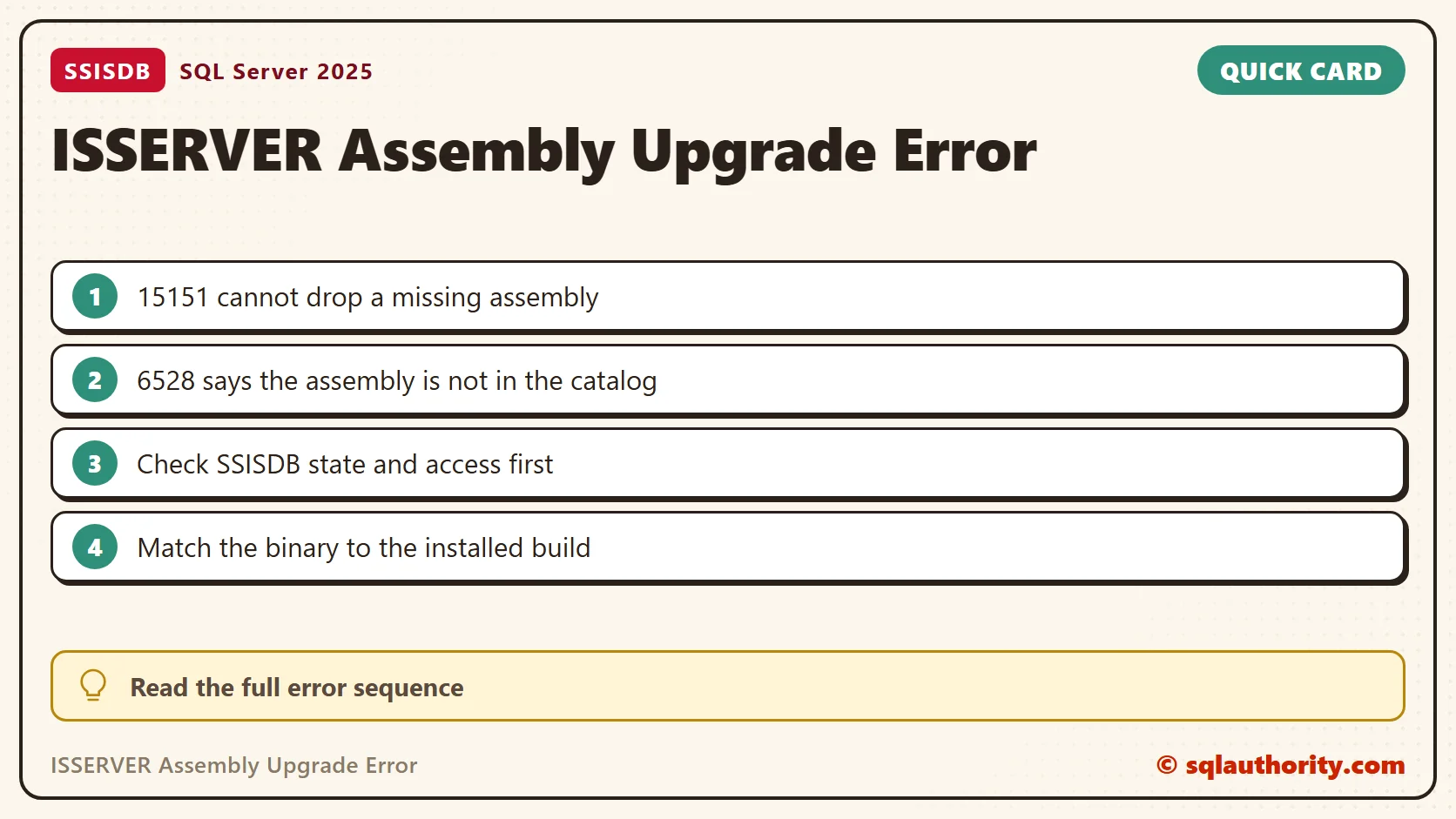
Cannot drop the assembly 'ISSERVER', because it does not exist or you do not have permission.
Error: 6528, Severity: 16, State: 1.
Assembly 'ISSERVER' was not found in the SQL catalog of database 'SSISDB'.
The first message has more than one possible reading. Do not grant broader permissions on the strength of that sentence. Keep the complete error log and the setup logs, including the entries before the script upgrade failure.
The original ISSERVER assembly article explains the first case. This follow-up looked at getting the assembly from the installed Integration Services binary instead of another instance.
See Both Messages in a Throwaway Database
The two messages come from different statements. I reproduced both in a new database with no ISSERVER assembly. Run it only on a test instance.
CREATE DATABASE IsserverDemo;
GO
USE IsserverDemo;
GO
DROP ASSEMBLY ISSERVER;
GO
CREATE PROCEDURE dbo.UsesMissingAssembly AS EXTERNAL NAME ISSERVER.[Demo.Namespace.Class].DoWork;
GO
USE master;
GO
DROP DATABASE IsserverDemo;
The drop returned Msg 15151, the first line of the log. The procedure returned Msg 6528 with the same wording as the third line. So the first message means the drop found nothing to drop. The second means something else needs an assembly that the catalog lacks. Both point at an absent assembly. Neither points at a permission problem.
Check the Catalog When the Instance Is Accessible
These checks only read metadata. Run them through an authorized DBA connection to the affected instance. They create nothing and change no setting.
SELECT SERVERPROPERTY('ProductVersion') AS ProductVersion, SERVERPROPERTY('ProductLevel') AS ProductLevel;
SELECT name, state_desc, user_access_desc FROM sys.databases WHERE name = N'SSISDB';
IF COALESCE(HAS_DBACCESS(N'SSISDB'), 0) <> 1
    PRINT N'SSISDB is unavailable or not accessible to this login.';
ELSE
    EXEC sys.sp_executesql N'
        SELECT name, clr_name, permission_set_desc
        FROM SSISDB.sys.assemblies
        WHERE name = N''ISSERVER'';';
SELECT name, value_in_use FROM sys.configurations WHERE name IN (N'clr enabled', N'clr strict security');
My instance has no SSISDB, so the second query returned no row and the guard printed its message. The CLR settings showed clr enabled 0 and clr strict security 1. An inaccessible database or limited metadata visibility can hide the expected row. An empty result alone does not prove that the assembly is missing. Have a DBA confirm the database state and visibility first.
Collect Before You Repair
- Record the exact SQL Server build, and the build of the Integration Services component on disk.
- Confirm the state of SSISDB and whether your login can open it.
- Save the full error log from the failed upgrade, from the first script error to the last line.
- Take a backup of SSISDB and of its master key, and store both away from the server.
- Write down who owns the SSIS catalog, because they must approve any change to it.
Keep the Historical Workaround in Context
For the original investigation, I captured activity while deploying SSISDB. The resulting script read Microsoft.SqlServer.IntegrationServices.Server.dll and created the ISSERVER assembly. Its example path used the SQL Server 2014 component folder.
That path is not valid for every installation. The old generated script also used an undeclared @keypath variable. I would not present it as a copy and run repair for another server.
Match the installed SQL Server version, the component location and the binary before any assembly repair. Do not import a DLL from another server or from a file site. SSISDB is a product-managed catalog, and an improvised assembly can leave it inconsistent.
Use a Scoped Repair and Finish the Upgrade
Microsoft documents this exact error in the error 6528 repair procedure. Use it only after you confirm the missing assembly scenario and review its changes for your installation. I did not re-open that page for this refresh.
Trace flag 902 can temporarily bypass upgrade scripts for this diagnosis. It does not complete the upgrade, and it does not make normal use safe. A DBA should control that maintenance session and remove the flag after the cause is fixed.
My introduction to trace flags explains the concept. Do not turn off CLR security or change unrelated trust settings to silence a different error.
After the repair, verify that the upgrade scripts finish without the bypass. Check the setup result, the error log, the expected build and the SSIS catalog operations. Keep the backups from before the change and the maintenance record.
A running service with upgrade scripts bypassed is not a completed upgrade, it is a temporary diagnostic state.
Published by Pinal Dave on SQLAuthority. More of my work at pinaldave.com.
Discover more from SQL Authority with Pinal Dave
Subscribe to get the latest posts sent to your email.



2 Comments. Leave new
Pinal, script generates error:
Msg 137, Level 15, State 2, Line 3
Must declare the scalar variable “@keypath”.
Please repost. Thank you in advance.
script generates error:
Msg 137, Level 15, State 2, Line 3
Must declare the scalar variable “@keypath”.
Please repost. Thank you in advance.