
Rebuild log is the way back from Msg 1813, Could not open new database, when the log file is corrupted. In 2007, I wrote an article about this error. It has been one of my top viewed posts ever since. Recently, SQL Server expert Jeremy Roe sent me an updated script for newer versions.

The Error
Here is the error message:
Error Msg 1813, Level 16, State 2, Line 1
Could not open new database 'yourdatabasename'. CREATE DATABASE is aborted.
What Happened
Jeremy wrote the script for SQL Server 2016. We believe it works for SQL Server 2012 and newer. Read my original article on Msg 1813 too. This post covers Jeremy’s updated steps.
Why It Happens
The log is corrupted, and it needs to be rebuilt to make the database operational. Follow all the steps in order, and replace yourdatabasename with the real name of your database.

The Fix
Jeremy gave three tips before you start:
- Rename the old log file if it’s present, for example to blah_log_OLD, to be safe.
- Rename the databases carefully so you don’t mix them up or delete one by accident.
- Once everything works, delete the fake database files and the unused older log file, if you no longer need them.
Step 1. Create a new database with the same name as the one you’re trying to recover or restore. In our error message it is yourdatabasename. Give the MDF file (primary data file) and the LDF file (log file) the same names as before.
Step 2. Stop SQL Server. Move the original MDF file from the older server (or location) to the new one. It replaces the MDF file you created. Delete the LDF file on the new server.
Step 3. Start SQL Server. The database will be marked as suspect, which is expected.
Step 4. Make sure the system tables of the master database allow updates.
USE MASTER
GO
sp_CONFIGURE 'allow updates', 1
RECONFIGURE WITH OVERRIDE
GO
Step 5. Change the database to emergency mode. For SQL Server 2005 to 2008, use this:
BEGIN TRAN
UPDATE sysdatabases
SET status = 32768
WHERE name = 'yourdatabasename'
COMMIT TRAN
This is replaced in SQL Server 2012 and newer by:
ALTER DATABASE yourdatabasename SET EMERGENCY;Step 6. Restart SQL Server. This step is a must. If you skip it, SQL Server will throw an error.
Step 7. Run a DBCC command in a Management Studio query window. It creates a new log file. Keep the name the same as the LDF file you deleted from the new server. For SQL Server 2005 to 2008, use this:
DBCC TRACEON (3604)
DBCC REBUILD_LOG(yourdatabasename,'c:\yourdatabasename_log.ldf')
GO
For newer versions, Jeremy’s script uses this form instead:
ALTER DATABASE yourdatabasename
REBUILD LOG ON (NAME=yourdatabasename_log,FILENAME='A:\sql_log\yourdatabasename_log.ldf')
DBCC accepts two parameters. The first is the database name, and the second is the physical path of the log file. Make sure the path is physical. If you put a logical file name, it returns an error.
Step 8. Reset the database status:
sp_RESETSTATUS yourdatabasenameStep 9. Turn off updates to the system tables of master:
USE MASTER
GO
sp_CONFIGURE 'allow updates', 0
RECONFIGURE WITH OVERRIDE
GO
Then take the database out of emergency mode and back to MULTI_USER:
ALTER DATABASE yourdatabasename SET MULTI_USER;
GO
Confirm It Worked
Check that the database is online and your data is readable. Once you’ve confirmed that, clean up the fake database files and the old log file, as Jeremy’s tips say.
How to Prevent It
A restorable backup is a better plan than a rebuilt log. Keep good backups of both data and log files. Thanks, Jeremy, for an awesome update to the original script.
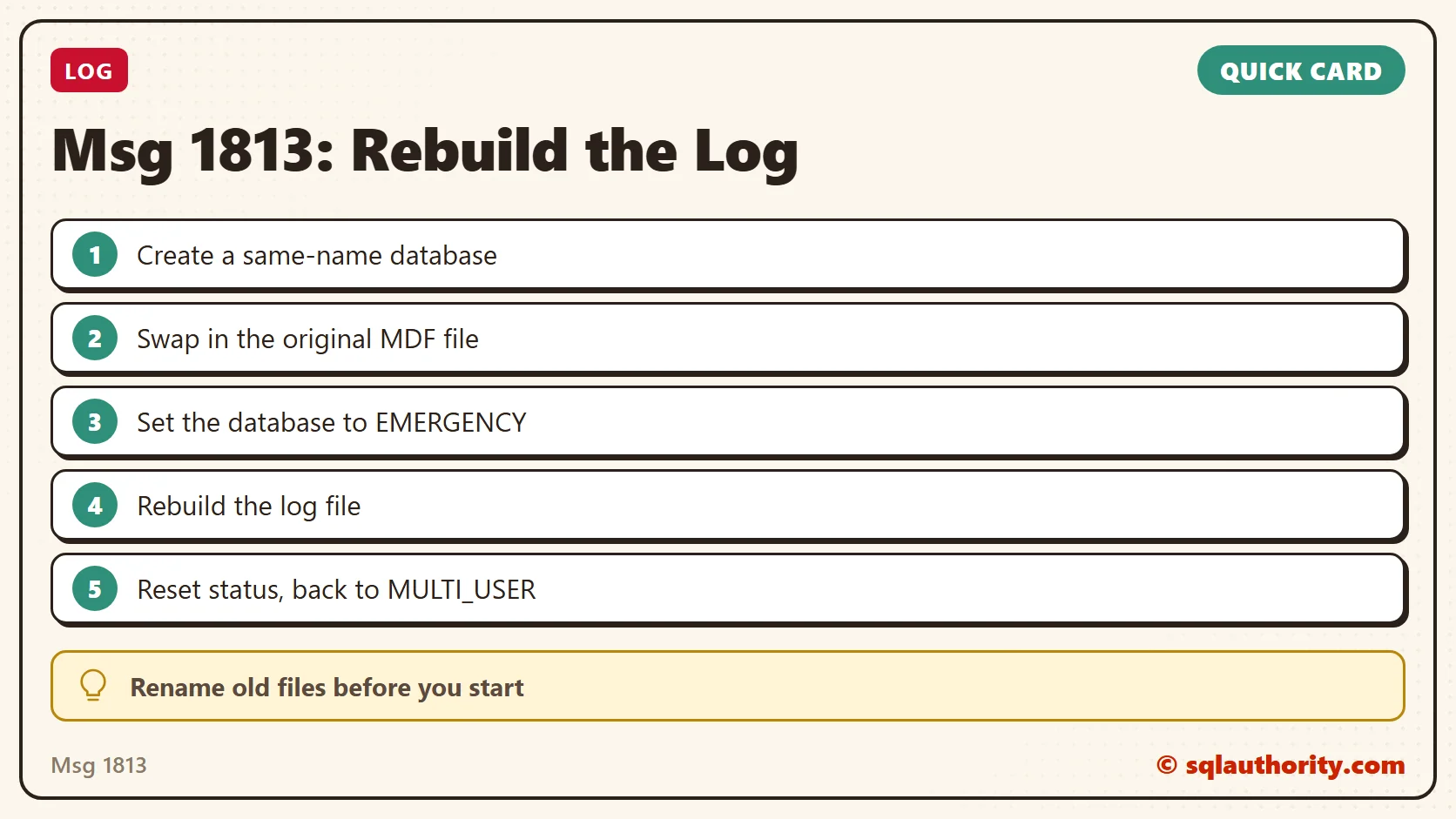
A corrupted log is not the end of a database, it is a file you can rebuild with care.
Published by Pinal Dave on SQLAuthority. More of my work at pinaldave.com.
Discover more from SQL Authority with Pinal Dave
Subscribe to get the latest posts sent to your email.




1 Comment. Leave new
Hi,
With SQL 2012, this command return error (step 7)
DBCC REBUILD_LOG(yourdatabasename,’c:\yourdatabasename_log.ldf’)
DBCC Syntax error verify DBCC Options