
Error 14001 reports a side-by-side configuration failure before the affected program starts. In this 2018 case, a client’s development SQL Server service would not start. The Windows Application log identified the missing assembly more precisely than the service dialog.

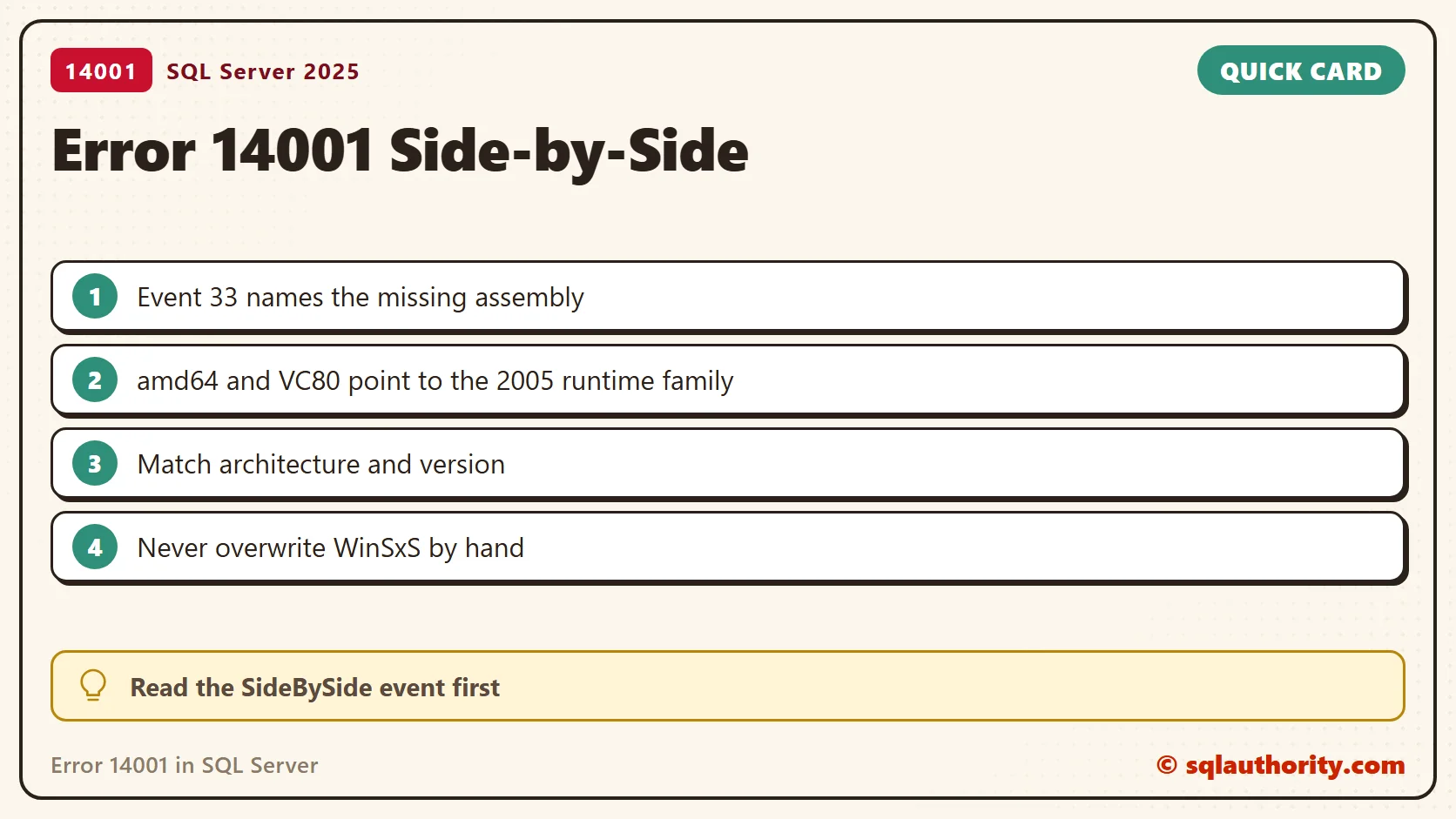
Read the SideBySide Event
The service error said that the side-by-side configuration of the application was incorrect. Event Viewer then showed a SideBySide event with ID 33. The dependency details were these.
Activation context generation failed for sqlservr.exe.
Dependent Assembly Microsoft.VC80.ATL
processorArchitecture="amd64"
publicKeyToken="1fc8b3b9a1e18e3b"
type="win32"
version="8.0.50727.4053"
could not be found.
The executable path belonged to MSSQL14.MSSQLSERVER. Keep the full path from your own event, because it identifies the failing installation. Do not assume that every program with error 14001 needs the same runtime package.
Match the Assembly and Its Architecture
This event named the VC80 ATL assembly and the amd64 architecture. That points to the Visual C++ 2005 runtime family for a 64-bit dependency. Repairing only an x86 package would not satisfy this amd64 dependency.
Different applications need different runtime generations at the same time. The newest Visual C++ package does not supply every older assembly. Match the assembly name and the version that the failing program reports.
Check the Event and the Assemblies on a Machine
These commands print the Windows text for the error, then the latest SideBySide events. On my PC the Application log holds no such events, and that is the healthy result.
net helpmsg 14001
$events = Get-WinEvent -FilterHashtable @{ LogName = 'Application'; ProviderName = 'SideBySide' } -MaxEvents 5 -ErrorAction SilentlyContinue
if ($events) { $events | Select-Object TimeCreated, Id, Message | Format-List } else { 'No SideBySide events in the Application log.' }
The next block counts the matching assembly folders in the component store. It also counts the registered Visual C++ 2005 and 2008 packages. The component store is read only here, so do not edit it.
'*microsoft.vc80.atl*', '*microsoft.vc80.crt*', '*microsoft.vc90.atl*' | ForEach-Object {
    [pscustomobject]@{ Pattern = $_; Folders = @(Get-ChildItem "$env:WINDIR\WinSxS" -Directory -Filter $_).Count }
} | Format-Table -AutoSize
$keys = 'HKLM:\SOFTWARE\Microsoft\Windows\CurrentVersion\Uninstall\*', 'HKLM:\SOFTWARE\WOW6432Node\Microsoft\Windows\CurrentVersion\Uninstall\*'
@(Get-ItemProperty $keys -ErrorAction SilentlyContinue | Where-Object DisplayName -match 'Visual C\+\+ (2005|2008)').Count
My PC has two VC80 CRT folders and none for VC80 ATL, and no 2005 or 2008 package is registered. SQL Server 2025 does not need that assembly, so my machine is healthy. On a machine that reports your event, the matching row is the one to look at. A zero for the assembly you need is your finding.
Keep the service account and the startup type unchanged while you investigate. Changing them adds a second variable and hides the first.
What the Original Case Tried
The recorded steps repaired the x86 Visual C++ 2008 SP1 and 2005 SP1 packages. They also installed the Visual C++ 2005 SP1 ATL security update packages for x86 and x64. That was the repair sequence of that case, not a universal package list.
I would narrow the package choice by the event details before I repeat that sequence elsewhere. Use the matching trusted installer or the supported repair route. Avoid loose DLL files from random sites and tools that promise to fix every side-by-side error.
Collect More Detail When Needed
- Save the service error and the matching Application log event, with its time and full executable path.
- Record the missing assembly name, version, processor architecture and public key token.
- If the event is incomplete, use the Windows
sxstracetool during a controlled launch of the failing program. Start the trace from an elevated prompt. - Stop the trace and parse its output to find the unresolved assembly or manifest.
- Repair the identified component with the correct package and architecture, then read the next startup attempt.
I did not run the trace commands, because my prompt is not elevated. A production service restart needs coordination with its owner. Do not rename manifests, overwrite WinSxS files or remove unrelated runtime packages to experiment. Keep the original event and the trace for comparison after the repair.
Verify the Affected Instance
Confirm that the SQL Server service starts normally and that the SideBySide failure no longer appears. Read the ERRORLOG for any later startup problem. The error comes from Windows, not from SQL Server, so the same steps apply to any program that reports it. A cleared loader failure does not prove that every database and application is healthy.
Error 14001 is not a request for every runtime package, it is a request to identify the missing assembly.
Published by Pinal Dave on SQLAuthority. More of my work at pinaldave.com.
Discover more from SQL Authority with Pinal Dave
Subscribe to get the latest posts sent to your email.



11 Comments. Leave new
Thanks a lot. Your solution works.
That’s great!
thanks, you save my server
you can do alternative way as tested and working now…
open regedit run as administrator:
hklm/software/wow6432node/microsoft/microsoft sql server management studio/18
delete entire folder microsoft sql server management studio/18
uninstall sql server 2017 and install again..
it will work.
I am scared of touching registry keys.
It works great. After installing all the C++ packages in van. I tried this approach without even un-installing. It worked and all my connections and configurations were intact.
Thanks a lot the solution works.
Thanks @Carlos.
Hi Pinal, I used regedit solution suggested by upendra banna, resolved this issue for me during upgrade from 18.4 to 18.5.1 :-)
PS: recommend export the regedit entry before deleting
Microsoft needs to get their act together. MariaDB and PostgreSQL install and run flawlessly, and very powerful, and very light on system resources. I’ve spent a gd hour trying to get SQLServer Express to run, and now one of your ‘fixes’ says I have to reboot.
Why do we still need these old package to run the latest products? Can run windows 11 because an i7 CPU is not supported only to run software that is older than the i7?