
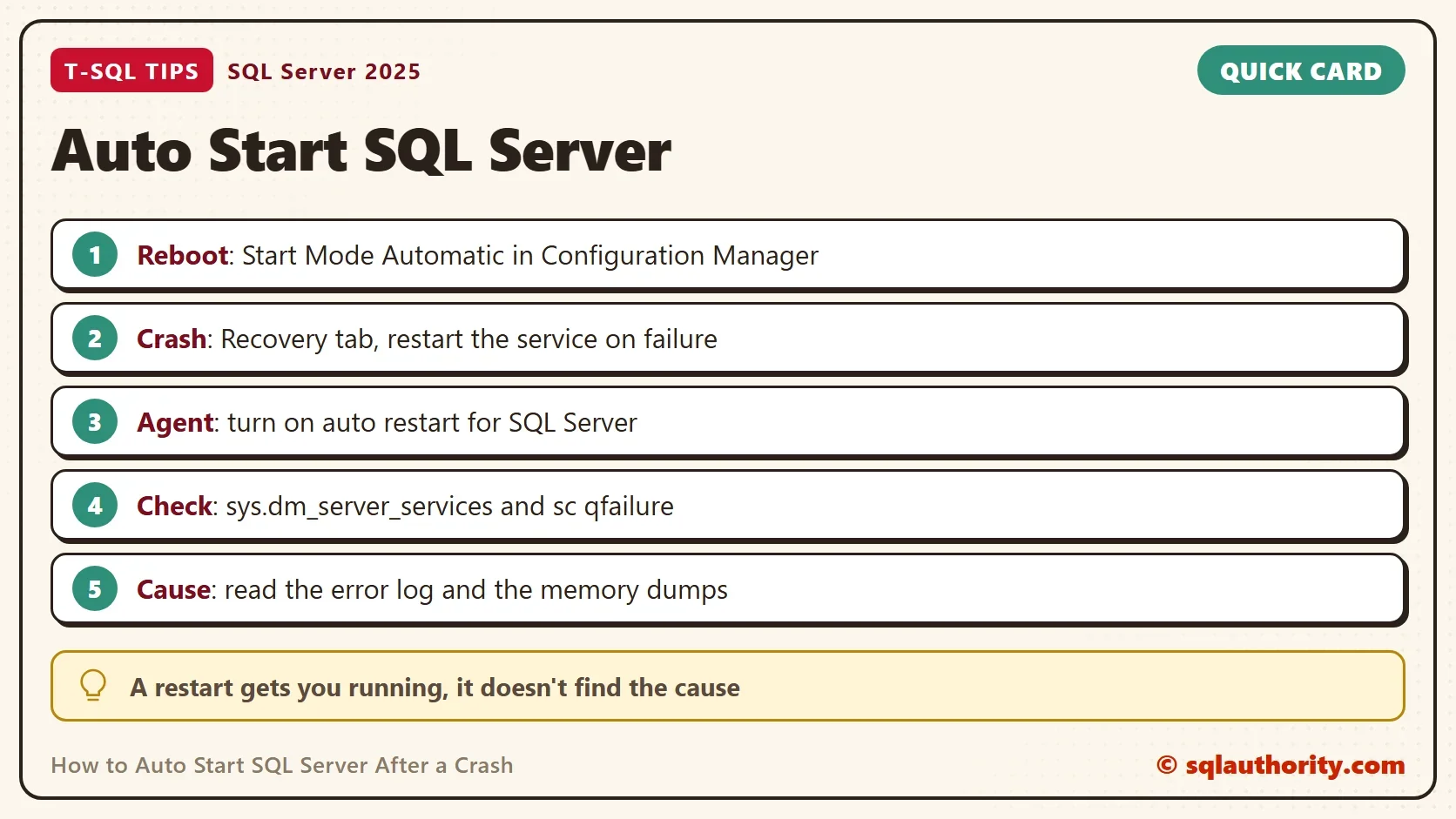
To auto start SQL Server after a crash, set the Windows service to restart itself when it fails. A reboot and a crash are two different problems. Each one has its own setting, and a server needs both.

Auto Start SQL Server: Two Problems, Two Settings
When Windows restarts, SQL Server comes back only if the service’s start mode is Automatic. When the SQL Server process itself dies, Windows leaves it dead unless the service has a recovery action. The first is a start setting. The second is a failure setting. People fix one and believe they fixed both. To auto start SQL Server in every case, set both.
Check What the Server Has Now
Start with T-SQL. sys.dm_server_services lists the SQL Server services of the instance with their start type and state. It also shows when each one last started.
SELECT servicename, startup_type_desc, status_desc, last_startup_time, RTRIM(service_account) AS service_account
FROM sys.dm_server_services;
| servicename | startup_type_desc | status_desc | last_startup_time | service_account |
|---|---|---|---|---|
| SQL Server (SQLDEV) | Automatic | Running | 2026-10-05 06:26:14.8662925 +05:30 | NT Service\MSSQL$SQLDEV |
| SQL Server Agent (SQLDEV) | Manual | Stopped | NULL | NT Service\SQLAgent$SQLDEV |
| SQL Server Launchpad (SQLDEV) | Disabled | Stopped | NULL | NT Service\MSSQLLaunchpad$SQLDEV |
This test instance starts its engine automatically. Its Agent starts only by hand, which matters later. The last_startup_time column changes with every restart, and a service that hasn’t started since the instance did shows NULL. The same moment is in sys.dm_os_sys_info.
SELECT sqlserver_start_time FROM sys.dm_os_sys_info;
| sqlserver_start_time |
|---|
| 2026-10-05 06:26:15.083 |
Note the time and compare it with the time you expect. A start time at 3 in the morning on a server nobody restarted means something restarted it. T-SQL can’t show the failure actions, because they belong to Windows. Ask the service control tool from a command prompt. It is a read-only query. The instance name here is SQLDEV, so the service is MSSQL$SQLDEV. A default instance uses MSSQLSERVER.
Run sc.exe qfailure 'MSSQL$SQLDEV' in PowerShell. On this instance it prints the following. It is output, not code to run.
[SC] QueryServiceConfig2 SUCCESS

SERVICE_NAME: MSSQL$SQLDEV
        RESET_PERIOD (in seconds)    : 0
        REBOOT_MESSAGE               :
        COMMAND_LINE                 :
There is no failure action in that output. A crash of this instance leaves it down until someone starts it. That is the state of this instance.
Fix 1: The Start Mode for a Reboot
Open SQL Server Configuration Manager and choose SQL Server Services. Right-click the instance, choose Properties, and open the Service tab. Set Start Mode to Automatic. Windows then starts SQL Server after every restart of the machine. The Automatic (Delayed Start) choice starts it a little later, after the other automatic services. The T-SQL query above reports both as Automatic.
Fix 2: The Recovery Tab for a Crash
Open services.msc and find the service, SQL Server (instance name). Open its Properties and choose the Recovery tab. Set the first failure, the second failure and the subsequent failures to Restart the Service. Choose how long to wait before the restart, for example one minute. Choose when the fail count resets, for example after one day.
The command line does the same. For the default instance, sc.exe failure MSSQLSERVER reset= 86400 actions= restart/60000/restart/60000/restart/60000 sets three restarts, one minute apart. Run it in an elevated command prompt. The counter resets after one day. Mind the space after each equals sign. Run sc.exe qfailure again afterwards to confirm.
On a failover cluster, leave these settings to the cluster, which controls restarts itself.
Fix 3: The SQL Server Agent Setting
SQL Server Agent has its own switch. In Management Studio, right-click SQL Server Agent, choose Properties, and open the Advanced page. Tick Auto restart SQL Server if it stops unexpectedly, and Auto restart SQL Server Agent if it stops unexpectedly. The Agent does the restart, so the Agent service must itself run. Here the Agent is set to Manual. The option does nothing until its start mode changes to Automatic.
Find Out Why It Crashed
An automatic restart gets the server running and hides the symptom. A crash always has a cause. The Windows Application event log shows the faulting module. The SQL Server error log shows what happened before the stop. A crash can also leave a memory dump, which Microsoft support can read. One view lists them.
SELECT filename, creation_time, size_in_bytes FROM sys.dm_server_memory_dumps;
On this instance the view returns no rows, because no dump has been written. On a server that has, each row is a dump file with its time. Compare that time with the start time from earlier.
Does Auto Restart Hide Problems?
You could argue that auto restart hides crashes. It does, unless you watch for it. Keep the restart and add an alert, for example a check of sqlserver_start_time against the last known value. Then the server comes back by itself, and you still learn that it fell over.
What to Remember
To auto start SQL Server reliably, set the start mode to Automatic for a reboot. Set the recovery actions to restart the service for a crash. Turn on the Agent option as a second line. Read the logs and the dumps after every unexpected restart.
A restart is not a repair, it is a promise that someone will read the log.
Published by Pinal Dave on SQLAuthority. More of my work at pinaldave.com.
Discover more from SQL Authority with Pinal Dave
Subscribe to get the latest posts sent to your email.




1 Comment. Leave new
Good morning Pinal. Just a quick comment on the title of this post. I am sure what you actually mean is “How to Auto Start SQL Following a Crash”. (Followed by) would suggest that the server would end up in a boot-crash loop.
Anyway… Awesome work as usual.