
Recently I got a message on Skype about SSMS. It turned out to be SSMS 2014 not installed with SQL Server 2014.
Hi Pinal, Need quick suggestion. I am unable to find ssms.exe after installation of SQL Server. Do you know how I can install it?
Initially I thought that since SQL Server 2016 doesn’t come with SQL Server Management Studio, this would be an expected behavior. So, I shared my blog to him.
SQL SERVER – Installing SQL Server Management Studio 2016 – Step by Step
Later, he informed me that they are using SQL Server 2014. The next oblivious question was whether they have installed that feature during installation and he had no idea as it was installed by someone else.
I asked to check discovery report (SQL SERVER – Discovery Report – How to Find Information About Installed Features?) and check if they have Management Tools installed on this machine. As expected, it was not installed and that’s why SSMS, and other client tools were missing.
WORKAROUND/SOLUTION
Here were the steps given to fix the issue.
- Run Setup.exe
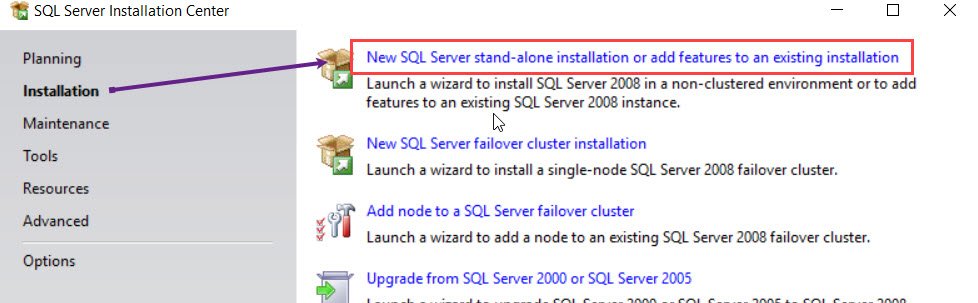
- Choose below option.

- Later in the wizard, choose “Choose “Add new feature on existing installation”
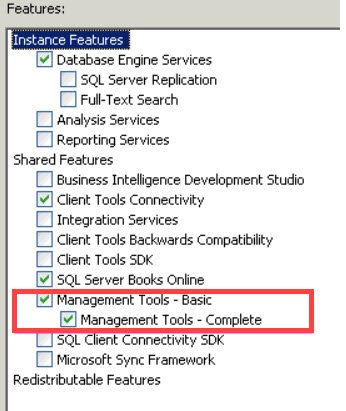
- Select “Management Tools” under the features screen.

- Finish the installation.
After following the above steps, the SSMS was installed.
Published by Pinal Dave on SQLAuthority. More of my work at pinaldave.com.



2 Comments. Leave new
Hi,
That option is greyed out. Any other possible workaround
checked or unchecked? Grey’ed out means its already installed.