
Backup to Azure Storage uses the SQL Server BACKUP TO URL command to write a backup directly to a blob. My original example used a storage account key. For SQL Server 2016 and later, the example below uses a container SAS and block blobs. Each backup gets its own name.
Choose the Method for Your SQL Server Version
Backup to Azure Blob Storage first became available in SQL Server 2012 SP1 CU2. SQL Server 2016 added the SAS and block blob approach. The older account key method uses page blobs and different credential syntax.
This walkthrough covers the SAS method on SQL Server, not Azure SQL Database. Managed identity backup has its own version and deployment requirements. It does not replace the SAS credential shown here. Check your version first. On my SQL Server 2025 instance this returned the supported message.
SELECT CASE WHEN CONVERT(int, SERVERPROPERTY('ProductMajorVersion')) >= 13
            THEN 'SAS and block blobs are supported' ELSE 'Use the older account key method' END AS BackupToUrlMethod;
Prepare the Container and Access
- Use a private container in the storage account you intend to use.
- Give the SAS the permissions your backup and restore need, scoped to that container, with a sensible expiry. Treat the token as a secret.
- Confirm that the Database Engine host can reach the storage endpoint through its DNS, firewall, private endpoint or proxy settings. A working connection from your SSMS workstation is not enough.
- Ask an authorized administrator to create the credential. That needs ALTER ANY CREDENTIAL. Backing up a database is a separate permission.
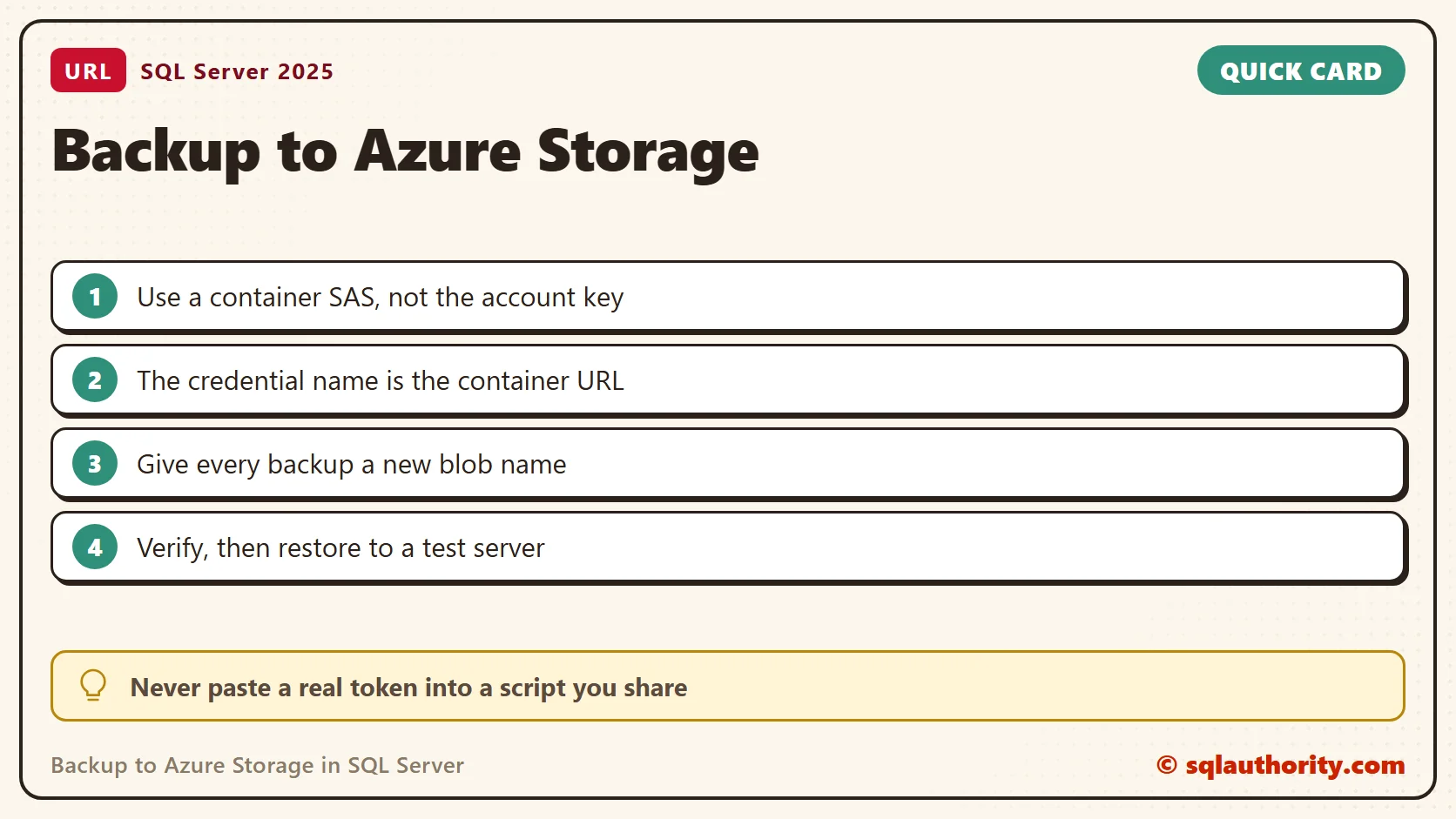
SQL Server 2019 and earlier limit the SAS token to 256 characters. Never paste a real token into a script you share, a screenshot or a log.
Create the Container Credential
Replace the account and container with your own lowercase names. The credential name must match the HTTPS container URL, without a trailing slash. Remove the leading question mark from the SAS token.
CREATE CREDENTIAL [https://yourstorageaccount.blob.core.windows.net/yourcontainer]
WITH IDENTITY = 'SHARED ACCESS SIGNATURE',
     SECRET = 'YOUR_CONTAINER_SAS_WITHOUT_LEADING_QUESTION_MARK';
If the credential already exists, review it with the administrator. Do not drop it, and do not replace a token that other jobs use. I created this statement on my instance with a dummy secret. It worked, and I dropped it afterwards.
SQL Server finds the credential by the backup URL. This query checks that one credential covers your target before you run the backup. A match means the container name is spelled the same way in both places.
DECLARE @BackupUrl nvarchar(2048) = N'https://yourstorageaccount.blob.core.windows.net/yourcontainer/SalesDemo_check.bak';
SELECT name AS credential_name, credential_identity
FROM sys.credentials
WHERE credential_identity = N'SHARED ACCESS SIGNATURE' AND @BackupUrl LIKE name + N'/%';
Write a Separate Backup Blob
Replace SalesDemo with your database, and use the same account and container as the credential. For a sample database, see Install AdventureWorks and WideWorldImporters. Review the target before you run the backup.
DECLARE @BackupUrl nvarchar(2048) =
    N'https://yourstorageaccount.blob.core.windows.net/yourcontainer/' +
    N'SalesDemo_full_' + CONVERT(nvarchar(36), NEWID()) + N'.bak';
SELECT @BackupUrl AS BackupTarget;
BACKUP DATABASE SalesDemo
TO URL = @BackupUrl
WITH COPY_ONLY, CHECKSUM, STATS = 10;
The GUID suffix gives each backup a new blob name. The example does not use FORMAT, so it never overwrites an existing backup. With a SAS, SQL Server finds the credential from the container URL. Do not add the older WITH CREDENTIAL option.
COPY_ONLY makes this an ad hoc full backup that leaves the differential base alone. It cannot serve as the base for later differentials. Choose the full, differential and log schedule for your recovery policy. CHECKSUM adds backup checks. It does not prove that a restore meets your needs.
Find Your URL Backups in msdb
SQL Server records each backup it writes, including those that go to a URL. This query lists them from the history. It returned no rows on my PC, because I wrote no backup to a URL. On a real server it shows what you have in the container.
SELECT TOP (20) bs.database_name, bs.backup_finish_date, bs.type, bmf.physical_device_name
FROM msdb.dbo.backupset AS bs
JOIN msdb.dbo.backupmediafamily AS bmf ON bmf.media_set_id = bs.media_set_id
WHERE bmf.physical_device_name LIKE N'https://%'
ORDER BY bs.backup_finish_date DESC;
Verify and Rehearse Recovery
After a successful backup, use its exact URL to verify the file.
RESTORE VERIFYONLY
FROM URL = 'https://yourstorageaccount.blob.core.windows.net/yourcontainer/EXACT_BACKUP_NAME.bak'
WITH CHECKSUM;
VERIFYONLY checks that the file is readable and complete. It does not restore the database or check every data structure. Restore to an isolated test server, run consistency and application checks, and record the recovery time. Keep the certificates or keys that encrypted backups need.
I could not run the Azure statements here. They send requests to Azure Storage, and this test machine has no storage account. I ran the version check, the credential statement, the match query and the history query on SQL Server 2025. Test storage permissions, connectivity, capacity and restore behavior in your own environment.
A cloud backup is not a recovery plan, it is one copy that your restore process must prove usable.
Published by Pinal Dave on SQLAuthority. More of my work at pinaldave.com.
Discover more from SQL Authority with Pinal Dave
Subscribe to get the latest posts sent to your email.




2 Comments. Leave new
very nice matter on sql sir
Linked server returned creation errorole db provider.three semple guidlines for system.click to email this to friendopen