
A corrupted model database stops SQL Server from starting. Some of the advice about it on the internet is wrong. A reader emailed me with this problem and asked how to restore model from backup. The email made me think about how much incorrect information is out there.
The Error
The reader said SQL Server could not start because of corruption in the model database. These are the messages in the SQL Server ERRORLOG. Error 5125 says the model.mdf file is smaller than expected.
2015-09-23 21:45:07.00 spid11s     Starting up database 'model'.
2015-09-23 21:45:07.45 spid11s     Error: 5125, Severity: 24, State: 2.
2015-09-23 21:45:07.45 spid11s     File 'E:\Program Files\Microsoft SQL Server\MSSQL12.SQL2014\MSSQL\DATA\model.mdf' appears to have been truncated by the operating system.  Expected size is 4288 KB but actual size is 4280 KB.
2015-09-23 21:45:07.49 spid11s     SQL Trace was stopped due to server shutdown. Trace ID = '1'. This is an informational message only; no user action is required.
What the Reader Sent
The reader had a backup of the model database and wanted to restore it. They had spoken to many people and got different answers. They asked me for the right direction.
Why the Usual Advice Is Wrong
The problem is straightforward. Restore the backup of model when the current one is corrupted and SQL Server won’t start. A search on the internet gives these incorrect hints:
- Start SQL Server with trace flag 3608. From a command prompt, use
sqlservr.exe -T3608. - Start SQL Server from a command prompt using
sqlservr.exe -c -m.
To test them, I renamed the model database files. Then I started SQL Server with trace flag 3608 and tried a restore. This is the message I received during the restore.
Shared Memory Provider: The pipe has been ended.
Communication link failure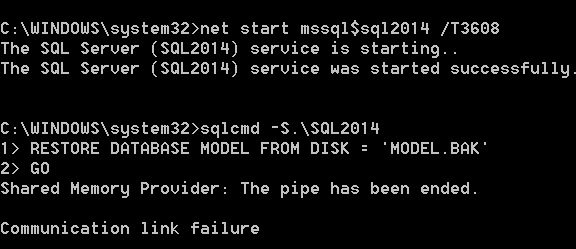
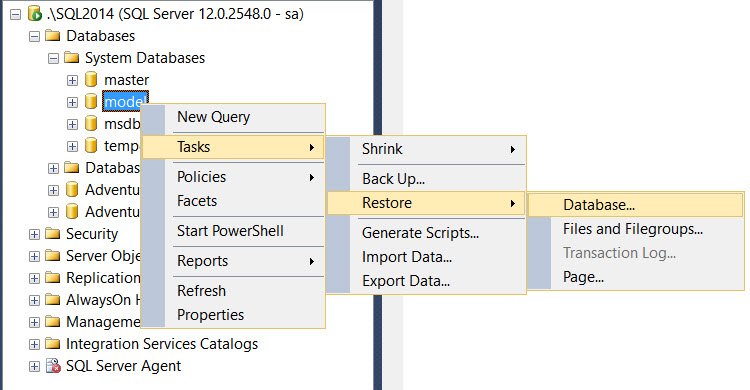
Restoring model is not a big deal. It does not need a special switch or startup parameter. You can restore it with a T-SQL query or with the Management Studio interface. The real problem is that SQL Server does not start because model is in a bad state.
The Fix
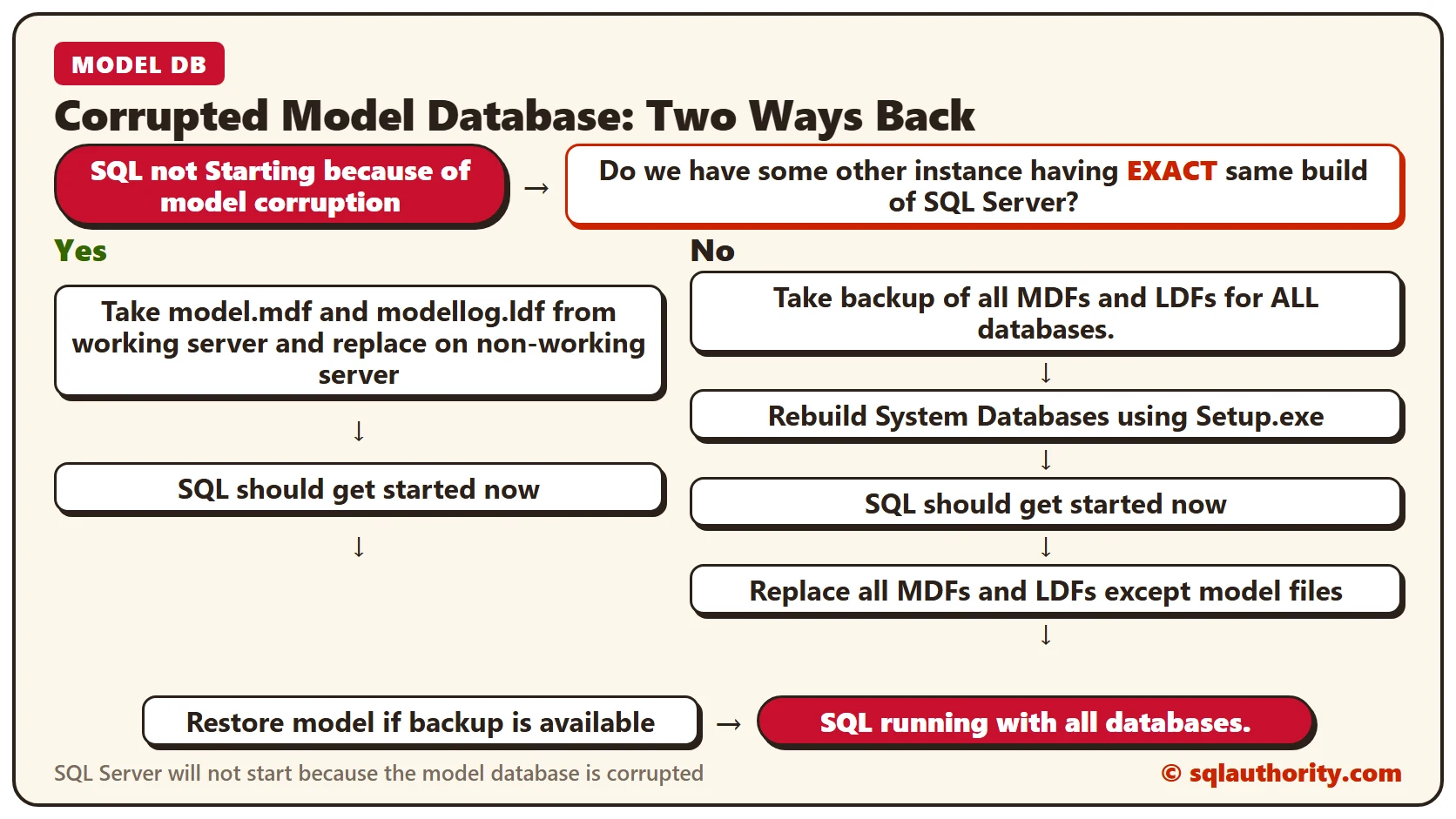
There are two working solutions, and the flow chart at the top shows both. The first one works when another instance runs the exact same build of SQL Server.
- Take model.mdf and modellog.ldf from the working server and replace them on the non-working server.
- SQL Server should start now.
- Restore model if a backup is available.
If no other instance has the same build, use the second one.
- Take a backup of all MDFs and LDFs for ALL databases.
- Rebuild the system databases using Setup.exe.
- SQL Server should start now.
- Replace all MDFs and LDFs except the model files.
- Restore model if a backup is available.
Once SQL Server runs, model can be restored directly with T-SQL or with SSMS.
How to Prevent It
Keep a backup of model, as the reader did, so you have something to restore. Have you ever found incorrect information on the internet? Never trust information from untrusted sources.
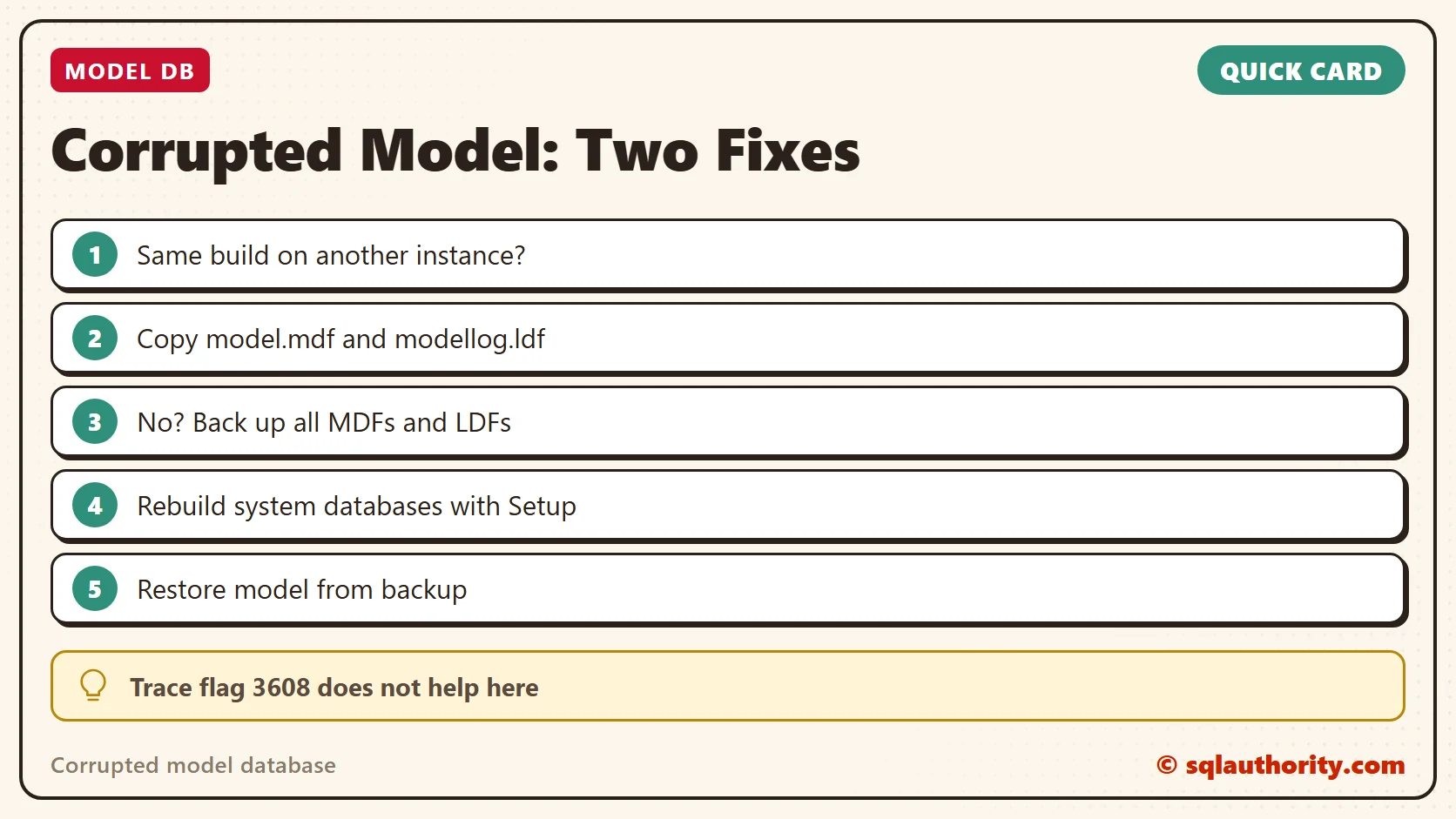
A corrupted model database is not a restore problem, it is a startup problem.
Published by Pinal Dave on SQLAuthority. More of my work at pinaldave.com.
Discover more from SQL Authority with Pinal Dave
Subscribe to get the latest posts sent to your email.




8 Comments. Leave new
Gail Shaw has an extensive post on this.
If your SQL Server 2014 can’t start and show error of “model.mdf” then do the following steps:
1) Copy “model.mdf” and “modellog.ldf” files form “C:\Program Files\Microsoft SQL Server\MSSQL12.MSSQLSERVER2014\MSSQL\Binn”
2) Paste\overwrite those copied file inside “C:\Program Files\Microsoft SQL Server\MSSQL12.MSSQLSERVER2014\MSSQL\DATA”
3) Restart SQL server 2014
Sanket, your solution worked 100%
Many thanks
Awesome It’s successfully
CMD command for rebuilding your system databases:
Setup /QUIET /ACTION=REBUILDDATABASE /INSTANCENAME=InstanceName /SQLSYSADMINACCOUNTS=accounts [ /SAPWD= StrongPassword ] [ /SQLCOLLATION=CollationName]
Source:
https://docs.microsoft.com/en-us/sql/relational-databases/databases/rebuild-system-databases?view=sql-server-2017
Hi sir i have also faced same issue i resolved this by copy paste from
“C:\Program Files\Microsoft SQL Server\MSSQL11.MSSQLSERVER\MSSQL\Binn\Templates\”
I generally don’t use that folder as its for rebuilding purpose.
Hi Pinal
This post has saved me..
I was getting below error while starting SQL SERVER services.
2018-07-01 18:39:32.96 spid6s [INFO] HkHostDbCtxt::Initialize(): Database ID: [3] ‘model’. XTP Engine version is 0.0.
2018-07-01 18:39:32.96 spid6s Starting up database ‘model’.
2018-07-01 18:39:32.98 spid6s [INFO] HkHostDbCtxt::Initialize(): Database ID: [3] ‘model’. XTP Engine version is 0.0.
2018-07-01 18:39:33.50 spid17s [INFO] HkHostDbCtxt::Initialize(): Database ID: [7] ‘SACC LIVE’. XTP Engine version is 0.0.
2018-07-01 18:39:33.57 spid6s [INFO] HkHostDbCtxt::Initialize(): Database ID: [3] ‘model’. XTP Engine version is 0.0.
2018-07-01 18:39:33.59 spid6s Error: 9003, Severity: 20, State: 1.
2018-07-01 18:39:33.59 spid6s The log scan number (33:1888:1) passed to log scan in database ‘model’ is not valid. This error may indicate data corruption or that the log file (.ldf) does not match the data file (.mdf). If this error occurred during replication, re-create the publication. Otherwise, restore from backup if the problem results in a failure during startup.
2018-07-01 18:39:33.60 spid6s SQL Server shutdown has been initiated
2018-07-01 18:39:33.60 spid6s SQL Trace was stopped due to server shutdown. Trace ID = ‘1’. This is an informational message only; no user action is required.
I replaced model LDF and MDF file from working server and was able to start service.
Great Thanks.