
The Current Activity section of Performance Dashboard shows what is running on SQL Server right now. When you drive on the highway, you watch the dashboard for your speed. When your kid fiddles with your phone, you want to see what they are doing. When an ad plays on the TV, you want to know the channel. Each one is a look at the current state of an activity in hand.
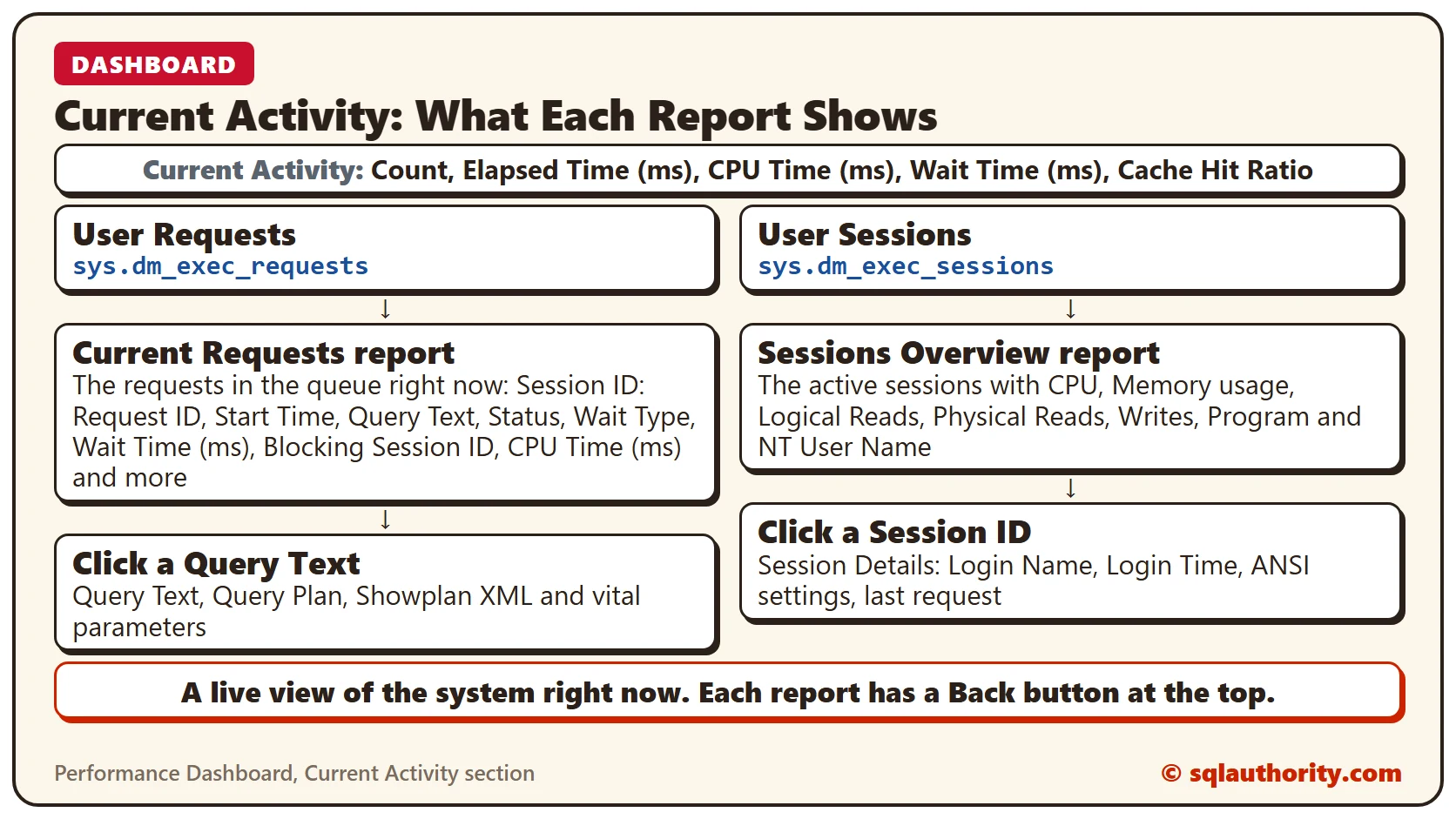
This section gives you a glimpse of the current activity on the system. At a high level, it is split into User Requests and User Sessions, with the vital parameters for each. They come from the DMVs sys.dm_exec_requests and sys.dm_exec_sessions.
What the Section Shows
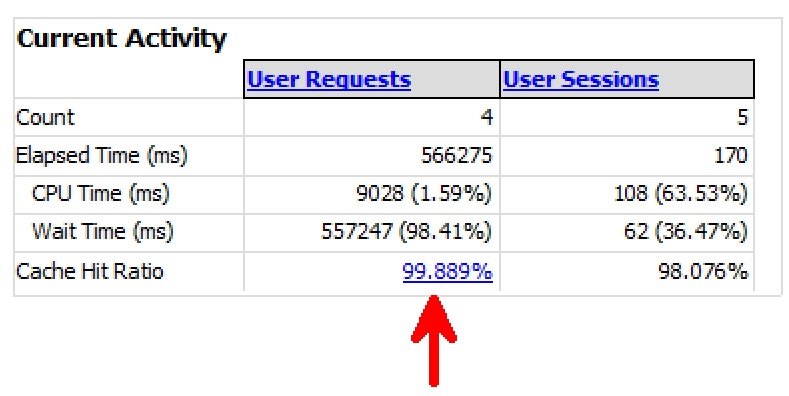
As I said in the previous post, it is vital to track the Cache Hit Ratio. For an OLTP system, it should be in the high 90s as much as possible. Two hyperlinks give even more detail about the current system.
User Requests: the Current Requests Report
Click “User Requests” and you see the “Current Requests” report. It is a live report of the requests in the queue at this moment.

The report has many columns, and the image shows only part of them. The complete list of columns is:
- Session ID: Request ID
- Start Time
- Query Text
- Status
- Wait Type
- Wait Time (ms)
- Wait Resource
- Blocking Session ID
- CPU Time (ms)
- Total Elapsed Time
- Logical Reads
- Physical Reads
- Writes
- Transaction Isolation Level
- Granted Query Memory (KB)
- Executing Managed Code
You can sort the result set by clicking a column name. Under the cover, the report is fetched by a stored procedure in the msdb database. Deploying the Dashboard reports creates it. Here is what you can run:
EXEC msdb.MS_PerfDashboard.usp_RequestDetails 0The parameter is @include_system_processes, and 0 means we don’t want to see system processes.
Each Query Text is a hyperlink that gives more detail. The detail page shows the query text, the query plan, the Showplan XML and some vital parameters of the query. You can also get these from the execution plan and the Properties pane of a query. With DMVs, you can get the plan from sys.dm_exec_text_query_plan() by passing the SQL handle.
User Sessions: the Sessions Overview Report
Next is “User Sessions”. Click it and you see all the sessions currently active on your live system. The report is fetched by running this procedure:
EXEC msdb.MS_PerfDashboard.usp_SessionDetails @include_system_processes = 0Remember, Performance Dashboard reports are great for seeing what is happening in the system at that moment. They are not proactive reports. If you want to check the vital parameters interactively, this is the place to go.
The “Sessions Overview” report shows the active sessions. It lists CPU, memory usage, logical reads, physical reads, writes, the session program, the NT user name and more. Activity Monitor already shows part of this information. I like this output because it does not refresh continuously.

Session Details
Click a Session ID. You can also click the “Session ID: Request ID” link in the Current Requests report. Both lead to the “Session Details” page.

For the given session and query, you see the ANSI settings, login name, login time and NT user. You also see CPU and memory usage, when the last request was fired and more. You can’t get this information from the other standard reports so easily. Try to use it wherever it helps.
The top section of the values can also come from a DMV query:
SELECT session_id, login_time, HOST_NAME, program_name, login_name, nt_domain, nt_user_name,
status, cpu_time, memory_usage, total_scheduled_time, total_elapsed_time, last_request_start_time,
last_request_end_time, reads, writes, logical_reads,
is_user_process, TEXT_size, language, date_format, date_first,
quoted_identifier, arithabort, ansi_null_dflt_on,
ansi_defaults, ansi_warnings, ansi_padding,
ansi_nulls, concat_null_yields_null,
transaction_isolation_level, lock_timeout,
deadlock_priority, row_count, prev_error
FROM sys.dm_exec_sessions
Quick Tips About Dashboard Reports
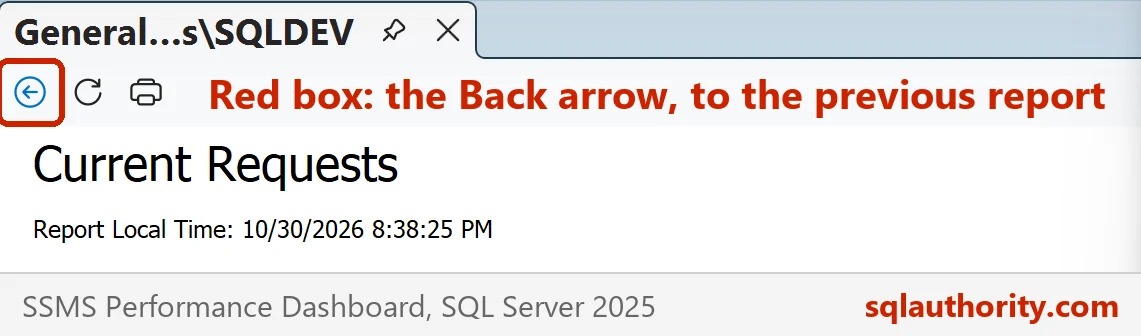
- Each report has a Back button at the top. Use it to return to the previous report.
- The client report viewer control used by SSMS does not support copy (Ctrl+C and Ctrl+V). The workaround is to right-click the report and choose “Export to Excel”. Then you can copy the text from the exported file.
This is a sample of how powerful some DMVs are. They hold tons of information that goes unnoticed. I hope you will use these DMVs effectively in future.
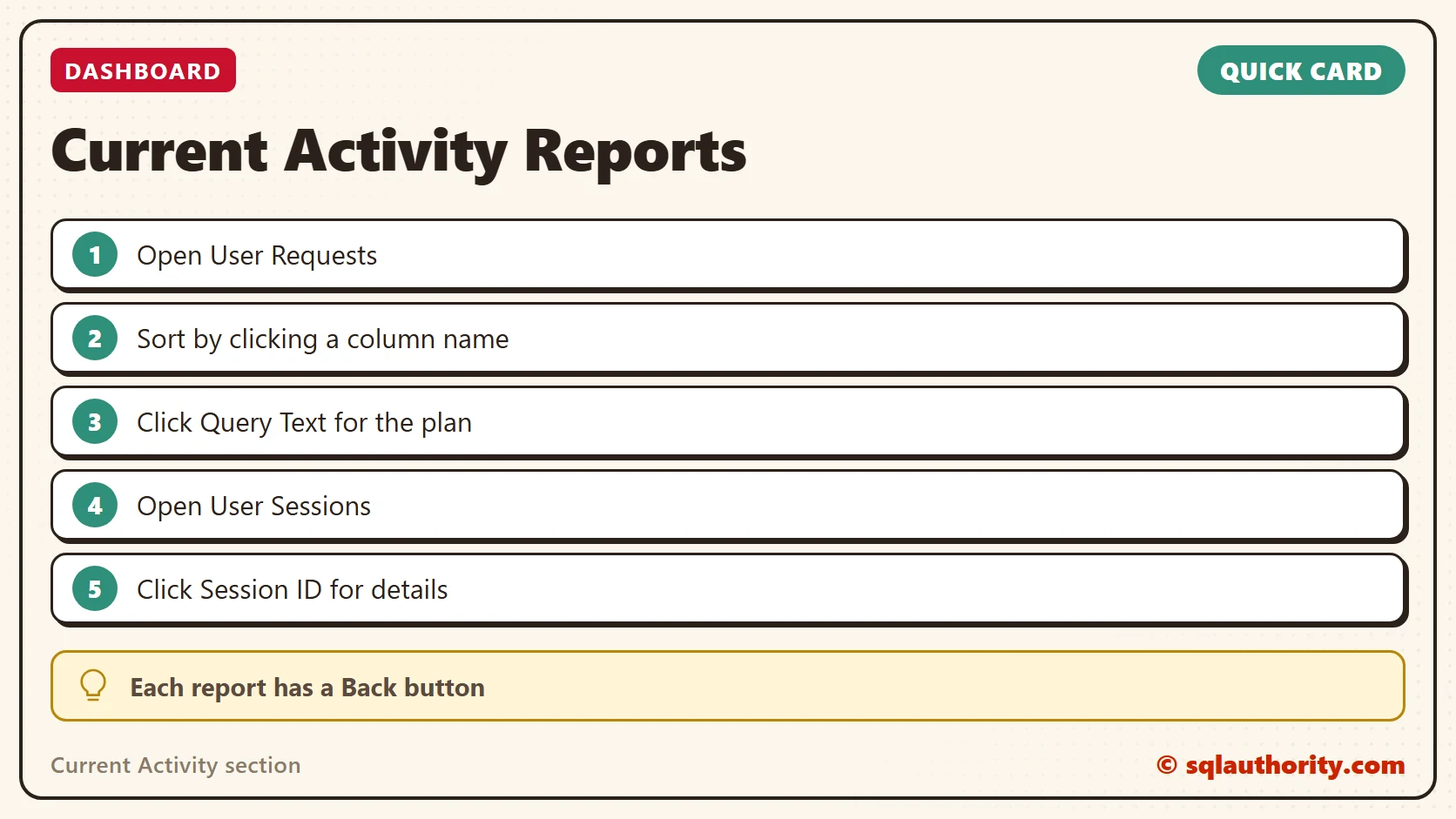
Performance Dashboard is not a history report, it is a live look at the system right now.
Published by Pinal Dave on SQLAuthority. More of my work at pinaldave.com.
Discover more from SQL Authority with Pinal Dave
Subscribe to get the latest posts sent to your email.




1 Comment. Leave new
Hi,
Is that possible to check when a particular column has been modified in a table?