QUERY_OPTIMIZER_HOTFIXES is a database-scoped setting that lets the optimizer use fixes that Microsoft ships turned off. Flipping it takes one line. Knowing whether it helped your workload takes a little more work, and that is the part people skip.

Why this setting gets recommended
Picture a vendor call. A query got slow after an upgrade. The vendor says, “Turn on optimizer hotfixes, it fixed it for another customer.” Fair suggestion. But it is a switch that affects every query in the database, not only the slow one.
So before touching it, look at it. Try it on one statement. Then switch it on for a database and put it back. Run all of this in a test database.
Check where you start
Write down three things first: the build number, the compatibility level, and the current value of the setting. If you ever need to explain a plan change, these are the first questions anyone will ask.
SELECT CONVERT(varchar(30), SERVERPROPERTY('ProductVersion')) AS BuildNumber;

SELECT compatibility_level FROM sys.databases WHERE database_id = DB_ID();

SELECT name, value, is_value_default
FROM sys.database_scoped_configurations
WHERE name = N'QUERY_OPTIMIZER_HOTFIXES';
On my test database the compatibility level is 170, the value is 0, and is_value_default is 1. So out of the box the setting is off, and that is what you probably have too. Your build number will differ from mine.
Try the fixes on one statement first
You do not have to change the database to test. A query hint turns the fixes on for a single statement. That is the safest first step, because nothing else on the server notices.
SELECT type_desc, COUNT_BIG(*) AS ObjectCount
FROM sys.objects
GROUP BY type_desc
ORDER BY type_desc
OPTION (USE HINT('ENABLE_QUERY_OPTIMIZER_HOTFIXES'));
This catalog query is only a stand-in, so it shows where the hint goes. It returns three rows in my test database. With your real slow query, compare the results and the actual plan with and without the hint, using the same parameter values. Run both a few times, so a cold cache does not fool you.
Switch it on for the database, then put it back
If the hint helped, the next step is the database setting. This block reads the old value, turns the option on, shows the new value, and restores the old one. It touches only the database you are connected to.
DECLARE @previous int = (SELECT CONVERT(int, value)
                         FROM sys.database_scoped_configurations
                         WHERE name = N'QUERY_OPTIMIZER_HOTFIXES');

ALTER DATABASE SCOPED CONFIGURATION SET QUERY_OPTIMIZER_HOTFIXES = ON;

SELECT value AS EnabledValue
FROM sys.database_scoped_configurations
WHERE name = N'QUERY_OPTIMIZER_HOTFIXES';

IF @previous = 0
    ALTER DATABASE SCOPED CONFIGURATION SET QUERY_OPTIMIZER_HOTFIXES = OFF;

SELECT value AS RestoredValue
FROM sys.database_scoped_configurations
WHERE name = N'QUERY_OPTIMIZER_HOTFIXES';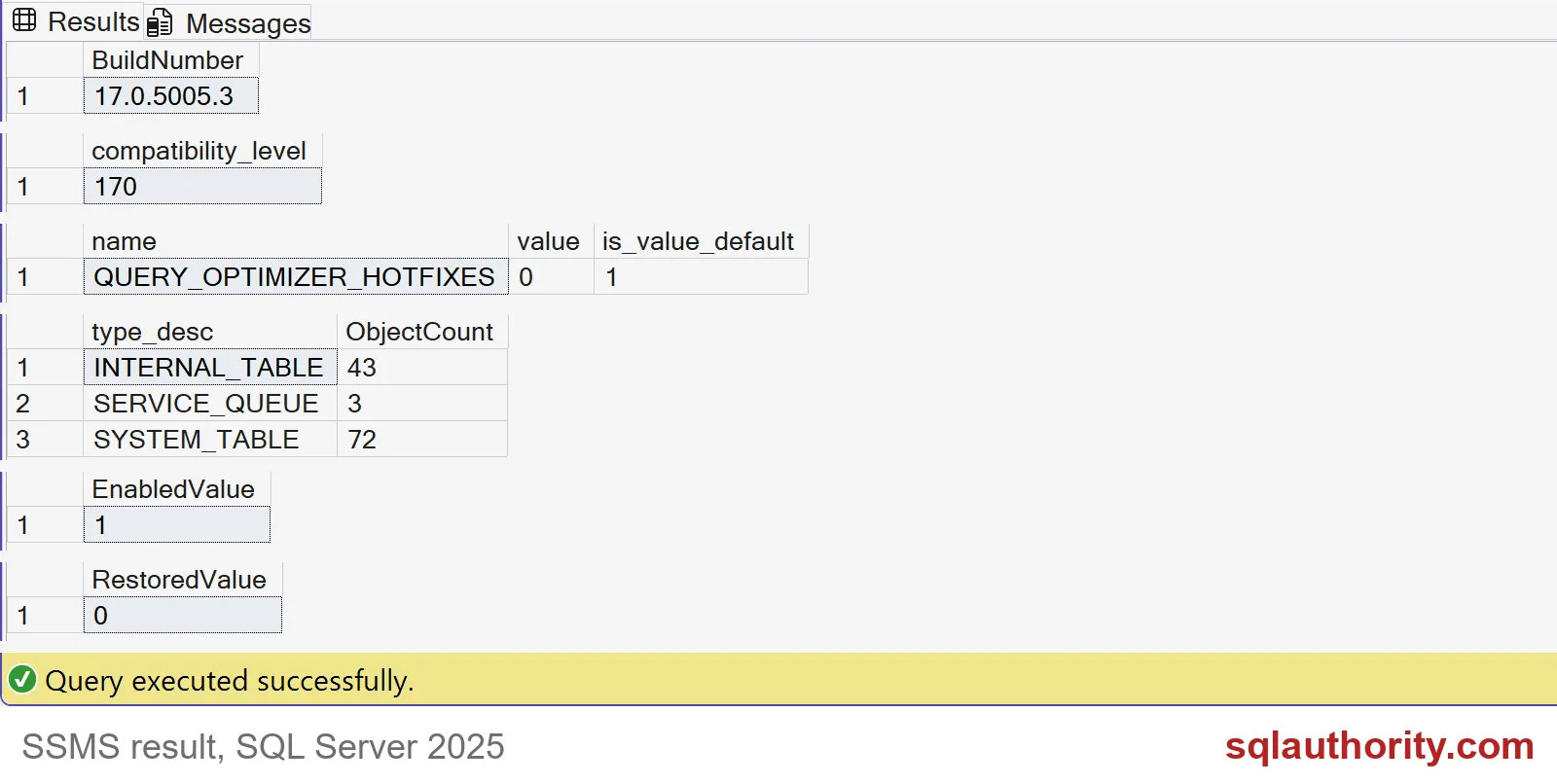
The screenshot shows the results of the earlier blocks too. EnabledValue is 1, so the switch worked. RestoredValue is 0, so we are back where we started. Notice what these numbers do not tell you: whether any query got faster. The setting being on is a fact about the configuration, not about your workload.
It belongs to one database only
A database-scoped setting stays with its database. Turn it on here, and the master database does not follow. The next block proves it by reading the setting from both places at once, then restores the old value.
DECLARE @previous int = (SELECT CONVERT(int, value)
                         FROM sys.database_scoped_configurations
                         WHERE name = N'QUERY_OPTIMIZER_HOTFIXES');

ALTER DATABASE SCOPED CONFIGURATION SET QUERY_OPTIMIZER_HOTFIXES = ON;

SELECT DB_NAME() AS DatabaseName, value
FROM sys.database_scoped_configurations
WHERE name = N'QUERY_OPTIMIZER_HOTFIXES'
UNION ALL
SELECT N'master', value
FROM master.sys.database_scoped_configurations
WHERE name = N'QUERY_OPTIMIZER_HOTFIXES'
ORDER BY DatabaseName;

IF @previous = 0
    ALTER DATABASE SCOPED CONFIGURATION SET QUERY_OPTIMIZER_HOTFIXES = OFF;
My test database shows 1 and master shows 0. That is handy on a server with many databases. You can try the setting on the one that has the problem and leave the rest alone.
Test it like a change, not a fix
Keep everything else steady while you test: the same build, the same compatibility level, no other hints. Then watch the whole database, not just the query that started the call. A fix for one plan shape can change another, including queries that were already fine.
Query Store is the right tool here. Capture a normal period with the setting off, a normal period with it on, and compare. Decide in advance what you will do if something regresses. Usually the answer is one line: set it back, which the demo above already showed.

Switch it on when you can show a reason, and keep the old value handy.
QUERY_OPTIMIZER_HOTFIXES is not a speed button, it is a setting to test.
Published by Pinal Dave on SQLAuthority. More of my work at pinaldave.com.
Discover more from SQL Authority with Pinal Dave
Subscribe to get the latest posts sent to your email.