
There are certain situation when user wants to start SQL Server Engine in “single user” mode from the start up. Here are the steps to start an instance in single user mode.
To start SQL Server in single user mode is very simple procedure as displayed below.
Go to SQL Server Configuration Manager and click on SQL Server 2005 Services. Click on desired SQL Server instance and right click go to properties. On the Advance table enter param ‘-m;‘ before existing params in Startup Parameters box.
Make sure that you entered semi-comma after -m. Once that is completed, restart SQL Server services to take this in effect. Once this is done, now you will be only able to connect SQL Server using sqlcmd.
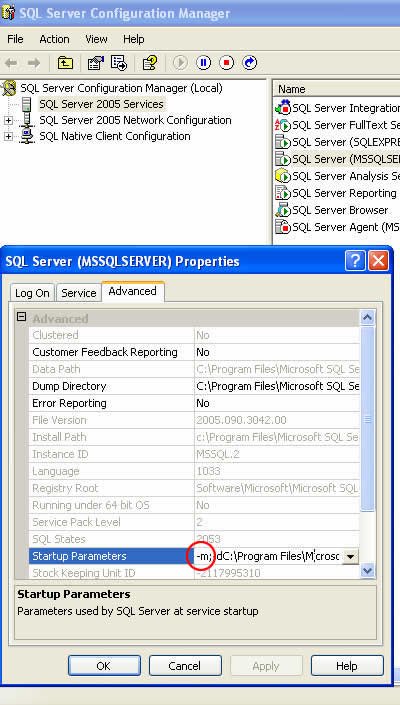
Make sure to remove newly added params after required work is completed to restart it in multi user mode.
Tips for Working in Single User Mode
The biggest problem with this mode is that only one connection is allowed, and something else often grabs it before you do. SQL Server Agent, a monitoring tool, or even an application service can reconnect the moment the instance starts. Stop those services first, then start SQL Server, and connect right away.
Management Studio can also be a trap. Object Explorer opens its own connection, so if you connect with it first and then open a query window, the query window may be refused. That is why a command line tool like sqlcmd is the easiest way in.
Common reasons to use this mode:
- Restoring the
masterdatabase, which requires it. - Getting back into an instance when no one knows a sysadmin login. Members of the local Windows Administrators group can connect as sysadmin in this mode.
- Fixing a problem that needs the server to yourself with no user activity.
When you are done, remove -m from the startup parameters and restart the service. If you forget, the next person will find they cannot connect, and it will look like a much bigger outage than it is. A short note in the change log helps the whole team.
Published by Pinal Dave on SQLAuthority. More of my work at pinaldave.com.



56 Comments. Leave new
should be sp_addsrvrolemember intead of sp_addsrvrolememEber
I tried 10 solutions for this problem, none of them worked except yours.
Thank you very much.
hi
how can start my sql server 2008 r2 in single user mode
Thanks for this article! Saved me a bunch of time reinstalling & attaching databases!
Hi,
I’m not able to change the start up parameter in MSSQL 2012 server, getting error as “The Parameter is Invalid”. Not getting where I’m wrong here, earlier several times I had tried this.
Parameter :
-m;-dC:\Program Files\Microsoft SQL Server\MSSQL11.MSSQLSERVER\MSSQL\DATA\master.mdf
Please help me.
Hi Dave just wanted to say thanks a million for all the incredible advise you always give to the SQL community. I know this comment is 2 years after the original one but i just wanted to make a comment on this.
1. after the server is started in single user mode make sure all other sql services like reporting services etc. are stopped or it will tell you that another user is already connected.
2. using SQLCMD -S from the command prompt I found is easiest for me to connect then i just use TSQL commands to fix the issues
Thanks for your wonderful post. Unfortunately, I run into some problem. I have a few Server Instances on the same server. Not sure it was the culprit or not. However, after adding -m; into the Startup Parameters and restarted successfully, I am not able to connect to the database server using SQLCMD. Is there anything I need to check ?
Hi
I have closed sql server management studio 2012 with stop mood how can I start it ??
Hi,
If in Advance Tab- Startup Parameters box contain is disabled,then how to enabled it ??
Please replay.
Thanks in Avvance.
Ajit
If you’re receiving an error from sqlcmd similar to “”Login failed for user ‘sa’. Reason: Server is in single user mode. Only one administrator can connect at this time.” and have an error message similar to “Script level upgrade for database ‘master’ failed because upgrade step ‘sqlagent100_msdb_upgrade.sql’ ” in the event viewer after you start the service this link might solve your problem: https://support.microsoft.com/en-us/help/2163980/fix-the-sql-server-service-cannot-start-after-you-install-cumulative-u
Chased this around for hours before figuring it out.
When I try this on SQL 2008 and attempt to restart the service, the service crashes on start up. I am not having any luck starting up the service after adding -m; to my parameters.
SQL server did not start due to incorrect model file path- Add -T3680 startup parameter in the SQL server service from the SQL server configuration manager and restart the service.Open the command prompt as administrator. From the command prompt type ‘NET START MSSQLSERVER /mSQLCMd’. this would start SQL in single user mode and would only allow connections from SQLCMd. A sysadmin should be able to login from SQLCmd but if you are unable to login check the error logs and see if there are any trace flags that are starting as soon as the service starts.delete other statup parameters (except the master db files and error log parameters) and try to login through SQLCMd. For default instance
‘SQLCMD -S . _Usa’ and then change the file path location.
Hi,
I started the instance of SQL Server using CMD.
What should i do next?
The last thing visible on CMD is
2016-01-27 19:46:25.89 spid13s Service Broker manager has started.
2016-01-27 19:46:25.89 spid6s Recovery is complete. This is an informational
1 message only. No user action is required.