[Notes from Pinal]: Offloading backups to a secondary replica is one way to get more out of two servers. If we get one server, we want two. If we get two, we want four. When we know we will only get two, we try to use every bit of them. The usual answer is common sense: keep the most important work on the primary and move the less important work to the secondary. So I asked Eduardo how we can make the primary faster by offloading backups.
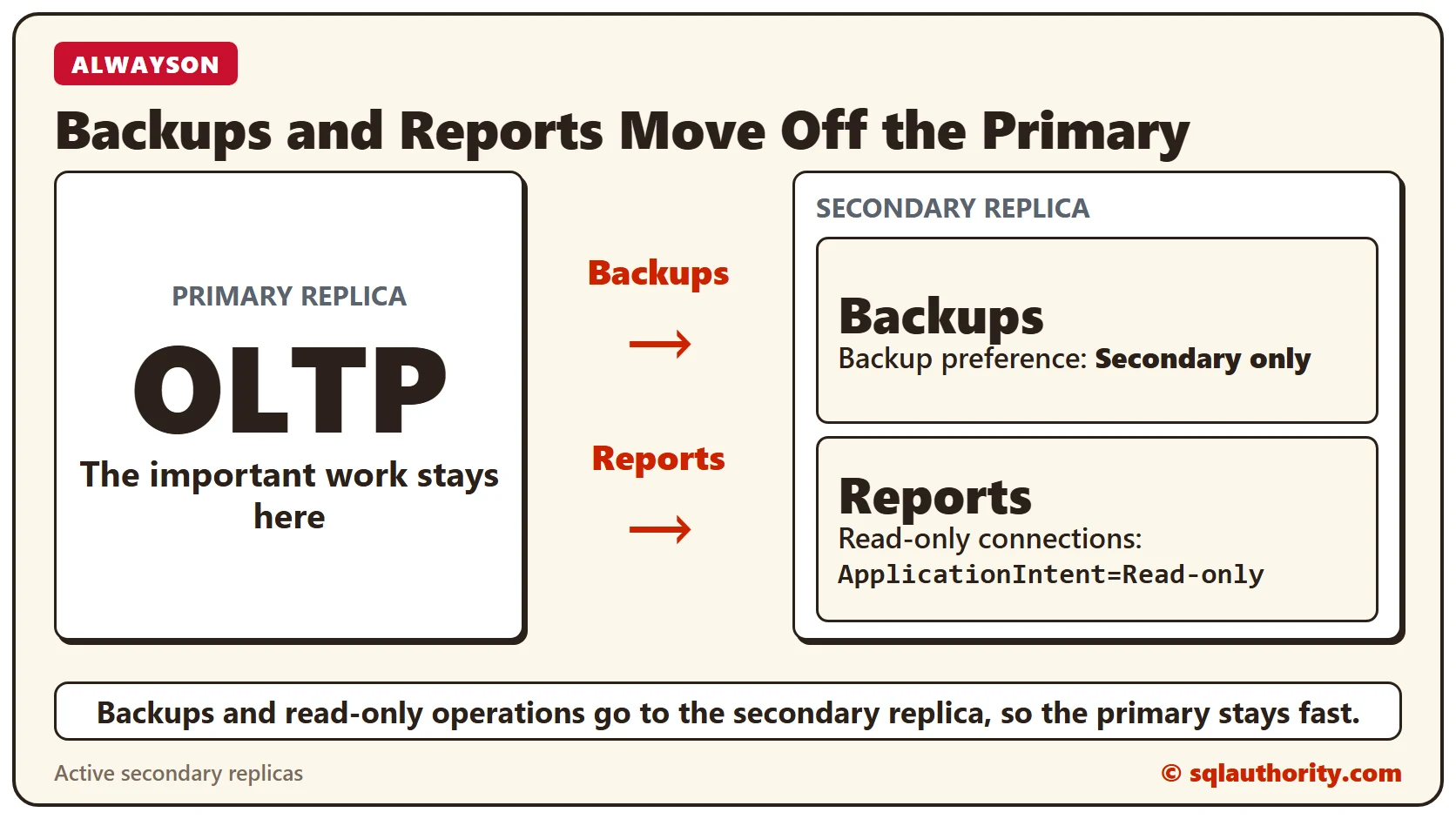

This is the 108th episode of the Notes from the Field series. Database expert Eduardo Castro (partner at Linchpin People) shares how to improve SQL Server performance. The topic is offloading backups to a secondary replica in SQL Server standard edition.
What AlwaysOn Gives You
Microsoft introduced AlwaysOn in SQL Server 2012 as a high availability option. It fits scenarios where the database administrator doesn’t have a SAN.
AlwaysOn is based on availability groups. A group holds several user databases that fail over together to another server when the main server is interrupted. Each availability group defines partners known as availability replicas. Each replica is part of the group and is hosted in a separate instance of SQL Server.
Besides high availability, one of the main features of AlwaysOn is the option to have active secondary replicas.
Two Questions I Get
After my sessions on this topic, I get two common questions:
- How do I improve OLTP performance when a lot of reporting runs during peak hours?
- How do I speed up backups without affecting the throughput of our main server?
This is where active secondary replicas come in. You can use your replicas to spread the load. Send the backups and read-only operations from the primary to one of them.
Set the Backup Preference
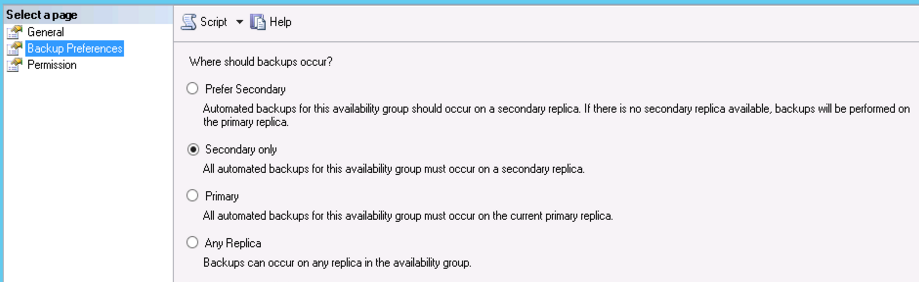
If you create AlwaysOn for the first time, you set the backup priority in the Availability Group Wizard. The following picture shows how to run the backups on the secondary replicas.
Change an Existing Availability Group
If you already created your availability group without setting where backups run, alter the group with T-SQL. The names with an @ sign are placeholders.
ALTER AVAILABILITY GROUP [@MyOLTPAvailablityGroup] MODIFY REPLICA ON <@MyOLTPInstanceA> WITH (BACKUP PRIORITY = 80)To automate this task, you can use a PowerShell script:
Set-SqlAvailabilityReplica -BackupPriority 80 -Path SQLSERVER: \Data\AvailabiltiyGroups\AvailabiltiyReplicas\<@MyOLTPAvailablityGroup>Add a Read-Only Secondary
To add a read-only secondary later, change the configuration to include read-only routing, as shown below.
ALTER AVAILABILITY GROUP MyOLTPAvailablityGroup
MODIFY REPLICA ON 'MySQLServerName'
WITH (
SECONDARY_ROLE (
READ_ONLY_ROUTING_URL = 'TCP://address:port' )
)
Once you have run the scripts, change the connection string of the read-only applications to include the parameter ApplicationIntent=Read-only. The availability group then redirects those read-only connections to the right secondary replica.
Conclusion
To use the full potential of AlwaysOn, look at its high availability features first. But time spent on the secondary read-only replicas and on backups also pays off. It balances the requests on your systems, saves resources and speeds up your SQL Server.
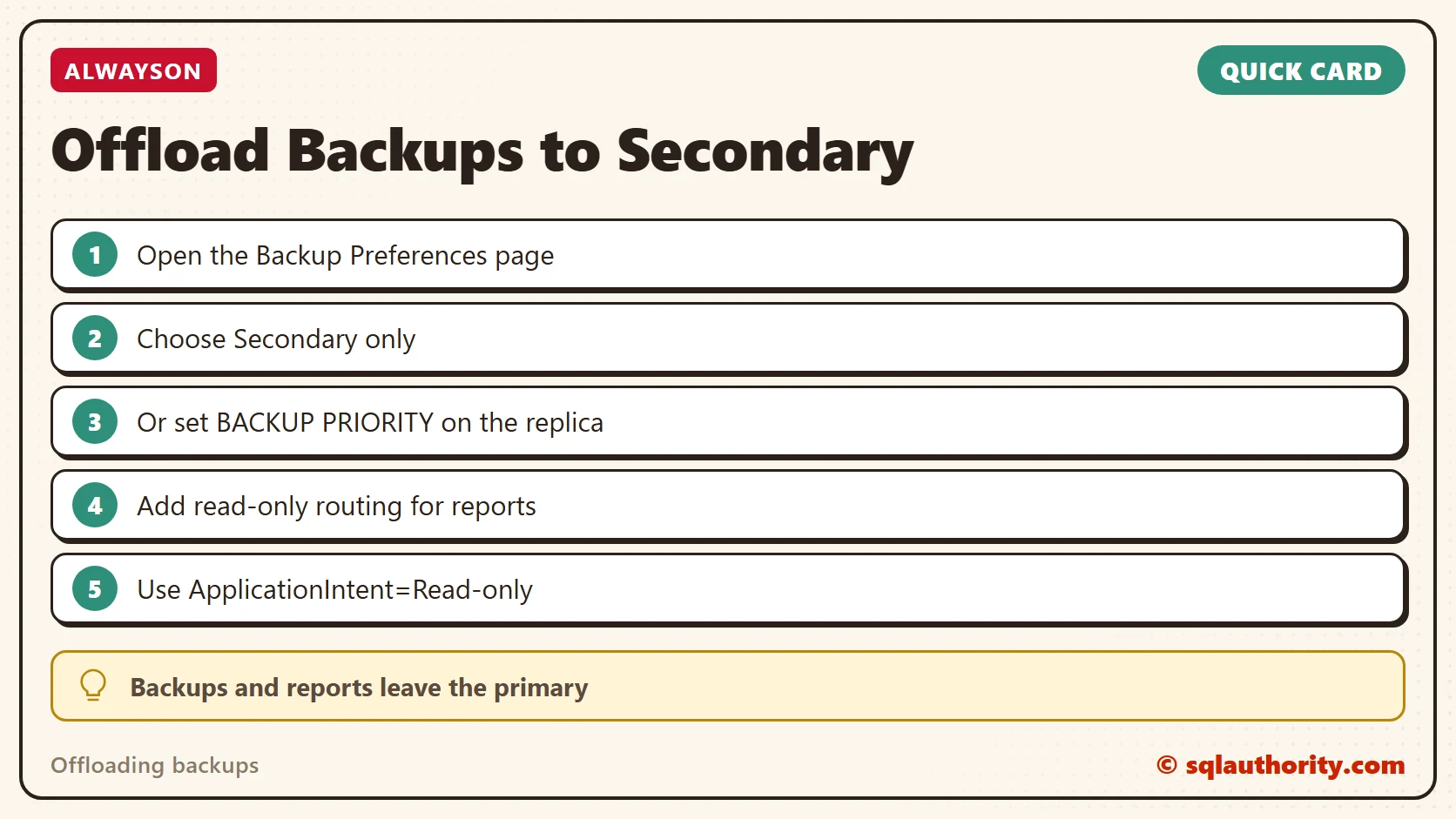
Offloading is not a bonus feature, it is how a second server earns its keep.
Published by Pinal Dave on SQLAuthority. More of my work at pinaldave.com.
Discover more from SQL Authority with Pinal Dave
Subscribe to get the latest posts sent to your email.