Exporting CSV safely means two jobs: write the text correctly, then make sure the reader imports it as text. SQL Server can do the first job. The second belongs to the spreadsheet. Mix them up and a postal code like 00501 turns into 501.

Where the leading zero really goes
Imagine a support ticket. A customer in the 00501 area says the export shows 501. The export gets blamed, and the DBA gets the ticket. Before you touch the export, check one thing: what type is the postal code stored in?
A number has no leading zeros. If the column is an integer, the zero was gone before the export ever started. This tiny query shows the loss. It also shows a repair for five-digit codes, which pads the number back to five characters.
SELECT CAST('00501' AS int) AS PostalAsInt,
       RIGHT('00000' + CAST(501 AS varchar(12)), 5) AS PaddedBack;
The first column is 501 and the second is 00501. Padding only helps for codes of a known length, so it is a patch. The real fix is a character column, such as varchar(12). Store the code as text and the zero is safe.
Build the row the export will use
The demo has one order. It has a text postal code, a name with an accent, a comma and quotes, a date, and an amount. The first result shows the postal code, its length, and the date as text. Style 23 gives yyyy-mm-dd, so nobody has to guess whether 04/03 is April or March.
The second result is the CSV line. Every field is wrapped in double quotes, and any quote inside a value is doubled. That doubling is the rule that keeps a name like José, “Sample” in one piece.
DROP TABLE IF EXISTS #Orders;

CREATE TABLE #Orders
(
    Id           int PRIMARY KEY,
    PostalCode   varchar(12),
    CustomerName nvarchar(100),
    OrderDate    date,
    Amount       decimal(12, 2)
);
INSERT #Orders VALUES (1, '00501', N'José, "Sample"', '20260403', 12.50);

SELECT PostalCode, LEN(PostalCode) AS CodeLength, CONVERT(char(10), OrderDate, 23) AS DateText
FROM #Orders;

SELECT CONCAT(N'"', REPLACE(CONVERT(nvarchar(12), PostalCode), N'"', N'""'), N'","',
              REPLACE(CustomerName, N'"', N'""'), N'","',
              CONVERT(char(10), OrderDate, 23), N'","',
              CONVERT(varchar(30), Amount), N'"') AS CsvLine
FROM #Orders
ORDER BY Id;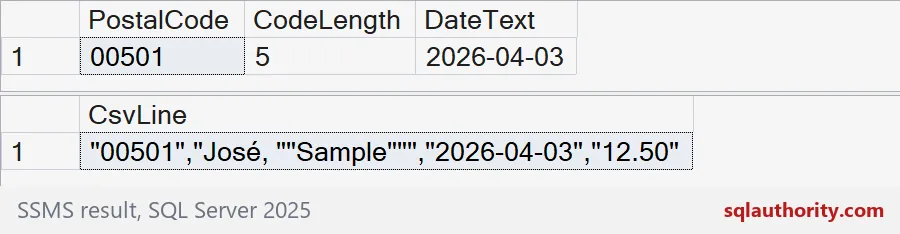

Why quoting is not enough
Look at the CSV line. The postal code is “00501”, with quotes. A reasonable person would think that tells the spreadsheet it is text. It does not. Quotes protect commas and line breaks inside a field. They say nothing about type.
Also, do not rely on bcp with a comma terminator for this. It only puts a comma between fields. It does not add quotes or double the ones inside your data. Build the line in SQL, as above, or use a tool that writes real CSV.
Import with explicit types
When someone double-clicks a CSV file, the spreadsheet guesses every column. It sees digits and makes a number, and the zero is gone. The file is fine. The guess is the problem.
Tell your readers to import the file instead. In Excel, use the option to get data from a text or CSV file, then set the postal code column to Text. Choose UTF-8 as the file origin so the accent in José survives. Do not add tricks like a leading apostrophe or an equals sign formula to your export. They change your data to suit one program.
Check the round trip
An export is not done until you have opened it the way a user will. Import the file and compare four things: the leading-zero code, the accented name, the quoted field, and the date. If one is wrong, you know whether the file or the import caused it. Put that check in your support notes. This demo only creates a temp table, and the last block drops it.
DROP TABLE IF EXISTS #Orders;Test the receiving application with your real values before you call the export finished.
A CSV file is not a typed table, it is text the reader must interpret.
Published by Pinal Dave on SQLAuthority. More of my work at pinaldave.com.
Discover more from SQL Authority with Pinal Dave
Subscribe to get the latest posts sent to your email.