Question: How do you start SQL Server in single-user mode?
Answer: Start the Database Engine instance with -m. That allows one user connection to the instance. It is different from setting one database to SINGLE_USER.

We all need this kind of recovery help at some point. My original example was about controlling access while carrying out instance-level recovery or configuration work. The title says “database,” but the startup parameter shown in its screenshots acts on the entire SQL Server instance.
- Arrange the outage and stop application connections and SQL Server Agent, which could otherwise take the available connection.
- Open SQL Server Configuration Manager, SQL Server Services, then the intended Database Engine service’s Properties.
- In Startup Parameters, add
-m, or-mSQLCMDif you intend to connect with sqlcmd and want that application-name restriction. - Restart that service in the maintenance window and perform the intended work through one connection.
- Remove the temporary startup parameter afterwards and restart normally. Restore any services you deliberately stopped.
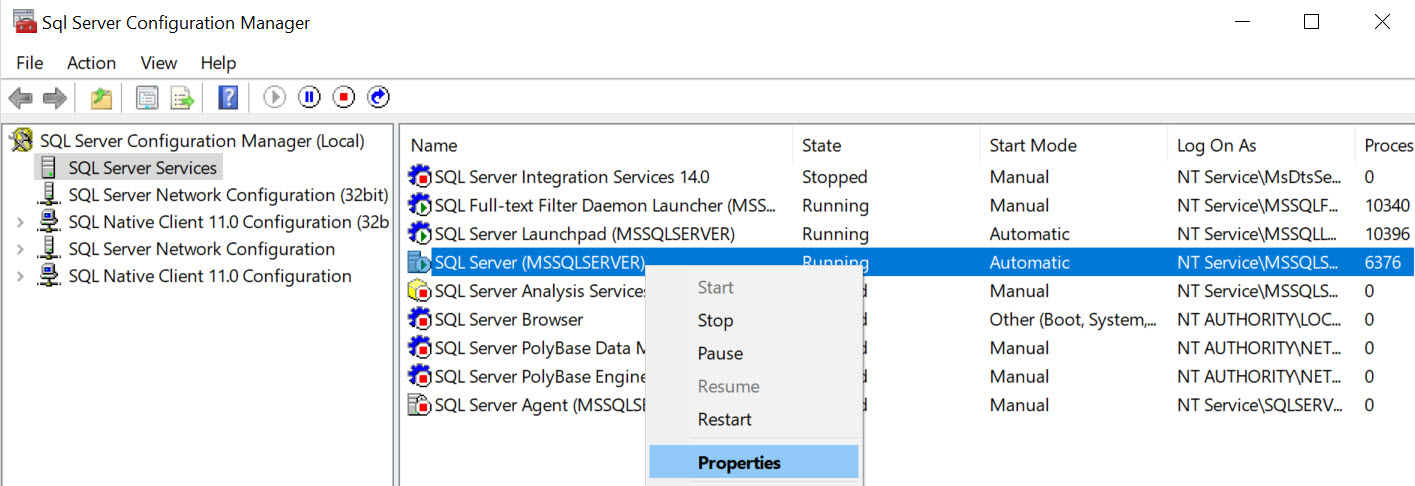
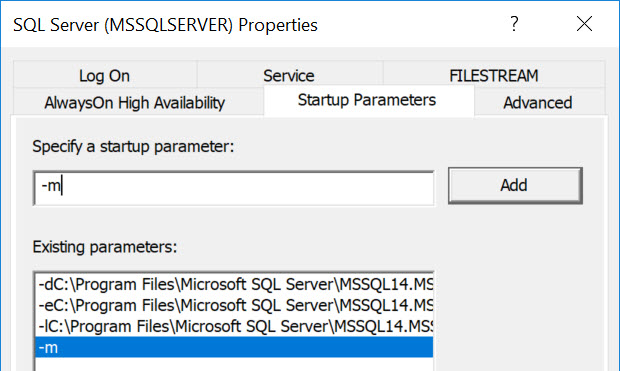
Object Explorer and monitoring tools can open additional connections and take the only slot. The original “do not open SSMS” advice was too broad: a single Query Editor connection can work, but Object Explorer is a poor choice for this task. sqlcmd remains a straightforward option. An application name can be supplied by clients, so -mSQLCMD is connection control for maintenance, not a security boundary.
If you mean one database
-- This sets ONE database, not the whole instance. Review before executing.
ALTER DATABASE [YourDatabase] SET SINGLE_USER;
-- Perform the intended maintenance using the connection you retain.
ALTER DATABASE [YourDatabase] SET MULTI_USER;
That database setting does not restart the instance. Check AUTO_UPDATE_STATISTICS_ASYNC first because its background worker can consume a connection. If other sessions block the change, arrange their disconnection; WITH ROLLBACK IMMEDIATE deliberately ends and rolls back their work, so it should not be added without that decision.
Published by Pinal Dave on SQLAuthority. More of my work at pinaldave.com.
Discover more from SQL Authority with Pinal Dave
Subscribe to get the latest posts sent to your email.