
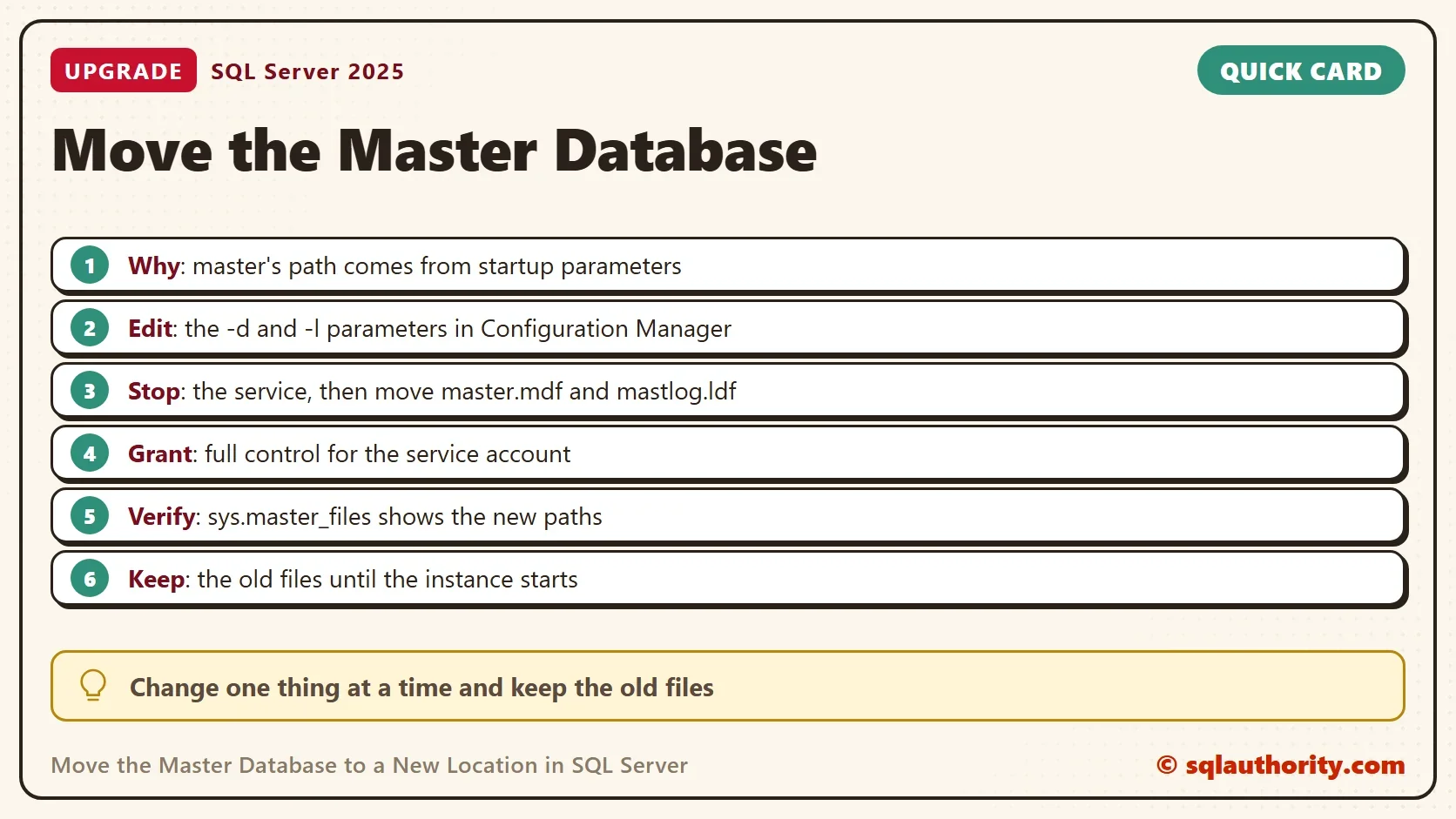
To move the master database, change its startup parameters, stop SQL Server, move the files and start it again. Master is the one system database that ALTER DATABASE can’t move. The reason is how SQL Server finds it.

Why ALTER DATABASE Doesn’t Work for Master
Every other database stores its file paths in the master database. That’s how SQL Server finds them at startup. Master has nobody to ask. The service must open master first, so it reads the paths from its own startup parameters in the Windows registry. So ALTER DATABASE master MODIFY FILE can’t move the master database.
Read the Current Paths
Two queries show where master lives and what the startup parameters say. They don’t change anything.
SELECT name, physical_name, state_desc FROM sys.master_files WHERE database_id = DB_ID(N'master');
SELECT value_name, CONVERT(nvarchar(260), value_data) AS value_data FROM sys.dm_server_registry WHERE value_name LIKE N'SQLArg%' ORDER BY value_name;
| name | physical_name | state_desc |
|---|---|---|
| master | C:\Program Files\Microsoft SQL Server\MSSQL17.SQLDEV\MSSQL\DATA\master.mdf | ONLINE |
| mastlog | C:\Program Files\Microsoft SQL Server\MSSQL17.SQLDEV\MSSQL\DATA\mastlog.ldf | ONLINE |
| value_name | value_data |
|---|---|
| SQLArg0 | -dC:\Program Files\Microsoft SQL Server\MSSQL17.SQLDEV\MSSQL\DATA\master.mdf |
| SQLArg1 | -eC:\Program Files\Microsoft SQL Server\MSSQL17.SQLDEV\MSSQL\Log\ERRORLOG |
| SQLArg2 | -lC:\Program Files\Microsoft SQL Server\MSSQL17.SQLDEV\MSSQL\DATA\mastlog.ldf |
The three parameters are the ones to know. -d is the master data file. -l is its log file. -e is the error log. Move master, and you change -d and -l. Leave -e alone unless you also want a new error log folder.
Back Up Master First
A mistake in a startup parameter can stop the instance. Master holds the logins and the settings of the server. Take a backup before you touch anything, and check that it is readable. COPY_ONLY keeps this one-off backup out of your regular backup chain. A file name without a folder goes to the instance’s default backup folder. Run this block by hand. It writes a file and leaves a row in the backup history.
BACKUP DATABASE master TO DISK = N'master_before_move.bak' WITH INIT, CHECKSUM, COPY_ONLY;
RESTORE VERIFYONLY FROM DISK = N'master_before_move.bak' WITH CHECKSUM;
The second statement prints a line that says the backup set on file 1 is valid. Keep the file until the move is done and the instance has run for a day. Delete it yourself afterwards. SQL Server never removes backup files. The backup also leaves a row in the msdb backup history, which you can leave.
Steps to Move the Master Database
- Open SQL Server Configuration Manager and choose SQL Server Services.
- Right-click SQL Server (instance name), choose Properties, and open the Startup Parameters tab.
- Select the
-dentry, type the new path ofmaster.mdfin the box above the list, and press Update. - Do the same for the
-lentry and the new path ofmastlog.ldf. Press OK. - Stop the SQL Server service. Copy the two files to the new folder, and keep the old files where they are.
- Grant the service account full control on the new folder (next section).
- Start the service. Run the first query again and check that both files show the new paths.
Changing the parameters while the service runs is fine. They take effect only at the next start. That is why the order matters: edit, stop, move, start.
Check the Result
After the start, run the first query again. Both rows must show the new folder, and the state must be ONLINE. The SQLArg0 and SQLArg2 rows of the second query must match. Then read the start time in sys.dm_os_sys_info. It must be later than the move.
Give the Service Account Access
The new folder must let the SQL Server service account read and write. A copied file takes the permissions of the new folder. A file moved on the same drive keeps its old ones. A missing permission is the usual reason a move fails with an error such as 17204, FCB::Open failed. Ask SQL Server which account to grant.
SELECT servicename, service_account FROM sys.dm_server_services WHERE servicename LIKE N'SQL Server (%';
| servicename | service_account |
|---|---|
| SQL Server (SQLDEV) | NT Service\MSSQL$SQLDEV |
Grant that account full control on the folder, for example with icacls "E:\SystemDatabases" /grant "NT Service\MSSQL$SQLDEV:(OI)(CI)F". Run it in an elevated command prompt (cmd.exe). In PowerShell, put the account in single quotes. A copy tool that keeps permissions, such as robocopy with /COPYALL, also works.
If the Instance Won’t Start
The usual cause is a wrong path in a startup parameter or a missing permission. That’s why you kept the old files. Open Configuration Manager again, which works while the service is down, and fix the parameter. Then start the service. The error log and the Windows Application log name the file that failed.
What About the Other System Databases?
Model and msdb move with ALTER DATABASE ... MODIFY FILE, a stop, a file move and a start. Tempdb needs no move, because SQL Server recreates it at every start from the recorded paths. The Resource database is different. On this instance its two files sit in the Binn folder next to the program. They aren’t in the folder that holds master. Leave them there. Microsoft doesn’t support moving the Resource database.
Is It Worth Moving?
You could argue that it is rarely worth the trouble to move the master database. Master is small and stays in memory, so a faster disk should change little for it. The real reasons are a full drive, a company rule to keep system files apart, or a server migration. Don’t expect a speed gain.
Moving master is also not the way to copy a server. A master database taken from another server brings that server’s logins, linked servers, settings and name with it. To copy a server, script the logins, jobs and linked servers, and recreate them on the new one. Moving master doesn’t change where new databases go, either. That default is a separate instance setting, under Database default locations in the server properties.
What to Remember
To move the master database, remember that its location lives in the startup parameters. Edit -d and -l, stop the service, move the files, and start it. Grant the service account access first, and keep the old files until the instance runs. Then check the new paths with sys.master_files.
A system database is not a file you move, it is a path you tell the service about.
Published by Pinal Dave on SQLAuthority. More of my work at pinaldave.com.
Discover more from SQL Authority with Pinal Dave
Subscribe to get the latest posts sent to your email.



13 Comments. Leave new
Is there a performance benefit to moving (other than backups) the master db from C: to san?
Hi,
Haven’t got a chance to test this. Will the SQL Server let you to change the startup parameters when the service is running?
Yes but they don’t take effect until you stop and restart the SQL Server service
@Jack – Thanks for helping @Biju
You are correct. Restart is needed.
can we able to move log file path also from one path to another path through SQL server configuration manager.
Yes you can do that. Restart is needed.
Will this work to move the system databases to a new server with the same name. For example MySQLServer running SQL 2014 on Windows 2008 and move all databases including system to a new server named MySQLServer running Windows 2012.
Seems like it should work if the only change is the OS version.
Michael
What about the resource database, haven’t they moved that too
I can perform these steps to #8, the database won’t restart after changing the startup location and moving the files. Thoughts?
After moving the master log file I got an error “event id 17204: FCB::Open Failed”. I resolved this via PowerShell, using Get-ACL to fetch the permissions of another SQL owned log file and Set-ACL to put these same permissions on the moved log file.
To ensure permissions etc. are transferred I use ROBOCOPY /COPYALL when moving the files.
If I will move master db and other bases so when I will want co create new database will be used new location?
Yep! I did just that